Print Spooler on Domain Controllers: Find It and Turn It Off
The Print Spooler is often on by default and most domain controllers never print a page. Microsoft and CISA both say to turn it off on domain controllers. The one real trade-off, printer pruning, has a simple workaround. Here's how to check every DC and turn the Print Spooler off without breaking printing.
| Priority | Critical. Microsoft and CISA both recommend turning the Print Spooler off on domain controllers |
|---|---|
| What decides it | Whether the Print Spooler service is running, or set to start, on any domain controller |
| Who's affected | Any domain that hasn't turned the service off on its DCs. It's often installed and set to Automatic by default on Windows Server |
| Fix | Disable the Print Spooler on domain controllers with Group Policy. Prune stale printer objects on a schedule |
Check it now: is the Print Spooler answering on your DCs?
$dcs = [System.DirectoryServices.ActiveDirectory.Domain]::GetCurrentDomain().DomainControllers
foreach ($dc in $dcs) {
    [pscustomobject]@{ DC = $dc.Name; SpoolerAnswering = Test-Path "\\$($dc.Name)\pipe\spoolss" }
}
Runs as any domain user. It checks whether the spooler's named pipe answers on each DC. True means the Print Spooler is running and reachable there. False is what you want on a domain controller. A DC that doesn't answer at all also comes back False. Confirm anything surprising with the service check below.
You checked one setting. The free scan checks the rest of your on-prem AD in a few minutes.
Nothing gets installed on your domain controllers. Only HTTPS leaves your network.
What the Print Spooler does on a domain controller
The Print Spooler (the Spooler service) manages print jobs. It takes a job from an app, queues it and sends it to a printer. It's installed and set to start automatically on every Windows Server, whether or not the machine is a print server. On most domain controllers it runs and never does a thing, because nobody prints to a DC.
It isn't completely idle, though. When you promote a server to a domain controller, the DC role adds a thread to the spooler that handles print pruning. Pruning removes stale printQueue objects from Active Directory when the computer that published a printer stops responding. Microsoft documents this: if the spooler isn't running on at least one DC in each site, AD can't clean up printers that no longer exist. That one job is the reason the service matters on a DC at all.
Why the Print Spooler on a DC is risky
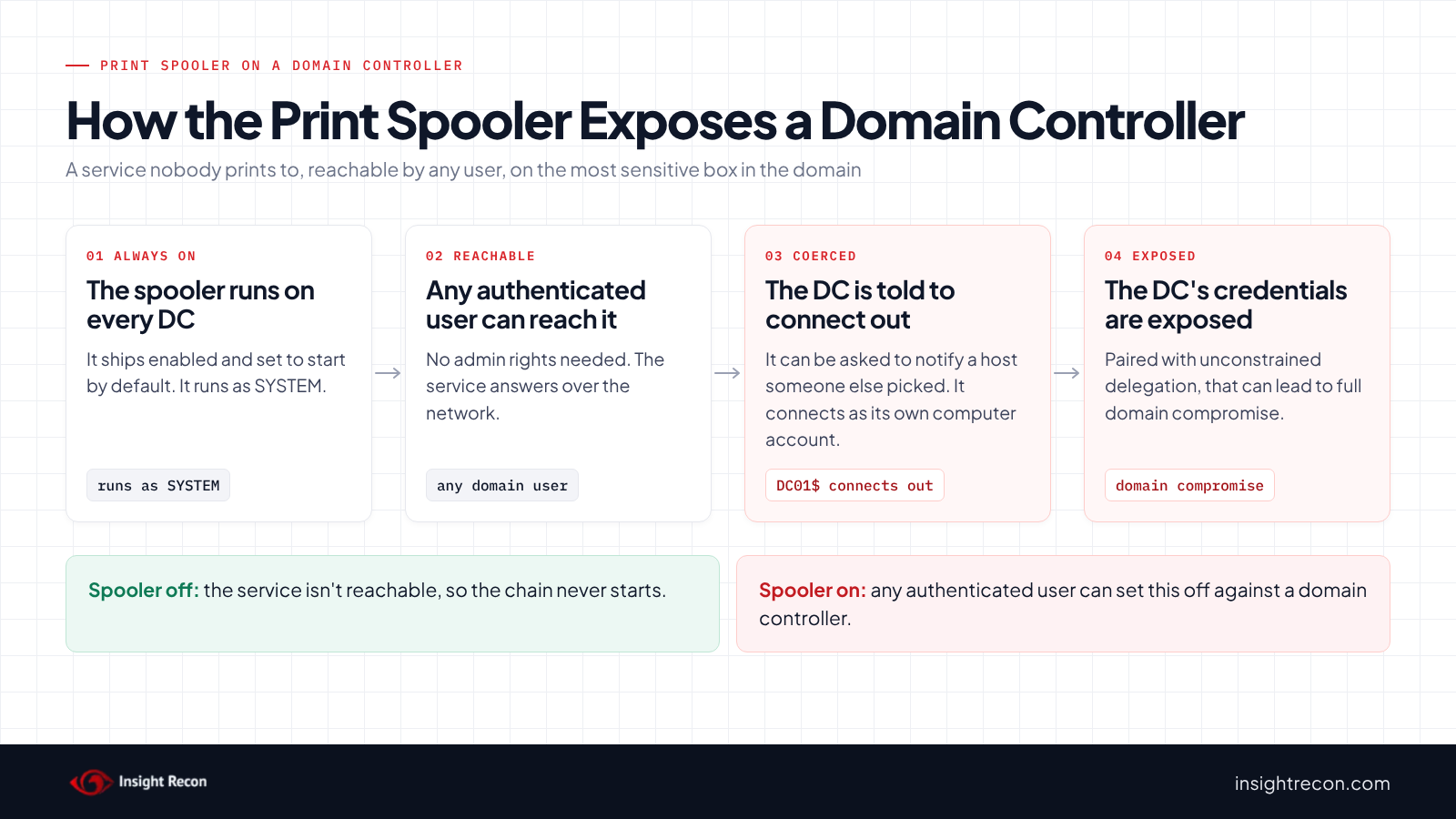
The spooler's risk is in what it exposes. The service runs as SYSTEM and any authenticated user can reach it over the network. On a domain controller, the most sensitive box in the domain, that's a lot of surface for a service nobody's printing to.
Two things make it matter.
It's a long-running code-execution target. The PrintNightmare family of bugs (CVE-2021-34527) let an attacker run code as SYSTEM through the spooler. Microsoft's guidance says domain controllers are affected whenever the service is enabled. Patching closes the known bugs, but the spooler has a long history of them. A service that isn't running can't be the next one.
It can be used to make a domain controller authenticate elsewhere. Microsoft's Defender for Identity documentation says any authenticated user can ask a domain controller's spooler to send print notifications to a host of their choosing. The DC then connects to that host as its own computer account, which exposes its credentials. If that host is set up for unconstrained delegation, the DC's ticket lands there and can lead to full domain compromise. Our unconstrained delegation post covers that side. The forced login can also be relayed to another service, such as AD CS web enrollment.
That exposure is why guidance singles out the Print Spooler on a DC. The joint guidance from the Australian Signals Directorate, CISA, NSA and partners on Active Directory compromises lists disabling it on domain controllers as a mitigation for exactly this. In MITRE ATT&CK terms the pieces map to T1187 Forced Authentication, T1557 Adversary-in-the-Middle and T1068 Exploitation for Privilege Escalation.
Find the Print Spooler on your domain controllers
Check the service state on every DC
The quick check up top reads the named pipe. This reads the service's status and start type on each DC. A DC counts as exposed when the service is running, or set to Automatic or Manual so it can start. It uses PowerShell remoting. Run it as an account that can remote into the DCs.
Import-Module ActiveDirectory
$dcs = (Get-ADDomainController -Filter *).HostName
Invoke-Command -ComputerName $dcs -ScriptBlock {
    Get-Service -Name Spooler | Select-Object Status, StartType
} | Select-Object PSComputerName, Status, StartType | Sort-Object PSComputerName
What to look for: any DC where Status is Running, or StartType is Automatic or Manual. Stopped with Disabled is the state you want. A DC that doesn't answer needs a closer look. Don't simply pass it.
See which printers are published in AD
Before you touch the service, see what pruning is actually doing for you. This lists the printers published in Active Directory and flags the ones published by a domain controller. It runs as any domain user with the AD module.
Import-Module ActiveDirectory
$dcNames = (Get-ADDomainController -Filter *).HostName
Get-ADObject -LDAPFilter '(objectClass=printQueue)' -Properties printerName, serverName, whenChanged |
    Select-Object printerName, serverName, whenChanged,
        @{n='OnDC'; e={ $dcNames -contains $_.serverName }} |
    Sort-Object OnDC, serverName -Descending
What to look for: rows where OnDC is True are printers published by a DC itself, which is rare and worth questioning. The rest tell you how much pruning has to do once the spooler is off. A short list means pruning is a small job you can run on a schedule.
Find GPOs that already set the service
You may already manage the spooler through Group Policy. This lists every GPO that sets the Spooler service start mode. That way you don't fight an existing policy. It runs as any domain user with the Group Policy module.
Import-Module GroupPolicy
Get-GPO -All | ForEach-Object {
    [xml]$report = Get-GPOReport -Guid $_.Id -ReportType Xml
    $svc = $report.GPO.Computer.ExtensionData.Extension.SystemServices | Where-Object Name -eq 'Spooler'
    if ($svc) { [pscustomobject]@{ GPO = $_.DisplayName; StartupMode = $svc.StartupMode } }
}
What to look for: a GPO that already sets Spooler to Disabled and where it's linked. If one sets it to Automatic, that's the one turning it back on.
Check the Print Spooler with Insight Recon
The free scan includes Print spooler service is enabled on a Domain Controller. It checks the spooler on every domain controller and lists the ones where it's enabled. The finding carries the Hacker Insight, remediation steps and compliance mappings for the check.
If the scanner can't determine the spooler state on even one domain controller, the check reports "not assessed" rather than passing. A clean result means every DC answered and none had the service enabled.
These related checks cover the rest of the DC attack surface:
- Unconstrained Delegations Detected, the setting that turns a coerced DC login into a domain takeover. See our unconstrained delegation post.
- Domain Controllers with SMBv1 Enabled and Domain Controller with SMB Signing Not Required, the rest of the DC protocol surface. See our SMBv1 on domain controllers post.
- WebClient Service Running on Domain Controllers, another service on a DC that shouldn't be there.
Know what it doesn't cover. The scan checks domain controllers. It doesn't look at the spooler on member servers or admin workstations, which should also have it off where it isn't needed. Want to see what a finding looks like first? Here's a sample report. The full list is in our check library.
See what else is open in your AD.
The scan runs from a domain-joined Windows machine with a standard domain account. The free plan covers every on-prem AD check.
Before you turn the Print Spooler off
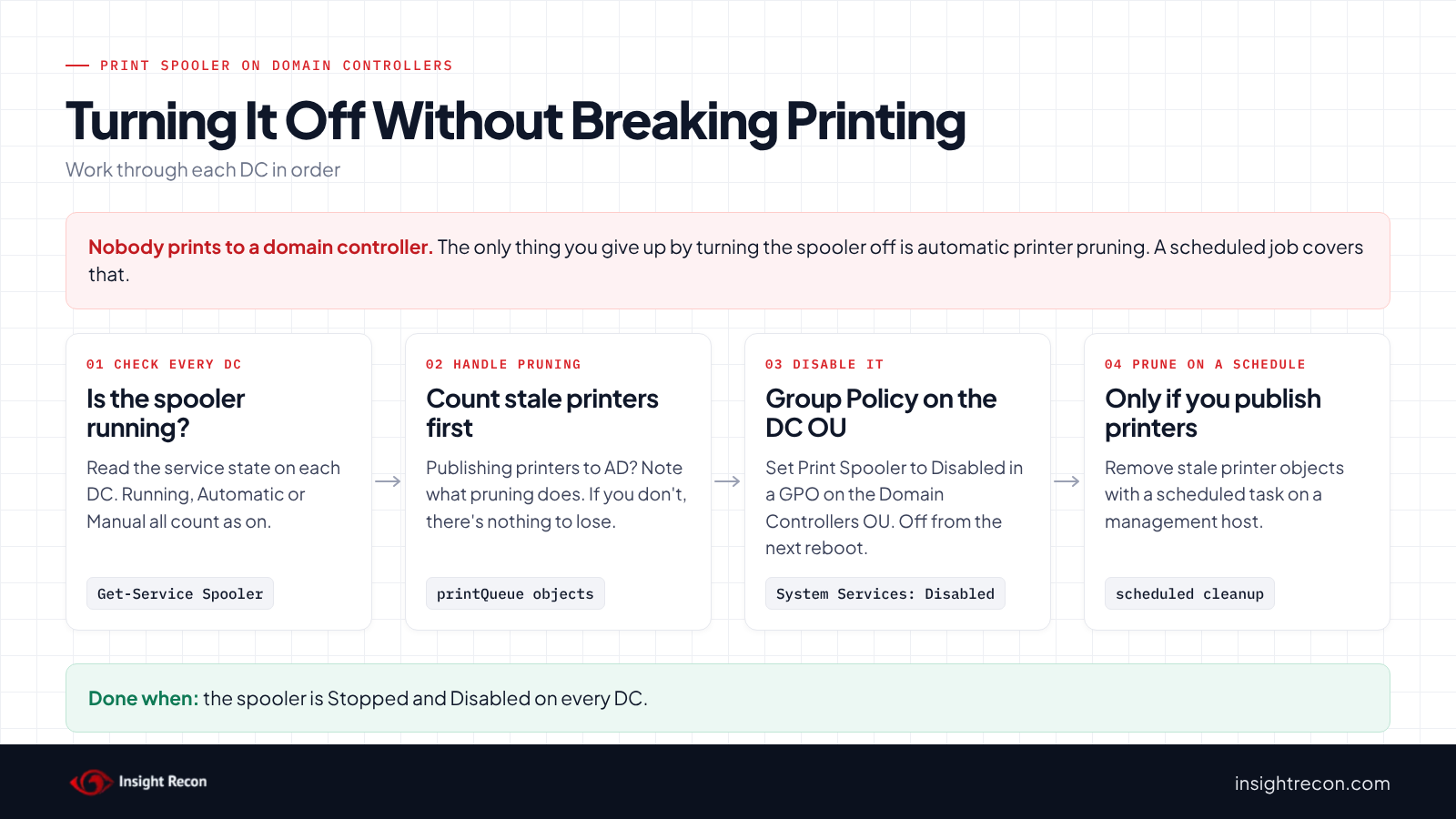
Turning it off on a DC is safe on almost every network, because almost no one prints to a domain controller. The one thing you give up is print pruning. Handle that first and the change is easy.
The pruning trade-off
Microsoft's general services guide still says to leave the spooler on for a DC, because the DC runs the pruning thread. Defender for Identity weighs the same trade-off and comes down the other way: turn the service off and prune stale printer objects yourself on a schedule. For most domains that's the right call. If you publish printers to AD, pruning matters and you schedule it. If you don't, there's nothing to prune and nothing to lose.
Find the stale printer objects you'd be leaving
This finds published printers whose host no longer answers, which are exactly the objects pruning would remove. Run it before and after the change so you know the size of the cleanup job. It runs as any domain user with the AD module.
Import-Module ActiveDirectory
# A print server answers on its spooler pipe. Checking the pipe beats ping, which many networks block.
Get-ADObject -LDAPFilter '(objectClass=printQueue)' -Properties printerName, serverName |
    Where-Object { -not (Test-Path "\\$($_.serverName)\pipe\spoolss") } |
    Select-Object printerName, serverName, DistinguishedName
What to look for: the count. Zero means pruning has nothing to do and you can turn the spooler off with no follow-up. A handful means a short scheduled cleanup covers it.
Record the current state
Save the spooler state on every DC so you can roll back one machine without guessing. Runs as an account that can query services on the DCs.
Import-Module ActiveDirectory
$dcs = (Get-ADDomainController -Filter *).HostName
Invoke-Command -ComputerName $dcs -ScriptBlock {
    Get-Service -Name Spooler | Select-Object Status, StartType
} | Select-Object PSComputerName, Status, StartType |
    Export-Csv .\spooler-before.csv -NoTypeInformation
Turn off the Print Spooler on domain controllers
1. Disable it with Group Policy
The clean way is a GPO linked to the Domain Controllers OU. Under Computer Configuration, Policies, Windows Settings, Security Settings, System Services, set Print Spooler to Disabled. That sets the startup type to Disabled. The service then stays off from the next reboot on. It doesn't stop a spooler that's already running, though. Stop it now with the script below, or reboot the DC. Defender for Identity calls a GPO the recommended way to do it.
Test on one DC first. This does a dry run with -WhatIf. Drop that to apply. Run as an account that can manage services on the DCs:
# Test on one DC. Drop -WhatIf to apply to it for real.
Invoke-Command -ComputerName DC01 -ScriptBlock {
    Stop-Service -Name Spooler -Force -WhatIf
    Set-Service -Name Spooler -StartupType Disabled -WhatIf
}
When that DC checks out, roll it out to every DC:
# Roll out once the single-DC test checks out.
Import-Module ActiveDirectory
$dcs = (Get-ADDomainController -Filter *).HostName
Invoke-Command -ComputerName $dcs -ScriptBlock {
    Stop-Service -Name Spooler -Force
    Set-Service -Name Spooler -StartupType Disabled
}
Then run the service check again and confirm every DC comes back Stopped and Disabled.
2. Prune stale printer objects on a schedule
With the spooler off, nothing prunes published printers automatically. If you publish printers to AD, set a scheduled task on a management host to remove the stale objects. Find them with the stale-printer script above, then remove the ones you've confirmed are gone. Run each removal with -WhatIf first:
Remove-ADObject -Identity 'CN=PRN01-Floor2,CN=PRN01,OU=Servers,DC=contoso,DC=com' -WhatIfIf you don't publish printers to AD, skip this. There's nothing to prune.
3. Don't forget the rest of Tier 0
Domain controllers are the priority, but the same logic covers AD admin workstations and any other Tier 0 host. Turn the spooler off wherever it isn't needed. If a machine genuinely has to run it, patch it promptly and keep the Point and Print driver restrictions in place (more on that below).
Keep it from coming back
- Lock it with the GPO. A service set to Disabled by Group Policy on the Domain Controllers OU stays off through reboots and new DC promotions. Confirm new DCs land in that OU.
- Keep Point and Print locked down. Since the August 2021 update (KB5005652), only administrators can install printer drivers by default. A blank or
1value forRestrictDriverInstallationToAdministratorsmeans admin-only on a patched host.0is the value to watch for. Check it on any host that runs the spooler.Get-ItemProperty 'HKLM:\SOFTWARE\Policies\Microsoft\Windows NT\Printers\PointAndPrint' -ErrorAction SilentlyContinue | Select-Object NoWarningNoElevationOnInstall, UpdatePromptSettings, RestrictDriverInstallationToAdministrators - Patch the hosts that keep it. Print servers and anything that must run the spooler get Windows updates promptly. The PrintNightmare family was fixed in updates from July 2021 on.
- Re-run the check. After DC builds and promotions, confirm the spooler is still off. A fresh DC starts with it enabled.
Print Spooler checklist
- Is the Print Spooler service Stopped and Disabled on every domain controller?
- Does a GPO on the Domain Controllers OU set it to Disabled?
- If you publish printers to AD, is a scheduled pruning job in place?
- Is the spooler off on AD admin workstations and other Tier 0 hosts too?
- On any host that must run it, is
RestrictDriverInstallationToAdministratorsblank or 1 (not 0) and the host patched?
A "no" on the first two means a domain controller is still running a service it doesn't need.
Compliance mapping
| Framework | Reference | Why it applies |
|---|---|---|
| MITRE ATT&CK | T1187, T1557, T1068 | Forced authentication, relaying that login to another service, and exploitation for privilege escalation (PrintNightmare). |
| CIS Controls v8 | Control 4 | Secure configuration of enterprise assets and software. Disable unnecessary services. |
| NIST CSF 2.0 | PR.PS-01 | Configuration management: a hardened, least-functionality baseline. |
| Microsoft guidance | CVE-2021-34527, Defender for Identity | Defender for Identity says domain controllers and Active Directory admin systems need the Print Spooler disabled. |
Print Spooler FAQ
Is it safe to disable the Print Spooler on a domain controller?
On almost every network, yes. Nobody prints to a DC. The only thing you lose is automatic pruning of stale printer objects in AD. You can run that on a schedule instead. Test on one DC, confirm nothing depends on it, then roll it out.
What breaks when I turn off the Print Spooler on a DC?
Print pruning stops. Stale printQueue objects aren't cleaned up automatically. If you publish printers to AD, handle that with a scheduled cleanup. If you don't publish printers, nothing breaks.
Do I still need to disable it if my DCs are patched?
Patching closes known code-execution bugs, but Microsoft and CISA still recommend turning the service off on DCs because of what it exposes when it's reachable. A service that isn't running can't be reached. Patch the hosts that must keep it.
Should I also disable it on member servers and workstations?
Turn it off wherever it isn't needed, starting with Tier 0 (DCs and AD admin workstations). A print server obviously keeps it. For those, keep the Point and Print driver restrictions in place and patch promptly.
Does Insight Recon check the Print Spooler on domain controllers?
Yes. Print spooler service is enabled on a Domain Controller is in the free scan. It lists every DC with the service enabled, and reports "not assessed" rather than passing if it can't reach one.
Find the services running on your domain controllers that shouldn't be.
The scan runs from a domain-joined Windows machine with a standard domain account. The free plan covers every on-prem AD check.
Not ready to scan?
AD Signal is our monthly look at what's changing in AD security and how real domains score. Read the latest report.
References
- Microsoft Security Response Center: CVE-2021-34527, Windows Print Spooler Remote Code Execution Vulnerability (PrintNightmare)
- CISA: PrintNightmare, Critical Windows Print Spooler Vulnerability
- Microsoft Learn: Defender for Identity, Disable Print spooler service on domain controllers
- Microsoft Learn: Security guidelines for disabling system services in Windows Server
- Microsoft Learn: Use Group Policy settings to control printers in Active Directory (pruning)
- Microsoft Support: KB5005010, Restricting installation of new printer drivers after the July 2021 updates
- Microsoft Support: KB5005652, Manage new Point and Print default driver installation behavior
- ASD, CISA, NSA and partners: Detecting and mitigating Active Directory compromises (last reviewed September 2026)
- MITRE ATT&CK: T1187 Forced Authentication
- MITRE ATT&CK: T1557 Adversary-in-the-Middle
- MITRE ATT&CK: T1068 Exploitation for Privilege Escalation