
SMB Signing Not Required: How to Require It Without Breaking Your NAS and Scanners
SMB signing is now required out of the box on business editions of Windows 11 24H2. Most domains still have machines that don't require it, sometimes even a domain controller. Here's how to find them and fix it without breaking every copier and NAS.
| Priority | High. A machine that doesn't require SMB signing can be the landing spot for a relayed logon |
|---|---|
| What it means | A domain controller doesn't require SMB signing, or no Group Policy requires it on your member computers |
| Who's affected | Domain controllers where someone turned it off. Member computers that don't require inbound signing, which is everything except Windows 11 24H2 Enterprise, Pro and Education |
| Fix | Turn on the SMB audit to find what can't sign. Then enable Microsoft network server: Digitally sign communications (always) through Group Policy |
Check it now: does this machine require signing?
Get-SmbServerConfiguration | Select-Object RequireSecuritySignature
Get-SmbClientConfiguration | Select-Object RequireSecuritySignature
Run it in an elevated PowerShell window. The first result is inbound, the second is outbound. True means that side requires signing.
Scan your domain now, or send the link to your work inbox.
The scan runs from a domain-joined Windows machine with a standard domain account. The free plan covers every on-prem AD check.
What the finding means
SMB signing adds a signature to every SMB message, built from the session key that only the real client and server have. If someone changes a message in transit, the signature stops matching. Microsoft's SMB signing overview says the signature "confirms the sender's and receiver's identities, and prevents relay attacks."
Every modern version of Windows supports signing. What matters is whether it's required. From SMB 2 onward there's no middle setting. A connection gets signed if either side requires it. If neither side does, it isn't signed. So a server that doesn't require signing will happily accept an unsigned session from any client that doesn't ask for one.
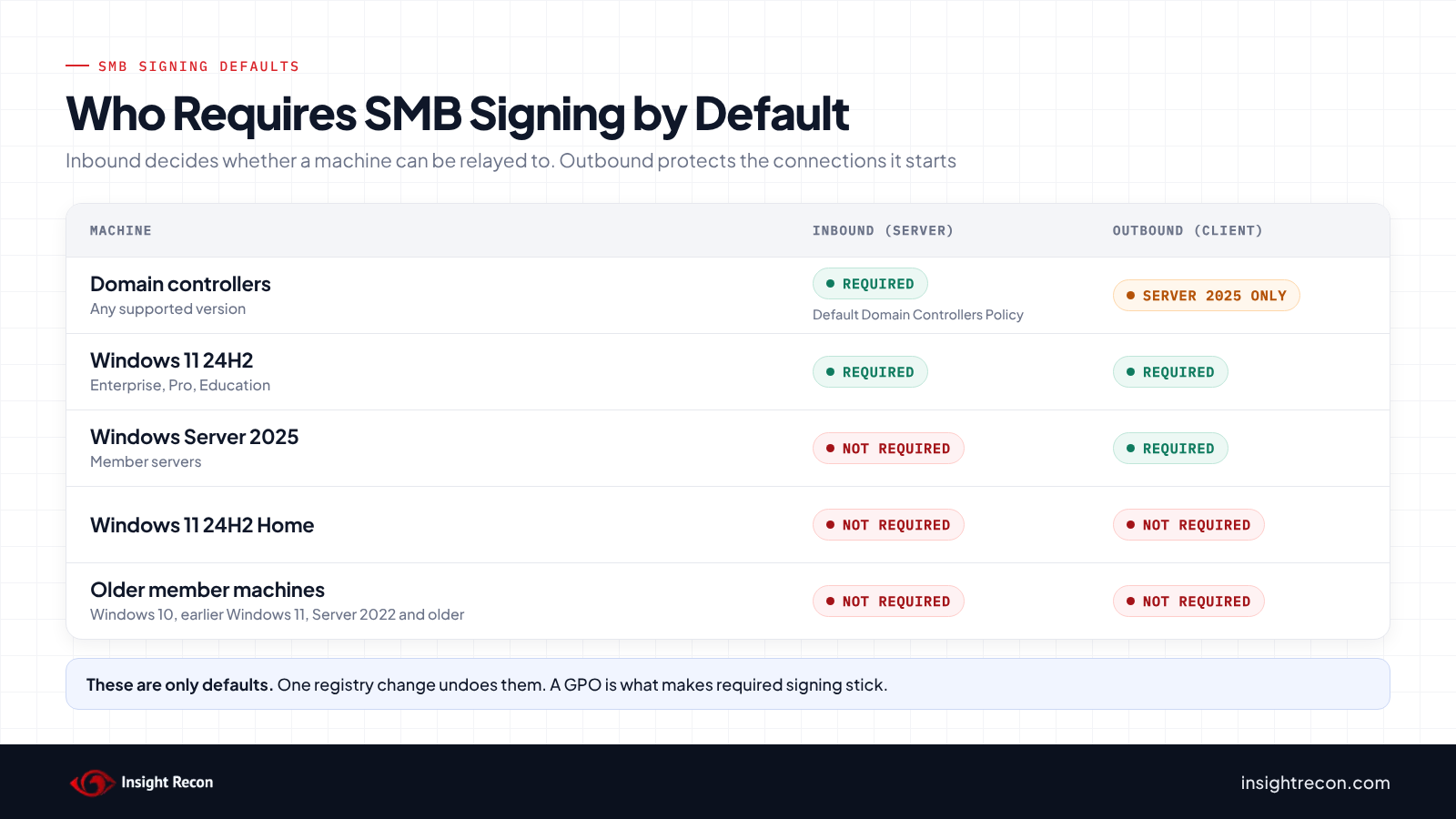
The defaults depend on the machine:
| Machine | Inbound (server side) | Outbound (client side) |
|---|---|---|
| Domain controllers | Required, through the Default Domain Controllers Policy | Required on Server 2025. Not required on older versions |
| Windows 11 24H2 Enterprise, Pro and Education | Required | Required |
| Windows 11 24H2 Home | Not required | Not required |
| Windows Server 2025 member servers | Not required | Required |
| Older member machines: Windows 10, earlier Windows 11, Server 2022 and older | Not required | Not required |
What changed in Windows
This finding has been around forever. Tenable's "SMB Signing not required" plugin dates back to 2012. If you've read an internal pentest report in the last decade, you've seen it. The reason it stuck around is simple. Windows only required signing on domain controllers and for client connections to SYSVOL and NETLOGON. Everything else was opt-in.
Microsoft has spent the last few years flipping that:
- June 2023: Microsoft announced required SMB signing by default in Windows 11 Enterprise Insider builds.
- 2024: Windows 11 24H2 shipped requiring signing on inbound and outbound connections for Enterprise, Pro and Education. Windows Server 2025 requires it on outbound connections only.
- September 9, 2025: Microsoft published CVE-2025-55234, which says an SMB server may be open to relay attacks depending on its configuration. The same updates added an audit that shows which clients can't sign. It works on older versions of Windows too.
Two things haven't changed. Member servers still don't require inbound signing by default, Server 2025 included. And most domains have a few devices that don't sign, which is why it keeps getting turned off.
Why it's risky
Signing is what makes a relayed logon useless. If an attacker passes someone else's authentication along to a server, they never get that session's key. Without the key they can't sign anything. A server that requires signing drops the session. A server that doesn't require it carries on. Now the attacker is that user on that server.
How bad that is depends on whose logon gets relayed and where it lands:
- A domain controller that doesn't require signing is the worst case. A relayed logon from an account with admin rights on the DC is admin on the DC.
- Member servers and workstations are the common case. Admin rights tend to be reused across machines, which turns one relayed logon from a helpdesk or server admin account into access on every machine where that account is local admin.
Signing also stops someone in the middle from changing files or Group Policy content on the way through. Relay is why it shows up on so many pentest reports.
How attackers use it
The pattern is old and well documented. It's MITRE ATT&CK T1557.001. An attacker on the internal network gets a user or a machine to authenticate to them. Name resolution poisoning is the classic way. Forcing a machine to connect is another. Then they pass that authentication to a host that doesn't require signing. Finding those hosts is quick. A host tells anyone who connects on port 445 whether it requires signing, which is also how Insight Recon's domain controller check tests it.
MITRE's mitigations for it include signing: "Enabling SMB Signing can stop NTLMv2 relay attacks." That covers relay to SMB. Relay to other services like LDAP or AD CS web enrollment needs its own fixes, covered in the FAQ.
Check your domain
Check your domain controllers
This asks every domain controller whether its SMB server requires signing. It uses PowerShell remoting. Run it from a machine that can reach your DCs over WinRM.
Import-Module ActiveDirectory
$dcs = (Get-ADDomainController -Filter *).HostName
Invoke-Command -ComputerName $dcs -ScriptBlock {
    Get-SmbServerConfiguration | Select-Object RequireSecuritySignature
} | Select-Object PSComputerName, RequireSecuritySignature
What to look for: every DC should say True. A False usually means someone edited the Default Domain Controllers Policy itself or linked another GPO to the Domain Controllers OU. A local registry change can do it too. Most likely it was turned off because a device couldn't connect. The next command finds the GPO.
Find the GPOs that set it
Group Policy stores this setting in each GPO's GptTmpl.inf in SYSVOL, which is the same place Insight Recon reads it from. This lists every GPO that sets server-side or client-side signing, what it sets it to and where it's linked.
Import-Module ActiveDirectory, GroupPolicy
$domain = (Get-ADDomain).DNSRoot
$re = 'Lanman(Server|Workstation)\\Parameters\\RequireSecuritySignature=4,(\d)'

foreach ($gpo in Get-GPO -All) {
    $inf = "\\$domain\SYSVOL\$domain\Policies\{$($gpo.Id)}\Machine\Microsoft\Windows NT\SecEdit\GptTmpl.inf"
    if (-not (Test-Path $inf)) { continue }
    $hits = @(Get-Content $inf) -match $re
    if (-not $hits) { continue }
    $links = ([xml](Get-GPOReport -Guid $gpo.Id -ReportType Xml)).GPO.LinksTo |
        Where-Object { $_.Enabled -eq 'true' } | ForEach-Object { $_.SOMPath }
    foreach ($line in $hits) {
        $null = $line -match $re
        $side     = if ($Matches[1] -eq 'Server') { 'Server (inbound)' } else { 'Client (outbound)' }
        $required = $Matches[2] -eq '1'
        [pscustomobject]@{
            GPO      = $gpo.DisplayName
            Status   = $gpo.GpoStatus
            Side     = $side
            Required = $required
            LinkedTo = $links -join '; '
        }
    }
}
What to look for:
- Server side, Required True, linked at the domain root or your computer OUs: that's enforcement. Check that the links cover every OU with computers in it.
- Server side, linked only to the Domain Controllers OU: that's the Default Domain Controllers Policy doing its job. It doesn't cover anything else.
- Required False: someone turned signing off on purpose. Find out what it was for before you change it.
- No server-side row outside the DC policy: nothing requires signing on your member computers. That's what the computer check flags.
An empty LinkedTo means the GPO has no enabled links and doesn't apply. The same goes for a Status of AllSettingsDisabled or ComputerSettingsDisabled. Security filtering and blocked inheritance don't show up here. Check GPMC if a result doesn't add up.
Spot-check a machine
To see what a specific machine is actually doing, including local changes Group Policy doesn't show, run this on it. It shows the inbound and outbound settings, then the machine's current SMB connections and whether each one is signed.
Get-SmbServerConfiguration | Select-Object RequireSecuritySignature
Get-SmbClientConfiguration | Select-Object RequireSecuritySignature
Get-SmbConnection | Select-Object ServerName, ShareName, Dialect, Signed, Encrypted
What to look for: True on the first two means that side requires signing. In the connection list, an encrypted connection can show Signed as False even though it's protected. Read the two columns together. A connection that's neither signed nor encrypted is one to look into.
Check it with Insight Recon
The commands above are the manual way. Insight Recon's read-only Active Directory security assessment runs both signing checks along with 150+ other checks. Both look at the server side, since that's what decides whether a machine can be relayed to.
- Domain Controller with SMB Signing Not Required (High): connects to each domain controller over SMB on port 445 and reads whether the server says signing is required. If that live test fails, it falls back to reading
RequireSecuritySignatureunderHKLM\SYSTEM\CurrentControlSet\Services\LanmanServer\Parametersover remote registry. A missing value counts as required. Domain controllers it can't reach are skipped. - Computer with SMB Signing Not Required (High): doesn't connect to any computer. It reads your Group Policy files in SYSVOL and looks for Microsoft network server: Digitally sign communications (always) set to Enabled in an enabled GPO linked where your member computers live. That means the domain root or an OU holding computers. A GPO linked only to the Domain Controllers OU doesn't count. The result covers the whole domain. It doesn't list individual computers. A pass only means at least one such GPO exists. It doesn't prove every OU is covered. The GPO command above does that.
The computer check doesn't look at Windows version defaults. We think that's the right call. Say every workstation you own is 24H2 Enterprise. Those machines already require signing, but the check will still flag your domain until a GPO says so. A default is only a default. It doesn't cover your Server 2025 member servers or anything older. Anyone fixing a NAS problem can also turn it off with one registry change. A GPO is what puts it back.
Signing is one piece of relay defense. These checks cover the pieces around it:
- Domain Controllers with SMBv1 Enabled (High): SMBv1's signing is older and weaker than what SMB 2 and 3 use. Turn it off first.
- LDAP Signing Not Enforced on Domain Controllers (High) and LDAPS Channel Binding Disabled (Moderate): the LDAP side of relay protection.
- LLMNR Enabled (High) and WebClient Service Running on Domain Controllers (High): two of the ways a logon gets pulled to an attacker in the first place.
Every finding comes with the attacker context and the remediation steps. Want to see what one looks like first? Here's a sample report.
See whether your domain controllers and computers require SMB signing.
The scan runs from a domain-joined Windows machine with a standard domain account. The free plan covers every on-prem AD check.
What breaks when SMB signing is required
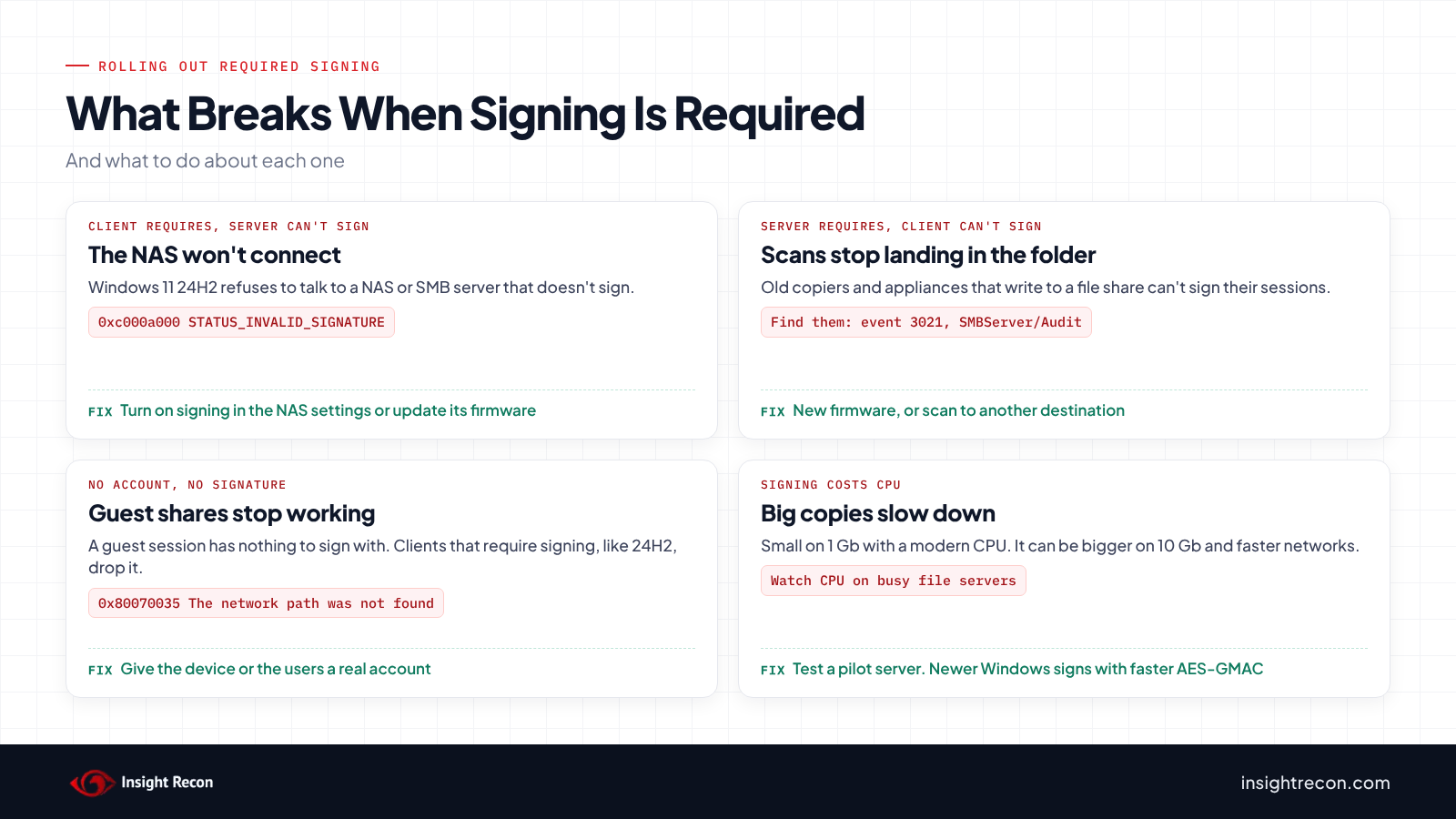
This is the part that bites people. It's why 24H2 kicked off so many "my NAS stopped working" threads. Breakage comes from the side that can't sign:
- A client requires signing and the server can't sign. This is the 24H2 NAS problem. Windows refuses the connection with
0xc000a000,STATUS_INVALID_SIGNATURE, "The cryptographic signature is invalid." Some devices support signing but have it switched off. Others never got it. - A server requires signing and the client can't sign. This is the one that hits you when you enforce it on file servers. Old multifunction printers that scan to a network folder are the usual suspects. Embedded devices and older appliances that write to shares are close behind.
- Guest access. A guest session has no key to sign with. Once the client requires signing, like 24H2 does by default, guest access to shares is over. Users see "You can't access this shared folder because your organization's security policies block unauthenticated guest access" or
0x80070035, "The network path was not found." - Throughput on fast file servers. Signing costs CPU. Microsoft says the hit is small on a 1 Gb network with a modern CPU and may be bigger on 10 Gb. Windows 11 and Server 2022 added faster AES-128-GMAC signing, which helps when both ends support it.
Turning signing back off is the easy fix. Microsoft's guidance says not to: "We don't recommend disabling SMB signing as a workaround for third-party servers." The audit in the fix section below is how you find these devices before your users do.
How to fix it
Turn on the audit first
Since the September 9, 2025 updates, Windows can log the SMB clients that don't support signing. That reaches back to older versions like Windows 10 and Server 2016. Turn it on for the servers you're about to enforce on, before you enforce anything. The setting is in Group Policy under Computer Configuration\Administrative Templates\Network\Lanman Server\Audit client does not support signing. The registry value behind it is AuditClientDoesNotSupportSigning set to 1 under HKLM\SYSTEM\CurrentControlSet\Services\LanmanServer\Parameters.
Hits land in the Microsoft-Windows-SMBServer/Audit log as event 3021, with the client name and user name:
Get-WinEvent -FilterHashtable @{ LogName = 'Microsoft-Windows-SMBServer/Audit'; Id = 3021 } -ErrorAction SilentlyContinue |
    Select-Object -First 200 TimeCreated, Message
Leave it running long enough to catch the jobs that only run monthly or quarterly. Microsoft notes the audit isn't perfect. A client that signs correctly but doesn't advertise it shows up as a false positive. A client that advertises signing but gets it wrong won't show up at all. Test anything you're unsure about.
On Windows 11 24H2 and Server 2025 you can also audit the client side, which finds the NAS boxes and other servers that won't sign:
Set-SmbClientConfiguration -AuditServerDoesNotSupportSigning $trueThose events go to Microsoft-Windows-SMBClient/Audit as events 31998 and 31999.
Fix the domain controllers
Domain controllers should already require signing. A hit on the DC check means someone changed it. Use the GPO command above to find the policy that turned it off. Check the Default Domain Controllers Policy itself first. If no GPO explains it, look at the DC's registry for a local change. Usually it was turned off for a device that couldn't connect. Fix or replace that device, then put the setting back to Enabled. Don't leave a domain controller unsigned to keep a scanner working.
Require it on member computers with Group Policy
Create a GPO and set these under Computer Configuration\Windows Settings\Security Settings\Local Policies\Security Options:
- Microsoft network server: Digitally sign communications (always): Enabled. This is what the Insight Recon check looks for. It's also what stops a machine from being a relay target.
- Microsoft network client: Digitally sign communications (always): Enabled. Neither check reads it, but it protects the connections your machines start. The STIG requires both.
Link it at the domain root or to every OU with computers in it. Roll it out in stages, starting with a pilot OU and leaving the file servers your copiers and appliances write to until the audit comes back clean. Skip the "(if client agrees)" and "(if server agrees)" versions of these policies. Microsoft says they only affect SMBv1 and recommends against using them.
For a machine outside Group Policy, the same settings in PowerShell:
Set-SmbServerConfiguration -RequireSecuritySignature $true -Force
Set-SmbClientConfiguration -RequireSecuritySignature $true -Force
Deal with the devices that can't sign
- NAS and third-party file servers: look for an SMB signing option in the device's settings and make sure it isn't stuck on SMBv1. Update the firmware if neither helps. A current Samba-based box already signs over SMB 2 and 3. If one of those breaks on 24H2, look at guest access first.
- Scanners and copiers: check for firmware that supports SMB 2 or 3 with signing. If there's none, scanning to email or another destination is usually easier than keeping a file server unsigned.
- Guest shares: give the device or the users a real account. Microsoft recommends against trying to sign with guest accounts.
If something truly can't be fixed yet, scope the exception as tight as you can. Use a separate GPO that turns off the server-side requirement on the one file server that device writes to. Link it to that server's OU and use security filtering so nothing else picks it up. Give it an owner and an end date. Never put the exception on a domain controller or at the domain level.
Test your busiest file servers
For most servers you won't notice signing. On file servers moving a lot of data over 10 Gb or faster, measure copy throughput and CPU before and after on a pilot server. Newer Windows on both ends gets you AES-128-GMAC signing, which is faster. Test first, then turn it on.
Keep it required
Microsoft finally made signing the default on new Windows, but defaults don't cover your older machines or Server 2025's inbound side. A local change can undo them, too. Once a GPO requires signing on both sides, the job is keeping it on the next time a scanner breaks.
Validation checklist
- Does every domain controller report
RequireSecuritySignatureasTrue? - Is there an enabled GPO requiring server-side signing linked to every OU with member computers?
- Have you set the client-side policy too?
- Has the SMB server audit run long enough to catch the devices that can't sign?
- Does every exception cover one server, with an owner and an end date?
- Is SMBv1 off on your domain controllers?
A no on any of these leaves a machine that someone else's logon can be relayed to.
Compliance mapping
Required SMB signing protects data in transit and ties each session to the machine that authenticated it. It lines up with the frameworks like this:
| Framework | Reference | Why it applies |
|---|---|---|
| NIST CSF 2.0 | PR.DS-02, PR.AA-03 | Data in transit is protected, and connections are authenticated to the right parties. |
| CIS Controls v8 | 3 (Data Protection), 4 (Secure Configuration) | Protect data in transit and enforce a secure baseline on every machine. |
| MITRE ATT&CK | T1557.001 | Name resolution poisoning and SMB relay. MITRE lists SMB signing as a mitigation for relay. |
| DISA STIG (Windows Server 2022) | V-254463 (WN22-SO-000190), V-254460 (WN22-SO-000160) | Server-side and client-side "Digitally sign communications (always)" must be Enabled. |
| Microsoft guidance | CVE-2025-55234 | Require SMB server signing or SMB server EPA to protect against relay. |
FAQ
Is SMB signing required by default?
It depends on the machine. Domain controllers have required it on the server side for a long time through the Default Domain Controllers Policy. Windows 11 24H2 Enterprise, Pro and Education require it both ways. Windows Server 2025 requires it on outbound connections only. Windows 10, Server 2022 and older member machines don't require it in either direction.
All our workstations are on 24H2. Why does the computer check still flag us?
The check reads Group Policy and doesn't look at Windows version defaults. Your 24H2 machines do require signing today. Your member servers probably don't. Nothing stops a local change from turning it off on any of them, either. A GPO that requires it, linked over every OU with computers in it, pins the setting everywhere and clears the finding.
Does SMB signing encrypt traffic?
No. Signing proves a message wasn't changed and came from the other end of the session. Anyone watching can still read it. SMB encryption is a separate setting. An encrypted connection is protected against tampering too. That's why Get-SmbConnection can show it as unsigned without anything being wrong.
Does requiring SMB signing stop NTLM relay?
It stops relay to SMB on the machines that require it. Relay to other services needs its own fixes. For LDAP that's LDAP signing and channel binding. For AD CS web enrollment, Microsoft recommends turning on Extended Protection and turning off plain HTTP. Moving more authentication from NTLM to Kerberos helps across the board.
What do the "(if client agrees)" and "(if server agrees)" policies do?
Nothing on SMB 2 or 3. Microsoft says they only affect SMBv1 and recommends against using them. The "(always)" policies are the ones that matter. If you still need the others, you've still got SMBv1 somewhere. That's the bigger problem.
Do we need the client-side setting if every server requires signing?
Yes. Your machines also connect to servers you don't control. Some of them won't be what they claim to be. Requiring signing on the client side means a server that can't prove it's part of the session gets refused. Insight Recon doesn't check the client side today, but the STIG requires it.
Find the relay paths still open in your domain.
Insight Recon checks SMB signing, LDAP signing, SMBv1 and the rest of your AD from a domain-joined Windows machine with a standard account. Free and read-only.
Not ready to scan?
AD Signal is our monthly look at what's changing in AD security and how real domains score. Read the latest report.
References
- Microsoft Learn: SMB signing overview
- Microsoft Learn: Control SMB signing behavior
- Microsoft Learn: Overview of Server Message Block signing
- Microsoft Learn: Microsoft network server: Digitally sign communications (always)
- Microsoft Support: Audit events to deploy SMB server hardening
- Microsoft Tech Community: SMB security hardening in Windows Server 2025 and Windows 11
- NVD: CVE-2025-55234
- MITRE ATT&CK: T1557.001