Domain Controller Audit Policy: Find and Fix Logging Gaps
Your domain controller audit policy decides which attacks leave a trace. If a GPO doesn't turn on the right advanced audit subcategories, Kerberos ticket abuse, group changes and new processes on a DC may never reach your Security log. This post shows you what each DC audits, which GPO sets it and how to close the gaps without drowning your SIEM.
| Priority | Low on its own, but a small change here goes a long way for detection and recovery |
|---|---|
| What decides it | The advanced audit policy each DC ends up with from the GPOs that apply to it, across 13 key subcategories |
| Who's affected | Domains that rely on Windows defaults, or where a GPO turns some subcategories on and leaves others off |
| Fix | Set all 13 subcategories in one GPO linked to the Domain Controllers OU, then size the log and forward the events |
Check it now: what does each domain controller audit?
# Run as a Domain Admin. Uses PowerShell remoting to run auditpol on each DC.
Import-Module ActiveDirectory -ErrorAction Stop
# The 13 subcategories the Insight Recon check requires, with the sides each one needs
$required = [ordered]@{
    '{0CCE9230-69AE-11D9-BED3-505054503030}' = @('Authentication Policy Change', 'Success')
    '{0CCE9236-69AE-11D9-BED3-505054503030}' = @('Computer Account Management', 'Success')
    '{0CCE922D-69AE-11D9-BED3-505054503030}' = @('DPAPI Activity', 'Success')
    '{0CCE9242-69AE-11D9-BED3-505054503030}' = @('Kerberos Authentication Service', 'Success')
    '{0CCE9240-69AE-11D9-BED3-505054503030}' = @('Kerberos Service Ticket Operations', 'Success')
    '{0CCE9216-69AE-11D9-BED3-505054503030}' = @('Logoff', 'Success')
    '{0CCE9215-69AE-11D9-BED3-505054503030}' = @('Logon', 'Success and Failure')
    '{0CCE922B-69AE-11D9-BED3-505054503030}' = @('Process Creation', 'Success')
    '{0CCE9237-69AE-11D9-BED3-505054503030}' = @('Security Group Management', 'Success')
    '{0CCE9211-69AE-11D9-BED3-505054503030}' = @('Security System Extension', 'Success')
    '{0CCE9228-69AE-11D9-BED3-505054503030}' = @('Sensitive Privilege Use', 'Success and Failure')
    '{0CCE921B-69AE-11D9-BED3-505054503030}' = @('Special Logon', 'Success')
    '{0CCE9235-69AE-11D9-BED3-505054503030}' = @('User Account Management', 'Success and Failure')
}
foreach ($dc in Get-ADDomainController -Filter *) {
    try {
        $rows = Invoke-Command -ComputerName $dc.HostName -ErrorAction Stop -ScriptBlock { auditpol /get /category:* /r } | ConvertFrom-Csv
    } catch {
        [pscustomobject]@{ DC = $dc.HostName; Subcategory = "couldn't run auditpol"; Setting = ''; Needs = '' }
        continue
    }
    foreach ($guid in $required.Keys) {
        $row = $rows | Where-Object { $_.'Subcategory GUID' -eq $guid }
        $have = "$($row.'Inclusion Setting')"
        $name, $need = $required[$guid]
        $ok = ($have -eq 'Success and Failure') -or ($need -eq 'Success' -and $have -eq 'Success')
        if (-not $ok) {
            [pscustomobject]@{ DC = $dc.HostName; Subcategory = $name; Setting = $have; Needs = $need }
        }
    }
}
Runs as a Domain Admin with PowerShell remoting to the DCs. It runs auditpol on each DC and lists every required subcategory that is missing or lacks a side. No output means every DC passes.
You checked one setting. The free scan checks the rest of your on-prem AD in a few minutes.
Nothing gets installed on your domain controllers. Only HTTPS leaves your network.
What a domain controller audit policy is
Windows splits auditing into categories and, below them, more precise subcategories. The subcategories live under Computer Configuration, Policies, Windows Settings, Security Settings, Advanced Audit Policy Configuration. In turn, each one can audit Success, Failure or both.
Microsoft's audit policy recommendations publish a baseline and a stronger set of settings. The DISA STIG for Windows Server 2022 goes further for DCs. For example, V-254407 requires Computer Account Management successes on domain controllers.
The Insight Recon check uses 13 subcategories drawn from those rules:
- Success: Authentication Policy Change, Computer Account Management, DPAPI Activity, Kerberos Authentication Service, Kerberos Service Ticket Operations, Logoff, Process Creation, Security Group Management, Security System Extension and Special Logon.
- Success and Failure: Logon, Sensitive Privilege Use and User Account Management.
Why a weak domain controller audit policy is risky
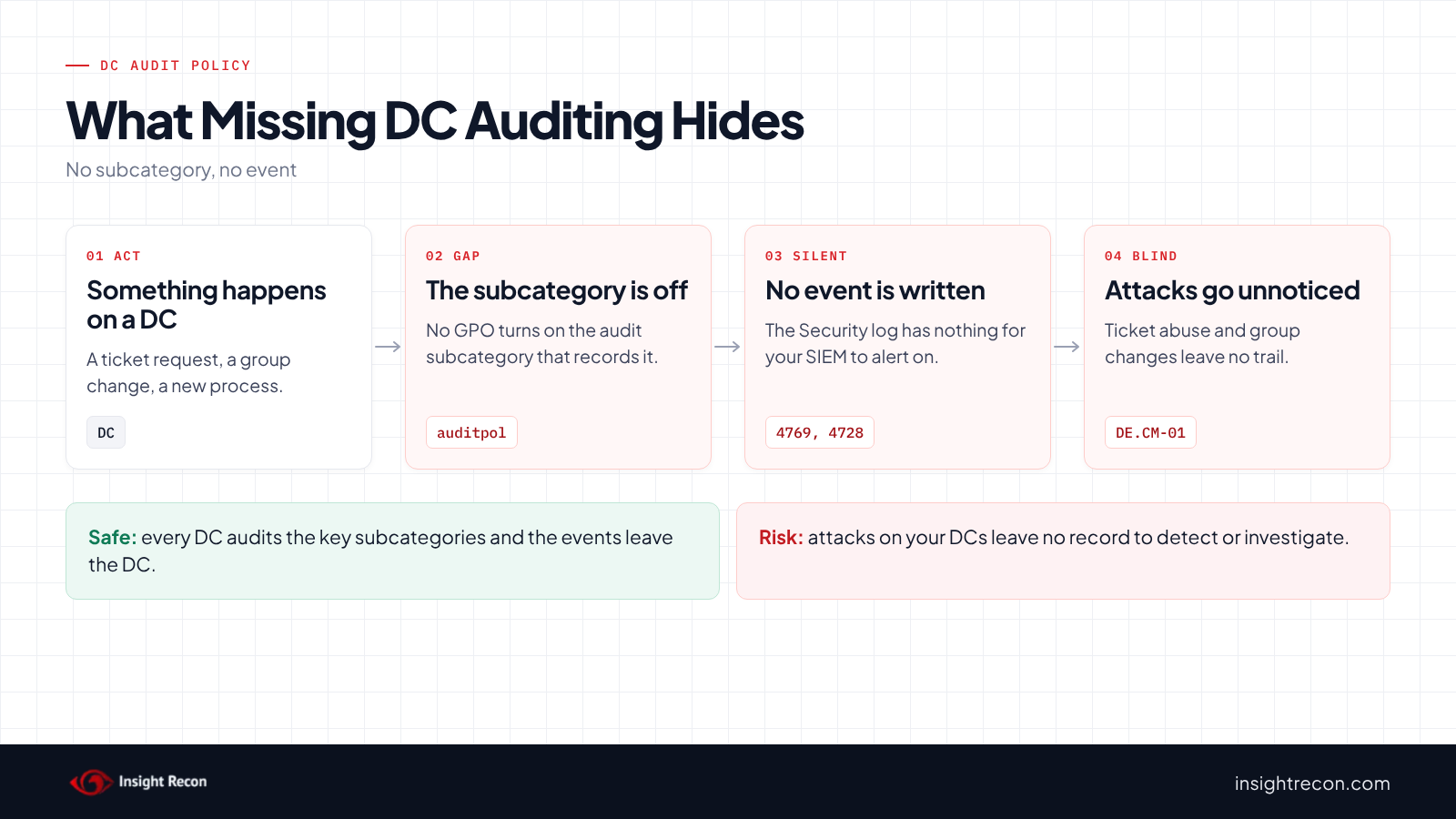
No subcategory means no event
To begin with, each subcategory controls its own events. For example, Microsoft's page on Kerberos Service Ticket Operations lists event 4769 for service ticket requests. Similarly, Security Group Management covers events such as 4728, a member added to a global group. With either one off, those events never reach the log.
Detections depend on these events
In fact, many of the detections in our other posts rely on them. For example, Kerberoasting shows up in 4769 events. Likewise, changes to privileged groups show up in group management events. Without them, your SIEM has nothing to alert on.
Investigations need history
Even with the right subcategories on, a small Security log may roll over in hours on a busy DC. As a result, the events you need after an incident may already be gone.
Find domain controller audit policy gaps
Read the domain controller audit policy quick check
The quick check above returns one row per DC and subcategory that falls short.
What to look for: No Auditing or an empty setting on any subcategory. Also look for Success where the check needs Success and Failure. Finally, a DC with different results from the others usually sits in a different OU or site.
Find which GPO sets the audit policy
This lists the GPOs that reach the Domain Controllers OU in precedence order, where Order 1 wins. It also shows whether each one sets advanced audit policy. GPOs linked to a site don't show up here.
# Needs the GroupPolicy and ActiveDirectory modules. Runs as any domain user.
Import-Module GroupPolicy, ActiveDirectory -ErrorAction Stop
$domain = Get-ADDomain
$inherit = Get-GPInheritance -Target $domain.DomainControllersContainer -ErrorAction Stop
foreach ($link in $inherit.InheritedGpoLinks) {
    # Advanced audit policy lives in audit.csv inside the GPO's folder in SYSVOL
    $csv = "\\$($domain.DNSRoot)\SYSVOL\$($domain.DNSRoot)\Policies\{$($link.GpoId)}\Machine\Microsoft\Windows NT\Audit\audit.csv"
    [pscustomobject]@{
        Order          = $link.Order
        GPO            = $link.DisplayName
        Enabled        = $link.Enabled
        Enforced       = $link.Enforced
        SetsAuditPolicy = Test-Path -Path $csv
    }
}
What to look for: no GPO with SetsAuditPolicy set to True. Also watch for more than one, since the one with the lower Order number wins subcategory by subcategory.
Check how much history each DC keeps
This shows the Security log size on each DC and how far back the oldest event goes.
# Run as a Domain Admin. Reads the Security log on each DC.
Import-Module ActiveDirectory -ErrorAction Stop
foreach ($dc in Get-ADDomainController -Filter *) {
    try {
        $log = Get-WinEvent -ListLog Security -ComputerName $dc.HostName -ErrorAction Stop
        $oldest = Get-WinEvent -LogName Security -ComputerName $dc.HostName -MaxEvents 1 -Oldest -ErrorAction Stop
        [pscustomobject]@{
            DC          = $dc.HostName
            MaxSizeMB   = [math]::Round($log.MaximumSizeInBytes / 1MB)
            Mode        = $log.LogMode
            OldestEvent = $oldest.TimeCreated
            DaysKept    = [math]::Round(((Get-Date) - $oldest.TimeCreated).TotalDays, 1)
        }
    } catch {
        [pscustomobject]@{ DC = $dc.HostName; MaxSizeMB = $null; Mode = "couldn't read"; OldestEvent = $null; DaysKept = $null }
    }
}
What to look for: a low DaysKept. If events don't reach a SIEM, that number is your investigation window.
Check domain controller audit policy with Insight Recon
The free scan includes Insufficient Domain Controller Logging, a Low check and a quick win. For each DC, it works out the audit policy from every GPO that applies to it, in Group Policy processing order. It then flags any of the 13 subcategories that is unset or lacks a required side. Each DC with a gap gets a line naming the short subcategories. When a GPO's winning value is the short one, the result names that GPO too. A subcategory that no GPO sets shows up without a GPO name. It also comes with the Hacker Insight, remediation steps and compliance mappings.
Know what the domain controller audit policy check doesn't decide
Some things are still yours to check. First, it reads GPOs. Settings made locally with auditpol don't count, but the quick check shows what each DC really uses. Second, it doesn't look at Directory Service Changes, which records event 5136 for AD object changes. Finally, it can't tell whether events leave the DC.
Related checks beyond DC logging
- Weak PowerShell Logging, the PowerShell side of the same visibility gap. Our PowerShell logging post covers it.
- Accounts Vulnerable to Kerberoasting, one of the attacks these events reveal. Our Kerberoasting post covers it.
You can see what the findings look like in our sample report. The full list is in our check library.
See which DCs are missing audit subcategories, plus the rest of your detection settings.
It runs from any Windows machine that can reach your DCs, with a standard domain account. Every core AD check is free for one domain.
Before you change the audit policy
Know where the events will go and how much space they need. Turning auditing on without a plan only fills the log faster.
Expect more events
Microsoft notes that Kerberos Service Ticket Operations events are very high volume on DCs. In addition, Logon and Process Creation add more. Therefore, check that your SIEM license and log storage can take the increase.
Keep subcategory settings in charge
The STIG rules require the security option "Audit: Force audit policy subcategory settings (Windows Vista or later) to override audit policy category settings" to be enabled. Microsoft's page on that option recommends leaving it enabled. That way, older category settings don't override your subcategories.
Use one GPO for the domain controller audit policy
Put the whole DC audit policy in one GPO linked to the Domain Controllers OU. That way, nobody has to work out which of several GPOs wins for each subcategory.
Fix the domain controller audit policy safely
1. Set the domain controller audit policy in one GPO
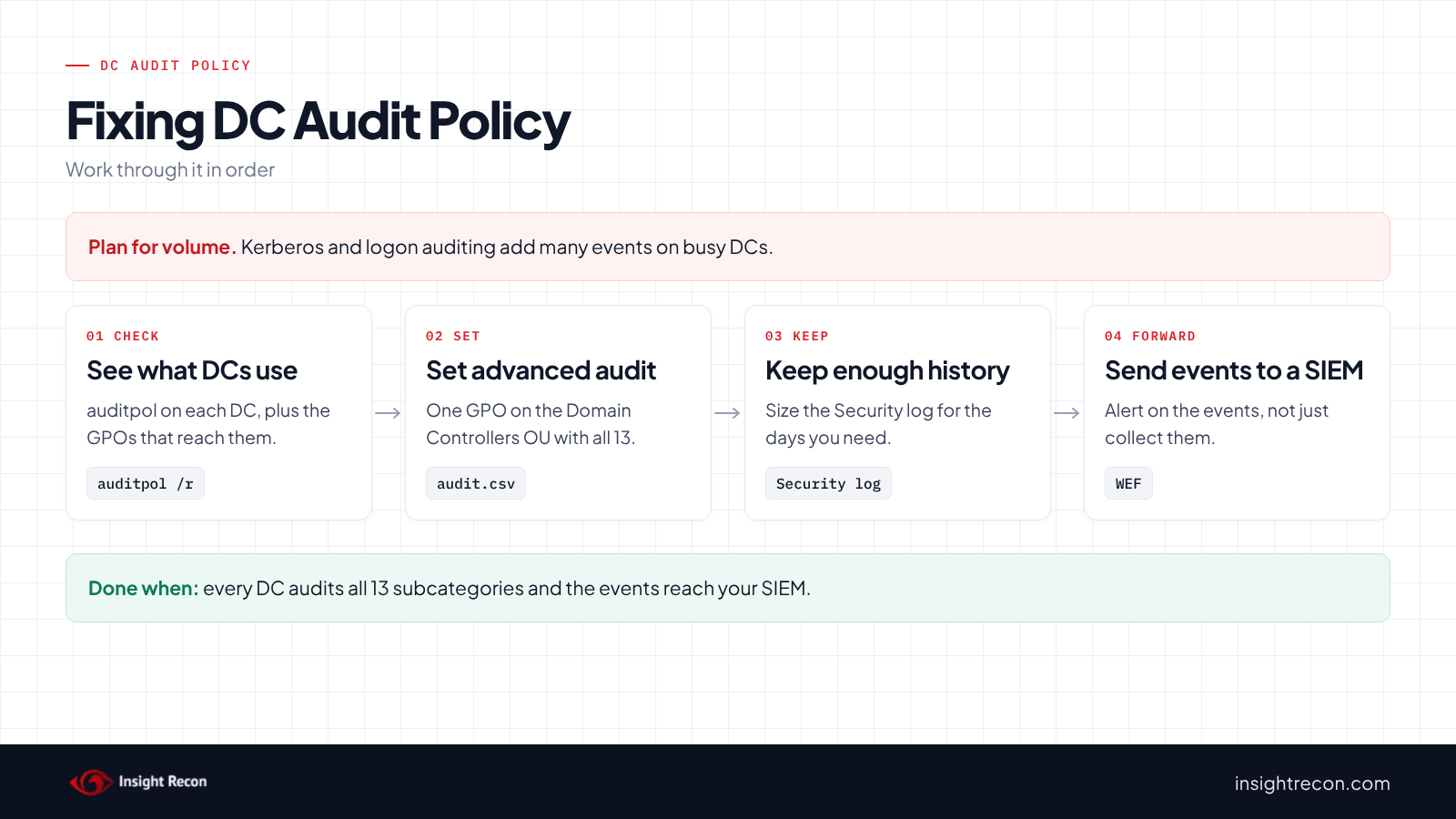
First, create or edit the GPO linked to the Domain Controllers OU. Under Advanced Audit Policy Configuration, set each subcategory listed above to the sides it needs. Microsoft's Directory Service Changes page recommends Success on DCs too. Add it while you're there.
2. Turn on the subcategory override
Next, in the same GPO under Security Options, make sure the "Force audit policy subcategory settings" option is enabled.
3. Confirm on every DC
After the next Group Policy refresh, or after running gpupdate /force on each DC, re-run the quick check. No output means every DC now has all 13. Microsoft's auditpol reference covers the other report options.
4. Size the log and forward the events
Raise the Security log's maximum size in the same GPO, under the Event Log Service policies, until the retention script shows the days you need. More important, forward the events to a SIEM or a Windows Event Forwarding collector. After that, build alerts on them.
Keep the domain controller audit policy in place
- Watch audit policy changes. Audit Policy Change events show when someone changes what a DC audits.
- Check new DCs. Run the quick check on any new or rebuilt DC before it goes into service.
- Alert on silence. A DC that stops sending events may have lost its policy.
- Re-run the scan. It flags any DC that ends up short again.
Domain controller audit policy checklist
- Does every DC audit all 13 subcategories with the required sides?
- Does one GPO linked to the Domain Controllers OU set them?
- Is the subcategory override option enabled?
- Is Directory Service Changes audited too?
- Does each DC keep enough Security log history?
- Do the events reach a SIEM with alerts built on them?
A "no" on the first question means some attacks on that DC may leave no trace in its Security log.
Compliance mapping
| Framework | Reference | Why it applies |
|---|---|---|
| CIS Controls v8 | Control 8 | Audit log management. DC audit events are the core of an AD audit trail. |
| NIST CSF 2.0 | DE.CM-01, DE.CM-03, DE.CM-09, PR.PS-04 | Networks, personnel activity and computing activity are monitored and log records are generated. |
| DISA STIG | V-254303, V-254304, V-254305, V-254307, V-254311, V-254312, V-254313, V-254314, V-254321, V-254323, V-254324, V-254330, V-254407, V-278948, V-278949 | Windows Server 2022 rules for the advanced audit subcategories this check reads. |
Domain controller audit policy FAQ
Which audit subcategories should domain controllers use?
At minimum, the 13 this check reads. Microsoft's recommendations also include Credential Validation and Audit Policy Change, plus Directory Service Changes on DCs.
Does the Default Domain Controllers Policy set them?
Don't assume it does. Instead, check with the GPO script above. Then put the settings in the GPO you manage DCs with.
Why does my GPO show the settings but auditpol doesn't?
Another GPO may override it, or the DC hasn't refreshed policy yet. The GPO script shows which one wins. Run gpupdate /force to refresh policy.
Will this flood my SIEM?
Kerberos and logon events add volume on busy DCs. So size your SIEM for it. Then tune alerts rather than turning subcategories off.
Does Insight Recon check DC audit policy?
Yes. The free scan includes Insufficient Domain Controller Logging, which works out each DC's audit policy from its GPOs.
See which domain controllers are missing key audit subcategories.
It runs from any Windows machine that can reach your DCs, with a standard domain account. Every core AD check is free for one domain.
Not ready to scan?
AD Signal is our monthly look at what's changing in AD security and how real domains score. Read the latest report.