Legacy Operating Systems in AD: Find and Retire Them
Legacy operating systems no longer get security updates. On top of that, a domain controller on one holds your whole domain back. Windows Server 2012 R2 and Windows 10 are already past end of support. Windows Server 2016 follows on January 12, 2027. This post shows you how to find active legacy systems and DCs, replace the DCs safely and handle the systems you can't upgrade yet.
| Priority | High for both checks, rising to Critical for a DC on Server 2008 R2 or older, with any legacy DC first in line |
|---|---|
| What decides it | The operating system and version recorded on each domain controller account and on each computer account that signed in within 90 days |
| Who's affected | Domains with Server 2012 R2 or older DCs, old app servers, Windows 10 PCs or Windows 11 releases past their end date |
| Fix | Replace legacy DCs and raise functional levels. Then upgrade, isolate or retire every other legacy system |
Check it now: which active systems run legacy operating systems?
# Runs as any domain user with the ActiveDirectory module.
# Status uses Microsoft's lifecycle dates as of November 2026. ESU-enrolled devices still show as Out of support.
Import-Module ActiveDirectory -ErrorAction Stop
$since = (Get-Date).AddDays(-90)
function Get-OsStatus([string]$os, [string]$ver) {
    $build = if ($ver -match '\((\d+)\)') { [int]$Matches[1] } else { 0 }
    if ($os -match 'IoT|Embedded') { return 'Check lifecycle' }
    if ($os -match 'Server.*(2003|2008|2011|2012)|Windows (NT|2000|XP|Vista|7|8)\b') { return 'Out of support' }
    if ($os -match 'Server.*2016') { return 'Ends Jan 12, 2027' }
    if ($os -match 'Server.*(2019|2022|2025)') { return 'Supported' }
    if ($os -match 'Windows 10.*(LTSC|LTSB)') {
        if ($build -eq 19044) { return 'Ends Jan 12, 2027' }
        if ($build -eq 17763) { return 'Supported' }
        if ($build -in 10240, 14393) { return 'Out of support' }
        return 'Check lifecycle'
    }
    if ($os -match 'Windows 10') { return 'Out of support' }
    if ($os -match 'Windows 11') {
        if ($build -ge 26200) { return 'Supported' }
        if ($build -eq 26100) { if ($os -match 'Enterprise|(?<!Pro )Education') { return 'Supported' } else { return 'Out of support' } }
        if ($build -gt 0) { return 'Out of support' }
    }
    'Check lifecycle'
}
Get-ADComputer -Filter 'Enabled -eq $true' -Properties OperatingSystem, OperatingSystemVersion, lastLogonTimestamp, userAccountControl |
    Where-Object { $_.OperatingSystem -and $_.lastLogonTimestamp -and [datetime]::FromFileTime($_.lastLogonTimestamp) -gt $since } |
    ForEach-Object {
        [pscustomobject]@{
            Name     = $_.Name
            IsDC     = [bool]($_.userAccountControl -band 0x2000) -or [bool]($_.userAccountControl -band 0x4000000)
            OS       = $_.OperatingSystem
            Version  = $_.OperatingSystemVersion
            Status   = Get-OsStatus $_.OperatingSystem $_.OperatingSystemVersion
            LastSeen = [datetime]::FromFileTime($_.lastLogonTimestamp).Date
        }
    } |
    Where-Object Status -ne 'Supported' |
    Sort-Object @{ e = 'IsDC'; Descending = $true }, Status, OS
Runs as any domain user with the ActiveDirectory module. It lists enabled computers that signed in within 90 days and aren't on a supported OS, with domain controllers first. An empty result means every active system is supported.
You checked one risk. The free scan checks the rest of your on-prem AD in a few minutes.
Nothing gets installed on your domain controllers. Only HTTPS leaves your network.
What counts as legacy operating systems
An operating system is legacy once Microsoft stops shipping security updates for it. The dates below come from Microsoft's lifecycle pages, as of November 2026.
| Operating system | End of support | Notes |
|---|---|---|
| Windows Server 2008 R2 and older | Ended | No security updates for years. |
| Windows Server 2012 and 2012 R2 | October 10, 2023 | The last paid ESU year ended October 13, 2026. |
| Windows Server 2016 | January 12, 2027 | Paid ESU runs to January 8, 2030, per its lifecycle page. Plan these now. |
| Windows 10 (22H2) | October 14, 2025 | Organizations can buy up to three years of ESU. |
| Windows 10 Enterprise LTSC 2021 | January 12, 2027 | Paid ESU runs to January 8, 2030. LTSC 2019 runs to January 9, 2029. |
| Windows 11 23H2 | November 10, 2026 | Enterprise and Education. Home and Pro ended in 2025. |
| Windows 11 24H2 | October 13, 2026 (Home and Pro) | Enterprise and Education run to October 12, 2027. |
Microsoft's ESU page says enrolled PCs "can receive security updates for a maximum of three years after end of support for Windows 10." Without ESU, Microsoft says it no longer provides "quality updates (including security and reliability fixes)." Windows 11 versions follow the dates on the Enterprise and Education and Home and Pro lifecycle pages.
Why legacy operating systems are dangerous
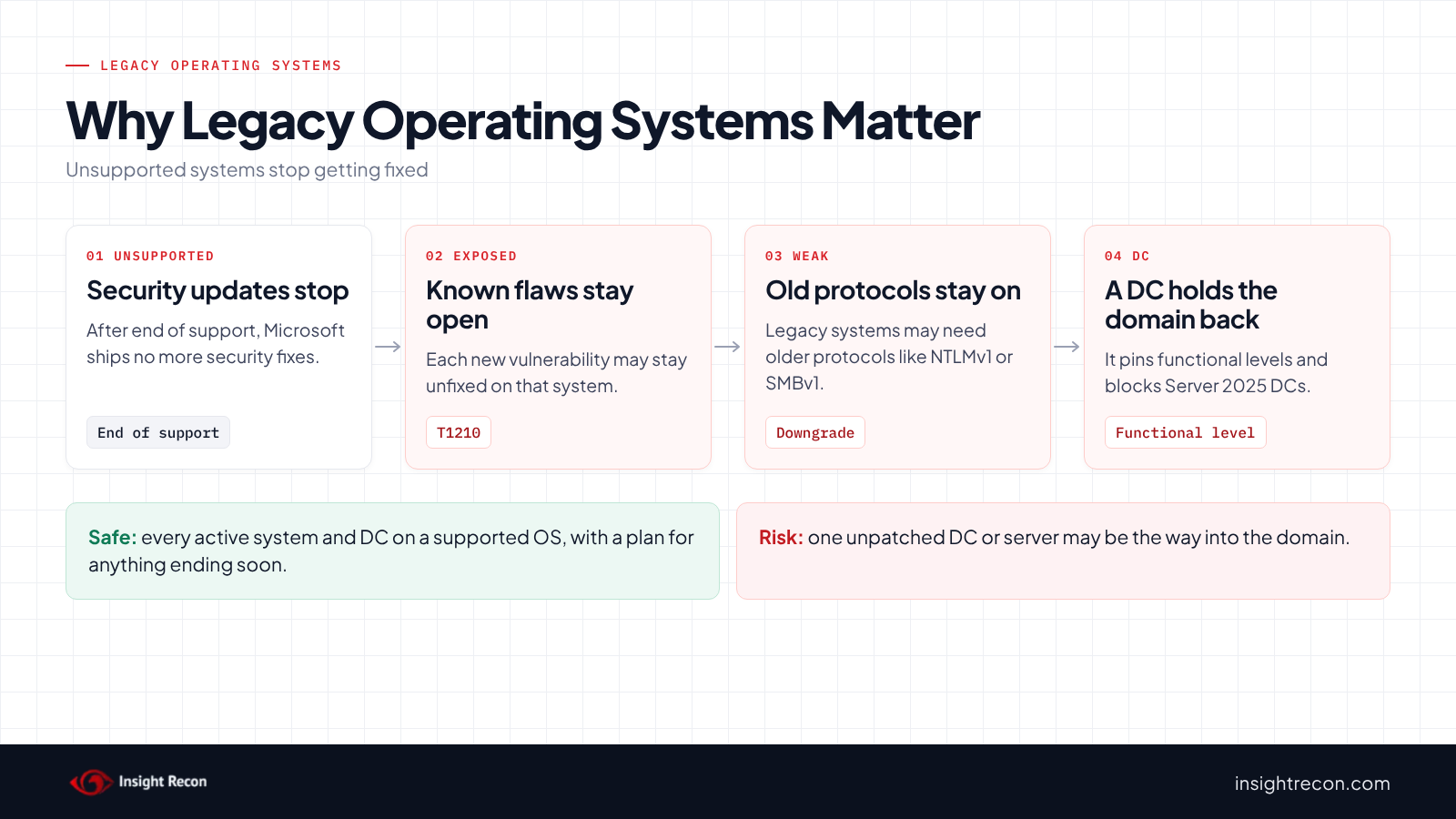
Vulnerabilities stay open
Once updates stop, every new vulnerability stays unfixed on that system. An attacker already inside the network may exploit one to take over the machine, which MITRE ATT&CK tracks as T1210, Exploitation of Remote Services. CISA lists unsupported software as a bad practice and calls it "dangerous" for critical infrastructure.
Old protocols stay switched on
Older systems may only work with older protocols, such as NTLMv1, RC4 or SMBv1. As a result, one legacy machine can keep a weak setting enabled for the whole domain.
A legacy DC holds the domain back
A domain controller holds every password hash in the domain. Therefore, an unpatched one is a direct path to Tier 0. It also caps your functional levels. Microsoft's functional level reference shows that Server 2012 R2 DCs can't run at the Windows Server 2016 level. Moreover, Microsoft's guide to raising levels says a domain must be at the 2016 level or higher before you can add a Server 2025 DC.
Find legacy operating systems in your domain
Read the quick check results
The quick check above reads operatingSystem and operatingSystemVersion from each enabled computer account. It skips accounts that haven't signed in within 90 days.
What to look for: any row with IsDC set to True, since those come first. Next, look at servers with Out of support, then PCs. Rows marked Ends Jan 12, 2027 need a plan now. Finally, check Check lifecycle rows, such as IoT, Embedded or non-Windows systems, against their vendor's dates.
List your domain controllers and functional levels
This shows each DC's operating system and FSMO roles, plus the current domain and forest functional levels.
# Runs as any domain user with the ActiveDirectory module.
Import-Module ActiveDirectory -ErrorAction Stop
"Domain functional level: $((Get-ADDomain).DomainMode)"
"Forest functional level: $((Get-ADForest).ForestMode)"
Get-ADDomainController -Filter * |
    Select-Object HostName, Site, OperatingSystem, IsReadOnly, IsGlobalCatalog,
        @{ n = 'Roles'; e = { $_.OperationMasterRoles -join ', ' } } |
    Sort-Object OperatingSystem
What to look for: any DC on Server 2012 R2 or older, along with the roles it holds. Also note the functional levels, since anything below Windows2016Domain means you can't add a Server 2025 DC yet.
Count what's out there
This counts active computers by operating system and version. It helps you size the work and spot versions the quick check marks for review.
# Runs as any domain user with the ActiveDirectory module.
Import-Module ActiveDirectory -ErrorAction Stop
$since = (Get-Date).AddDays(-90)
Get-ADComputer -Filter 'Enabled -eq $true' -Properties OperatingSystem, OperatingSystemVersion, lastLogonTimestamp |
    Where-Object { $_.lastLogonTimestamp -and [datetime]::FromFileTime($_.lastLogonTimestamp) -gt $since } |
    Group-Object OperatingSystem, OperatingSystemVersion |
    Select-Object Count, @{ n = 'OS and version'; e = { $_.Name } } |
    Sort-Object Count -Descending
What to look for: large groups on one old version, which usually point to a missed upgrade wave or a golden image that never got updated.
Check legacy operating systems with Insight Recon
The free scan includes two High-severity checks:
- Legacy Operating System on Domain Controller flags any DC running Windows NT, 2000, Server 2003, 2008, 2008 R2, 2012 or 2012 R2, Small Business Server 2011 or a Semi-Annual Channel release, or Server 2016 after January 12, 2027. It lists each one and rates the finding Critical when a DC runs Server 2008 R2 or older.
- Legacy Operating Systems Detected flags other computers running an out-of-support Windows version. It covers older Windows and Windows Server releases. It also covers Windows 10 and 11 builds past the end date for their edition, with longer dates for LTSC editions. It skips computers inactive for more than 90 days.
Each finding lists the affected systems and comes with the Hacker Insight, remediation steps and compliance mappings.
Know what these checks don't decide
Some things are still yours to check. First, a Windows 10 PC enrolled in ESU still gets security updates, but it's flagged anyway. Second, neither check judges non-Windows systems such as Linux or appliances joined to the domain.
Related checks beyond legacy operating systems
- Domain Controller with Stale Update, for supported DCs that are behind on patches. Our LDAP signing bypass post shows why DC patches can't wait.
- Legacy Domain Functional Level Detected, which flags a domain or forest below the Windows Server 2016 level.
You can see what the findings look like in our sample report. The full list is in our check library.
See every legacy DC and active legacy system in your domain, plus the rest of your Tier 0 risks.
It runs from any Windows machine that can reach your DCs, with a standard domain account. Every core AD check is free for one domain.
Before you replace legacy operating systems
Replace DCs first, then work through everything else by risk. Each system needs an owner before it needs a plan.
Find the owner of each system
Legacy servers often run one old app nobody wants to touch. So find the app's owner and ask whether a supported version exists before you schedule anything.
Check DC health before a swap
Microsoft's guide to raising functional levels says the forest should be "free from replication errors" and that you should back up the DCs that hold FSMO roles and the global catalog first. The same applies before you add and remove DCs.
Know what blocks a level raise
Every DC in a domain must run at least the version you're raising to. In addition, the Windows Server 2016 level requires SYSVOL to replicate with DFSR, according to Microsoft. If you still use FRS, migrate first. FRS also blocks the replacement itself. Microsoft says that from Windows Server version 1709 on, which includes Server 2019 and later, a new DC can't join a domain that still replicates SYSVOL with FRS.
Plan for systems that can't move yet
Some systems, such as lab gear or factory controllers, may need to stay. Give each one an owner and a retirement date. Then isolate it on the network.
Retire legacy operating systems safely
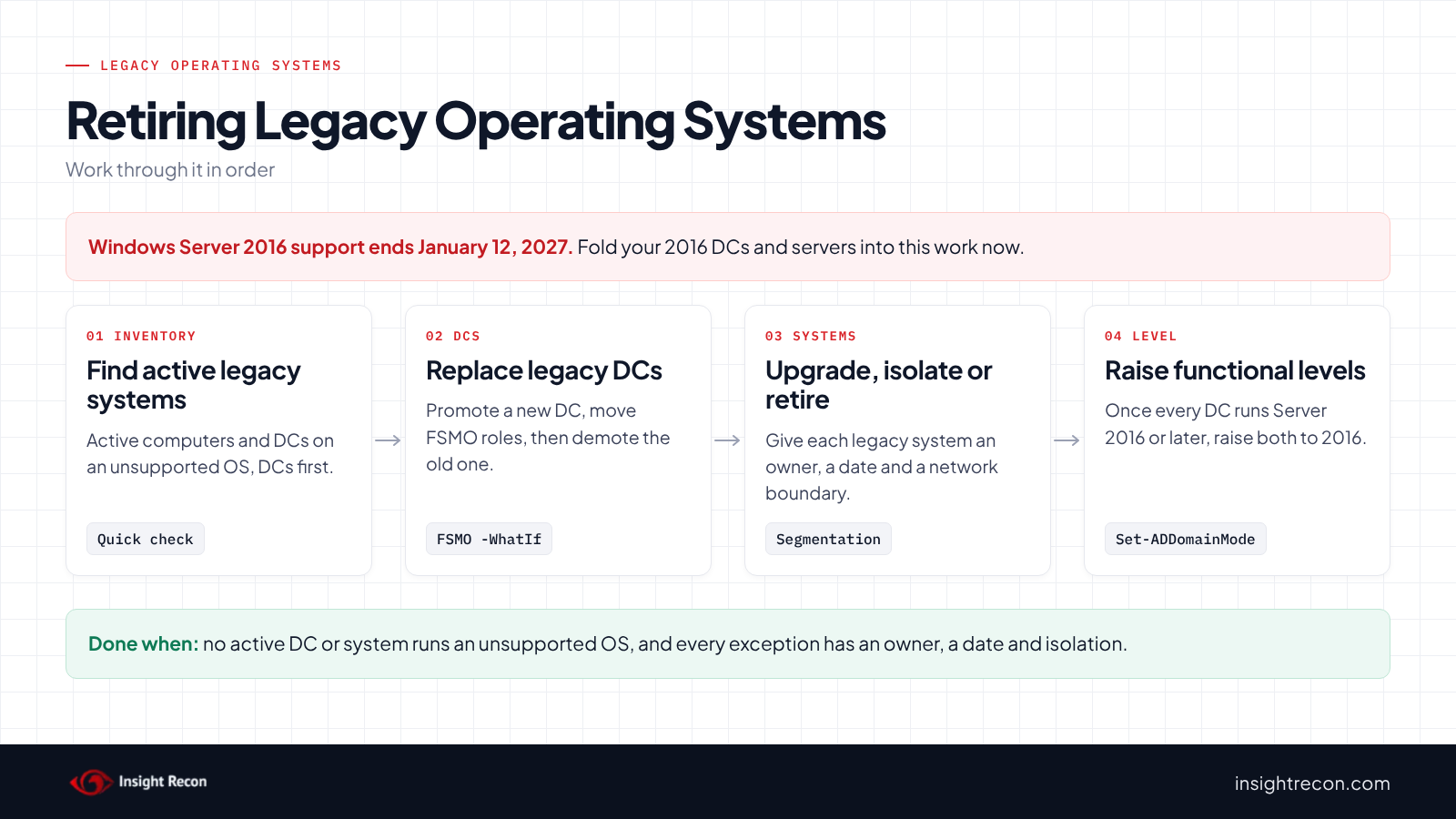
Each change script below is a dry run with -WhatIf. Drop that to apply. Change the names to your own.
1. Add a new DC, then move FSMO roles
Promote a new DC on Server 2022 or 2019. A Server 2025 DC can't join until every DC runs Server 2016 or later and the domain is at the 2016 level, so add it after step 3. Once the new DC replicates, move any FSMO roles off the legacy DC. This script prints where each role is now and previews the transfer. Microsoft's cmdlet reference notes that -Force turns a transfer into a seizure. For that reason, the script leaves it out.
# Dry run. Remove -WhatIf to apply.
# Run as a Domain Admin (Enterprise Admin for the schema and domain naming roles).
# This transfers roles gracefully. Don't add -Force, which seizes them.
Import-Module ActiveDirectory -ErrorAction Stop
$newDc = 'DC03'
# Note where the roles are now
Get-ADDomain | Select-Object PDCEmulator, RIDMaster, InfrastructureMaster
Get-ADForest | Select-Object SchemaMaster, DomainNamingMaster
# List only the roles the legacy DC holds. The DC script above shows them.
Move-ADDirectoryServerOperationMasterRole -Identity $newDc -ErrorAction Stop -WhatIf `
    -OperationMasterRole PDCEmulator, RIDMaster, InfrastructureMaster, SchemaMaster, DomainNamingMaster
What to look for: the dry run names the new DC and only the roles you meant to move. After you apply it, re-run the DC script and confirm the roles moved.
2. Demote the legacy DC
Move any DNS, DHCP or other services the old DC runs. Then, on Server 2012 or later, run Test-ADDSDomainControllerUninstallation and demote through Server Manager or Uninstall-ADDSDomainController. On Server 2008 R2 or older, demote with dcpromo. If the old DC is already gone for good, clean up its metadata instead. Afterward, confirm replication is healthy and clients point at the new DCs for DNS.
3. Raise the functional levels
Once every DC runs Server 2016 or later, raise the domain and then the forest to the Windows Server 2016 level. This script prints the current levels first and stops if any DC in the current domain still runs an older version. Raise every domain in the forest before you raise the forest.
# Dry run. Remove -WhatIf on each line to apply.
# Needs Domain Admin for the domain and Enterprise Admin for the forest. Every DC must run Server 2016 or later.
Import-Module ActiveDirectory -ErrorAction Stop
$domain = Get-ADDomain
$old = Get-ADDomainController -Filter * | Where-Object { $_.OperatingSystem -notmatch '2016|2019|2022|2025' }
if ($old) { throw "These DCs still run an older OS: $($old.HostName -join ', ')" }
# Note the current levels
$domain | Select-Object DNSRoot, DomainMode
Get-ADForest | Select-Object Name, ForestMode
Set-ADDomainMode -Identity $domain.DNSRoot -DomainMode Windows2016Domain -ErrorAction Stop -WhatIf
Set-ADForestMode -Identity $domain.Forest -ForestMode Windows2016Forest -ErrorAction Stop -WhatIf
What to look for: the dry run shows one change for the domain and one for the forest. Raising the forest needs Enterprise Admin rights.
4. Upgrade, isolate or retire everything else
Upgrade what you can in place or rebuild it. For systems that must stay, limit them to the network paths they need. When a system has been replaced and switched off, disable its computer account and move it to a retired OU.
# Dry run. Remove -WhatIf from the last two lines to apply.
# Needs rights to change and move the computer account, and a retired OU you've already created.
# Only for machines that are already powered off or replaced.
Import-Module ActiveDirectory -ErrorAction Stop
$name = 'OLDAPP01'
$retiredOu = 'OU=Retired Computers,DC=contoso,DC=com'
$pc = Get-ADComputer -Identity $name -Properties OperatingSystem, Description -ErrorAction Stop
# Note the current location so you can move it back
$pc | Select-Object Name, OperatingSystem, Enabled, DistinguishedName
Disable-ADAccount -Identity $pc -ErrorAction Stop -WhatIf
Move-ADObject -Identity $pc -TargetPath $retiredOu -ErrorAction Stop -WhatIf
What to look for: the dry run names one computer, one disable and one move. Only run it for systems that are already off.
Keep watching for legacy operating systems
- Re-run the quick check monthly. New legacy systems appear from old images and restored VMs.
- Track upcoming dates. Server 2016 and Windows 10 LTSC 2021 both end January 12, 2027.
- Review your exceptions. Each isolated system should still have an owner and a retirement date.
- Re-run the scan. Both checks flag any new legacy DC or active legacy system.
Legacy operating systems checklist
- Does every DC run Windows Server 2016 or later?
- Is there a plan for every Server 2016 DC and server before January 12, 2027?
- Are the domain and forest at the Windows Server 2016 level or higher?
- Does every active PC run a supported Windows 11 release or an LTSC edition in support?
- Does every remaining legacy system have an owner, a date and network isolation?
- Are retired machines disabled in AD?
A "no" on the first question means an unpatched system may hold every password hash in your domain.
Compliance mapping
| Framework | Reference | Why it applies |
|---|---|---|
| MITRE ATT&CK | T1210 | Exploitation of Remote Services. Unpatched systems may be exploited to move through the network (both checks). |
| CIS Controls v8 | Control 2, Control 7 | Software asset inventory and continuous vulnerability management (both checks). |
| NIST CSF 2.0 | ID.AM-02, PR.PS-01, PR.PS-02 | Software inventory (Legacy Operating Systems Detected), secure configuration (Legacy Operating System on Domain Controller) and software maintenance and replacement (both). |
| ANSSI | vuln_dc_obsolete | DCs running an obsolete OS (Legacy Operating System on Domain Controller). |
| DISA STIG | V-254247, V-243480 | Windows Server 2022 must be maintained at a supported servicing level (both checks). The domain functional level must be at a supported Windows Server version (Legacy Operating System on Domain Controller). |
Legacy operating systems FAQ
When does Windows Server 2016 reach end of support?
January 12, 2027, according to Microsoft's lifecycle page.
Is a Windows 10 PC with ESU still legacy?
It still gets security updates, which lowers the risk. Even so, ESU lasts at most three years, so plan the upgrade.
Can I add a Server 2025 DC to a domain with 2012 R2 DCs?
No. The domain must be at the Windows Server 2016 level first, which means no 2012 R2 DCs.
Should I upgrade a DC in place?
Adding a new DC and demoting the old one is usually easier to roll back than an in-place upgrade.
Does Insight Recon find legacy operating systems?
Yes. The free scan includes Legacy Operating Systems Detected and Legacy Operating System on Domain Controller.
See every legacy DC and active legacy system in your domain.
It runs from any Windows machine that can reach your DCs, with a standard domain account. Every core AD check is free for one domain.
Not ready to scan?
AD Signal is our monthly look at what's changing in AD security and how real domains score. Read the latest report.
References
- Microsoft Learn: Windows Server version 1709 no longer supports FRS
- Microsoft Lifecycle: Windows Server 2016
- Microsoft Lifecycle: Windows Server 2012 R2 (with ESU dates)
- Microsoft Lifecycle: Windows 10 Enterprise and Education
- Microsoft Lifecycle: Windows 11 Enterprise and Education
- Microsoft Lifecycle: Windows 11 Home and Pro
- Microsoft Learn: Windows 10 Extended Security Updates
- Microsoft Learn: Active Directory functional levels
- Microsoft Learn: Raise domain and forest functional levels
- Microsoft Learn: Move-ADDirectoryServerOperationMasterRole
- CISA: Bad Practices
- MITRE ATT&CK T1210, Exploitation of Remote Services