Disable NTLMv1 and LM Hashes Without Breaking Logons
To disable NTLMv1 and LM, you change two Group Policy settings: the LAN Manager authentication level and whether Windows stores LM password hashes. Domain controllers still accept NTLMv1 by default. Old LM hashes also stay until passwords change. This post shows you who still uses them, what each setting does and the order to change them so nothing stops signing in.
| Priority | High when DCs accept NTLMv1 and LM (Critical when a writable DC sends NTLMv1 itself), or Moderate when LM hash storage is turned back on |
|---|---|
| What decides it | The LAN Manager authentication level on each DC and whether the policy that stops LM hash storage is turned off |
| Who's affected | Domains whose DCs are left at the default level, since the effective default on a DC still accepts LM and NTLMv1 |
| Fix | Find who still uses them, set clients to send NTLMv2 only, then set DCs to refuse LM and NTLM. Keep LM hash storage off and change old passwords |
Check it now: do your DCs still accept NTLMv1 and LM?
# Run as a Domain Admin. Reads two registry values from each DC over remote registry.
Import-Module ActiveDirectory -ErrorAction Stop
$levels = @{
    0 = 'Send LM and NTLM'; 1 = 'Send LM and NTLM, NTLMv2 session security if negotiated'
    2 = 'Send NTLM only'; 3 = 'Send NTLMv2 only'; 4 = 'Send NTLMv2 only, refuse LM'; 5 = 'Send NTLMv2 only, refuse LM and NTLM'
}
foreach ($dc in Get-ADDomainController -Filter *) {
    try {
        $reg = [Microsoft.Win32.RegistryKey]::OpenRemoteBaseKey('LocalMachine', $dc.HostName)
        $lsa = $reg.OpenSubKey('SYSTEM\CurrentControlSet\Control\Lsa')
        $level = $lsa.GetValue('LmCompatibilityLevel')
        $noLm = $lsa.GetValue('NoLMHash')
        [pscustomobject]@{
            DC            = $dc.HostName
            OS            = $dc.OperatingSystem
            # Not set behaves like 3 on a DC, which still accepts LM and NTLMv1
            AuthLevel     = if ($null -eq $level) { 'not set' } else { "$level ($($levels[[int]$level]))" }
            RefusesNtlmV1 = $level -eq 5
            # Not set means the policy's effective default (enabled) applies
            NoLMHash      = if ($null -eq $noLm) { 'not set' } else { $noLm }
        }
    } catch {
        [pscustomobject]@{ DC = $dc.HostName; OS = $dc.OperatingSystem; AuthLevel = "couldn't read"; RefusesNtlmV1 = $null; NoLMHash = $null }
    }
}
Runs as a Domain Admin. It reads the LAN Manager authentication level and the LM hash setting from each DC's registry. RefusesNtlmV1 set to False on any DC is a finding. So is a NoLMHash of 0.
You checked two settings. The free scan checks the rest of your on-prem AD in a few minutes.
Nothing gets installed on your domain controllers. Only HTTPS leaves your network.
What NTLMv1 and LM are
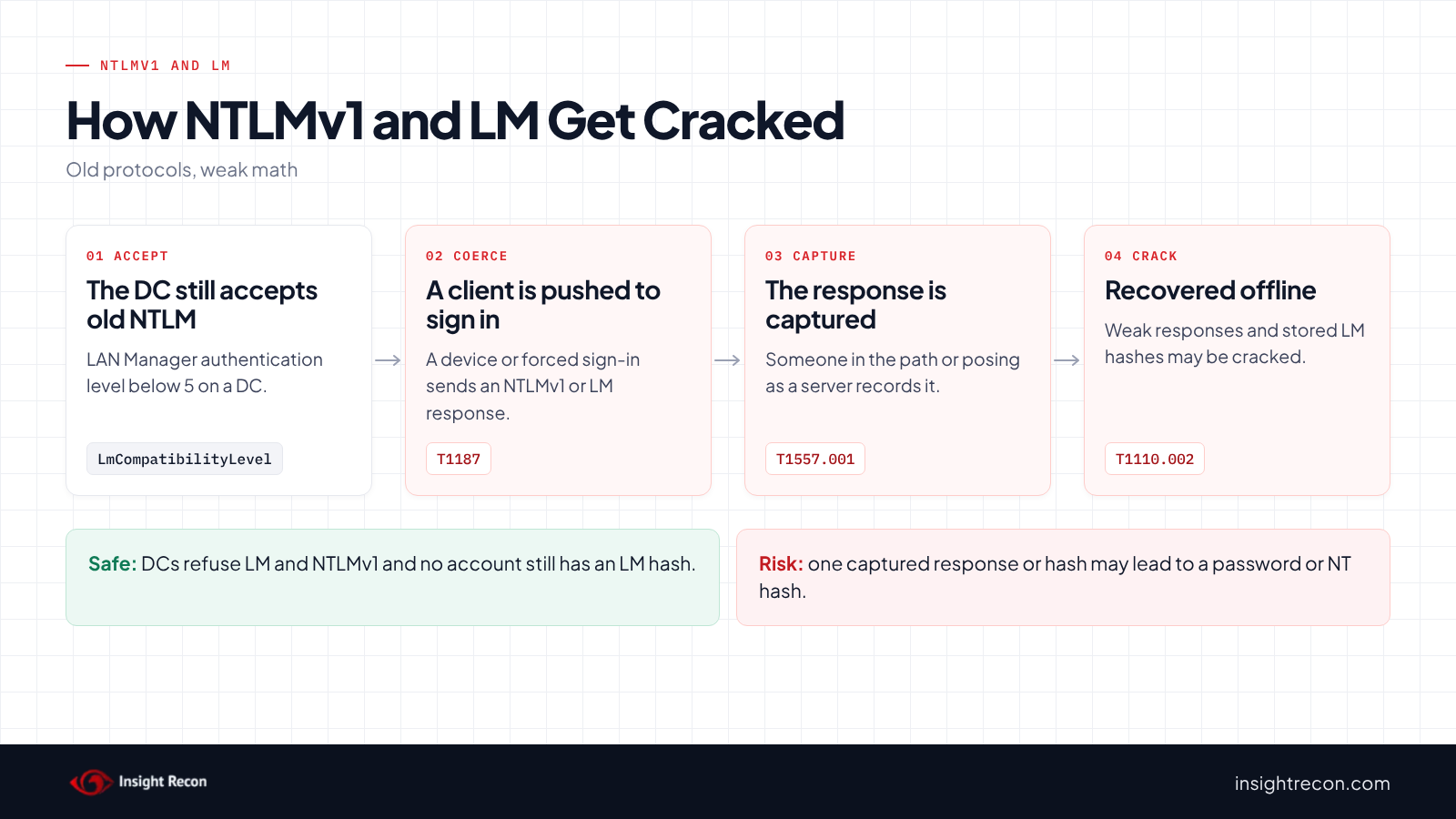
LM and NTLMv1 are the oldest variants of LAN Manager challenge and response authentication. NTLMv2 replaced them. Even so, Windows kept support for compatibility. Two Security Options control them.
The LAN Manager authentication level
Microsoft's reference for this policy lists six levels, stored as LmCompatibilityLevel. On a domain controller, levels 0 through 3 all accept LM, NTLM and NTLMv2. Level 4 refuses LM. Only level 5, "Send NTLMv2 response only. Refuse LM & NTLM", accepts NTLMv2 alone.
The effective default on a DC is "Send NTLMv2 response only", which is level 3. In other words, a DC left at its default still accepts LM and NTLMv1 from clients that send them.
LM hash storage
Microsoft's article on LM hashes explains that for a password "that contains fewer than 15 characters, Windows generates both an LM hash and a Windows NT hash." The policy "Network security: Do not store LAN Manager hash value on next password change" stops that. Its effective default is Enabled on DCs. Still, it only applies at the next password change. Turning it off even once leaves LM hashes behind.
Why you should disable NTLMv1 and LM
Captured responses may be cracked
If someone can get a client to send an LM or NTLMv1 response, they may potentially recover the password or NT hash from it offline. MITRE ATT&CK tracks the steps as T1187 (Forced Authentication), T1557.001 (Name Resolution Poisoning and SMB Relay) and T1110.002 (Password Cracking).
Stored LM hashes are weak
Microsoft calls the LM hash "relatively weak and prone to attack compared to the cryptographically stronger NTLM hash." So anyone who dumps the AD database gets an easier target for every account that still has one. MITRE tracks that as T1003, OS Credential Dumping.
Newer Windows dropped NTLMv1, older DCs didn't
Microsoft's removed features list says "NTLMv1 is removed starting in Windows 11, version 24H2 and Windows Server 2025." However, DCs on earlier versions still accept it from older clients and devices. Set level 5 on every DC anyway, since Microsoft hasn't said the setting stops mattering on Windows Server 2025. For Wi-Fi and VPN sign-ins, also see our post on NTLMv1 SSO being blocked, which covers a separate change on Windows 11 and Server 2025 devices.
Find what you need before you disable NTLMv1
Read the quick check results
The quick check above returns one row per DC.
What to look for: any AuthLevel other than 5, including not set. Also look for a NoLMHash of 0, which means LM hashes are stored on password changes made there. A DC that shows couldn't read needs checking from an account with more access.
Find who still signs in with NTLMv1 or LM
This reads successful logons from the last seven days on each DC, plus any servers you list in servers.txt, then groups the ones that used NTLMv1 or LM. A sign-in is logged on the computer it reaches, so list the servers people and applications sign in to.
# Run as a Domain Admin. Reads successful logons (4624) from each DC's Security log, plus any servers listed in servers.txt.
Import-Module ActiveDirectory -ErrorAction Stop
$xpath = "*[System[EventID=4624 and TimeCreated[timediff(@SystemTime) <= 604800000]]] and " +
         "*[EventData[Data[@Name='LmPackageName']='NTLM V1' or Data[@Name='LmPackageName']='LM']]"
$computers = @((Get-ADDomainController -Filter *).HostName) + @(Get-Content -Path '.\servers.txt' -ErrorAction SilentlyContinue)
foreach ($computer in $computers) {
    try {
        $events = Get-WinEvent -ComputerName $computer -LogName Security -FilterXPath $xpath -ErrorAction Stop
    }
    catch {
        if ($_.FullyQualifiedErrorId -notlike 'NoMatchingEventsFound*') { Write-Warning "Couldn't read ${computer}: $($_.Exception.Message)" }
        continue
    }
    $events |
        ForEach-Object {
            $d = @{}
            ([xml]$_.ToXml()).Event.EventData.Data | ForEach-Object { $d[$_.Name] = $_.'#text' }
            [pscustomobject]@{
                Account     = "$($d.TargetDomainName)\$($d.TargetUserName)"
                Package     = $d.LmPackageName
                Workstation = $d.WorkstationName
                SourceIP    = $d.IpAddress
            }
        } |
        Where-Object { $_.Account -notlike '*ANONYMOUS LOGON' } |
        Group-Object Account, Package, Workstation, SourceIP |
        Select-Object @{ n = 'Computer'; e = { $computer } }, Count, Name
}
What to look for: each account, workstation and IP address is something that breaks at level 5. Microsoft's event 4624 reference suggests monitoring for any Package Name that "doesn't equal NTLM V2." No rows over a full business cycle is a good sign. For a wider view, the Restrict NTLM audit policy logs all NTLM use on DCs without blocking anything.
The 4624 events need Audit Logon success auditing. A busy DC's Security log may also hold less than seven days, so check the oldest event before you trust an empty result.
Newer DCs log more. On Windows Server 2025, or Windows Server 2022 and 2019 with the October 2026 updates, events 4032 and 4033 in the Microsoft-Windows-NTLM/Operational log show the NTLM version of every sign-in the DC checks for another computer, as Microsoft's NTLM auditing overview explains. That includes NAS and other devices that never log 4624. These events are on by default. NTLMv1 shows up as a 4033 warning.
Find accounts that may still have an LM hash
Without reading the AD database, you can't see LM hashes directly. Instead, find passwords set before LM storage was turned off.
# Runs as any domain user. Set $since to when LM hash storage was turned off in your domain.
# These accounts may still have an LM hash stored, unless the password is 15 characters or longer.
Import-Module ActiveDirectory -ErrorAction Stop
$since = [datetime]'2010-01-01'
Get-ADUser -Filter 'Enabled -eq $true' -Properties PasswordLastSet, PasswordNeverExpires, adminCount |
    Where-Object { $_.PasswordLastSet -and $_.PasswordLastSet -lt $since } |
    Sort-Object PasswordLastSet |
    Select-Object SamAccountName, PasswordLastSet, PasswordNeverExpires, @{ n = 'Privileged'; e = { $_.adminCount -eq 1 } }
What to look for: privileged accounts first, then accounts with PasswordNeverExpires. Set $since to the date LM hash storage was last turned off, which is when the "Do not store LAN Manager hash value" policy was last enabled on every DC. If you don't know it, use today's date to list every account, oldest password first.
Check NTLMv1 and LM with Insight Recon
The free scan includes two checks that judge each DC. A standard domain account can't read a DC's registry, so each check uses the GPO that sets the value last on that DC, following link order, enforcement and Block Inheritance. When the scan account can read a DC's registry, the checks use the registry value instead.
- NTLMv1 or LM is Permitted, rated High, flags any DC where the LAN Manager authentication level is below 5 or isn't set. That includes a DC no GPO configures, since Windows then runs it at level 3. It's Critical when a writable DC older than Windows Server 2025 is at level 2 or lower, because that DC sends NTLMv1 itself.
- LM Hash Storage Allowed, rated Moderate, flags any DC where the policy that stops LM hash storage is turned off. A DC no GPO configures passes, because Windows doesn't store LM hashes by default.
Each one lists the affected DCs and names any DC it couldn't assess. They also come with the Hacker Insight, remediation steps and compliance mappings.
Know what these checks don't decide
Some things are still yours to check. First, LM Hash Storage Allowed reads the setting. It can't see stored hashes, so old LM hashes may remain after it passes. Second, neither check sees which clients or devices still send NTLMv1. Run the logons script for that. Finally, member servers and clients aren't checked.
Related checks beyond NTLMv1
- LLMNR Enabled, a common way to get a client to send its response to the wrong machine. Our LLMNR and NBT-NS post covers it.
- Computer with SMB Signing Not Required, which makes captured sign-ins easier to relay. Our SMB signing post covers it.
You can see what the findings look like in our sample report. The full list is in our check library.
See which DCs still accept NTLMv1 and LM, plus the rest of your authentication settings.
It runs from any Windows machine that can reach your DCs, with a standard domain account. Every core AD check is free for one domain.
Before you disable NTLMv1
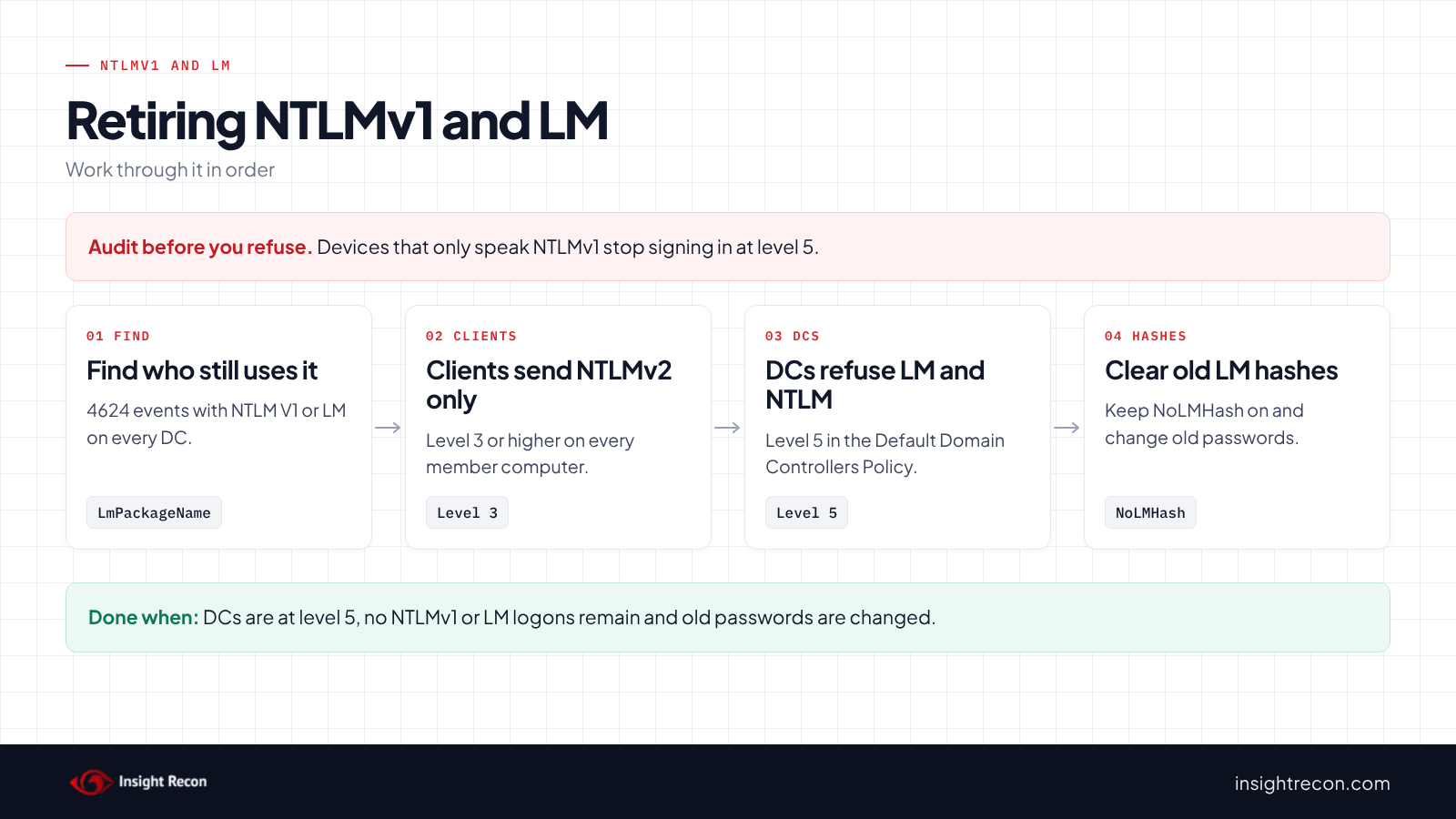
Move clients first, then DCs. Raising the DC level before every client sends NTLMv2 cuts off whatever still sends NTLMv1.
Clean up what the logons script found
Common sources include old printers and scanners, network storage, appliances and very old Windows systems. Update their firmware or settings to use NTLMv2, or replace them.
Switch NPS to NTLMv2 first
Wi-Fi and VPN sign-ins that use PEAP-MSCHAPv2 or EAP-MSCHAPv2 pass through NPS or RRAS on their way to a DC. Microsoft's article on MS-CHAPv2 failures explains that those servers use NTLM by default, so a DC at level 5 denies the sign-in. Each failure also counts as a bad password, which can lock accounts out. Before you change any DC, set the DWORD Enable NTLMv2 Compatibility to 1 under HKLM\System\CurrentControlSet\Services\RemoteAccess\Policy on every NPS and RRAS server. You may need to restart the NPS service afterward.
Know what each change affects
Microsoft notes the authentication level takes effect without a restart once Group Policy applies. In contrast, the LM hash setting only removes hashes as passwords change. Plan resets for old passwords.
Plan service account passwords
Service accounts with old passwords need a planned change, since forcing a change at next sign-in doesn't work for them. A password of 15 or more characters avoids a usable LM hash too.
Disable NTLMv1 and LM safely
1. Set clients to send NTLMv2 only
In a GPO linked to your member servers and workstations, go to Security Settings, Local Policies, Security Options. Set "Network security: LAN Manager authentication level" to "Send NTLMv2 response only" (level 3). Microsoft's policy page says Microsoft and many independent organizations strongly recommend this level. Then re-run the logons script.
2. Disable NTLMv1 and LM on DCs
Once the logons script comes back clean, set the same policy in the Default Domain Controllers Policy to "Send NTLMv2 response only. Refuse LM & NTLM" (level 5). This is also what the Windows Server 2022 STIG requires in V-254475. Afterward, re-run the quick check.
3. Keep LM hash storage off
In the same GPOs, set "Network security: Do not store LAN Manager hash value on next password change" to Enabled, as V-254474 requires.
4. Change old passwords
Save the accounts from the old password script to a text file, one per line. This marks each one to change its password at next sign-in and skips accounts that never expire.
# Dry run. Drop -WhatIf to apply.
# Needs rights to reset passwords on these accounts. Service accounts need a planned password change instead.
Import-Module ActiveDirectory -ErrorAction Stop
$accounts = Get-Content -Path '.\old-password-accounts.txt'
foreach ($a in $accounts) {
    $u = Get-ADUser -Identity $a -Properties PasswordNeverExpires -ErrorAction Stop
    if ($u.PasswordNeverExpires) { Write-Warning "$a has PasswordNeverExpires set. Change its password directly."; continue }
    Set-ADUser -Identity $u -ChangePasswordAtLogon $true -ErrorAction Stop -WhatIf
}
What to look for: the dry run lists each account it would change and warns about any it skipped. Change those skipped service account passwords directly, in a planned window. Accounts marked to change their password drop off the old password list straight away, but their old hash stays until the user signs in and changes it.
Keep NTLMv1 disabled
- Alert on NTLMv1 and LM logons. After the change, look into any 4624 event with NTLM V1 or LM for an account other than ANONYMOUS LOGON. On a DC it means the level didn't apply. On a member server it's a local account signing in.
- Check new DCs. Run the quick check on any new or rebuilt DC before it goes into service.
- Tighten session security too. The STIG also requires NTLMv2 session security and 128-bit encryption for NTLM SSP clients and servers.
- Re-run the scan. Both checks flag a DC that drifts back in Group Policy, or in its registry when the scan account can read it.
Disable NTLMv1 checklist
- Does the logons script show no NTLMv1 or LM sign-ins for a full cycle?
- Are clients set to send NTLMv2 only?
- Are NPS and RRAS servers set to NTLMv2 compatibility?
- Are all DCs set to refuse LM and NTLM?
- Is LM hash storage off everywhere?
- Did old passwords, including service accounts, get changed?
- Do you alert on NTLMv1 and LM logons?
A "no" on the second question means clients may potentially send crackable NTLMv1 responses. A "no" on the fourth means your DCs still accept them, so those clients keep working and nobody notices.
Compliance mapping
| Framework | Reference | Why it applies |
|---|---|---|
| MITRE ATT&CK | T1557.001, T1110.002, T1187 (NTLMv1); T1003, T1110.002 (LM hash) | Weak responses and hashes may be captured or dumped, then cracked. |
| CIS Controls v8 | Control 3, Control 4 (NTLMv1); Control 3, Control 5 (LM hash) | Data protection, secure configuration and account management. |
| NIST CSF 2.0 | PR.AA-01, PR.AA-03, PR.DS-02 (NTLMv1); PR.AA-01, PR.AA-03 (LM hash) | Credentials are managed, users are authenticated and data in transit is protected. |
| DISA STIG | V-254475 (NTLMv1); V-254474 (LM hash) | Windows Server 2022 rules for the authentication level and LM hash storage. |
Disable NTLMv1 FAQ
Which level do I use to disable NTLMv1 on DCs?
Use level 5, "Send NTLMv2 response only. Refuse LM & NTLM", once nothing still sends NTLMv1.
Doesn't the default already block NTLMv1?
No. The effective DC default is level 3, which sends only NTLMv2 but still accepts LM and NTLMv1.
Does turning off LM hash storage remove existing hashes?
Not right away, since each LM hash only goes away when that account's password changes.
Does disabling NTLMv1 turn off all NTLM?
No. NTLMv2 keeps working. Retiring NTLM altogether is a separate, larger project.
Does Insight Recon check NTLMv1 and LM?
Yes. The free scan includes NTLMv1 or LM is Permitted and LM Hash Storage Allowed.
See whether your DCs still accept NTLMv1 and LM.
It runs from any Windows machine that can reach your DCs, with a standard domain account. Every core AD check is free for one domain.
Not ready to scan?
AD Signal is our monthly look at what's changing in AD security and how real domains score. Read the latest report.
References
- Microsoft Learn: Network security: LAN Manager authentication level
- Do not store LAN Manager hash value on next password change
- How to prevent Windows from storing a LAN Manager hash
- Event 4624, an account was successfully logged on
- Restrict NTLM: Audit NTLM authentication in this domain
- Removed features for Windows client (NTLMv1)
- KB5066470: Manage NTLMv1 changes and prevent network authentication issues in Windows
- KB5064479: Overview of NTLM auditing enhancements in Windows 11, version 24H2, Windows Server 2019, and later versions
- KB4090105: Audit use of NTLMv1 on a Windows Server-based domain controller
- KB2811487: VPN connections fail when using MS-CHAPv2
- DISA STIG V-254475 (Windows Server 2022)
- DISA STIG V-254474 (Windows Server 2022)