Admin Group Membership: Find Computers, Foreign Principals and Email-Enabled Admins
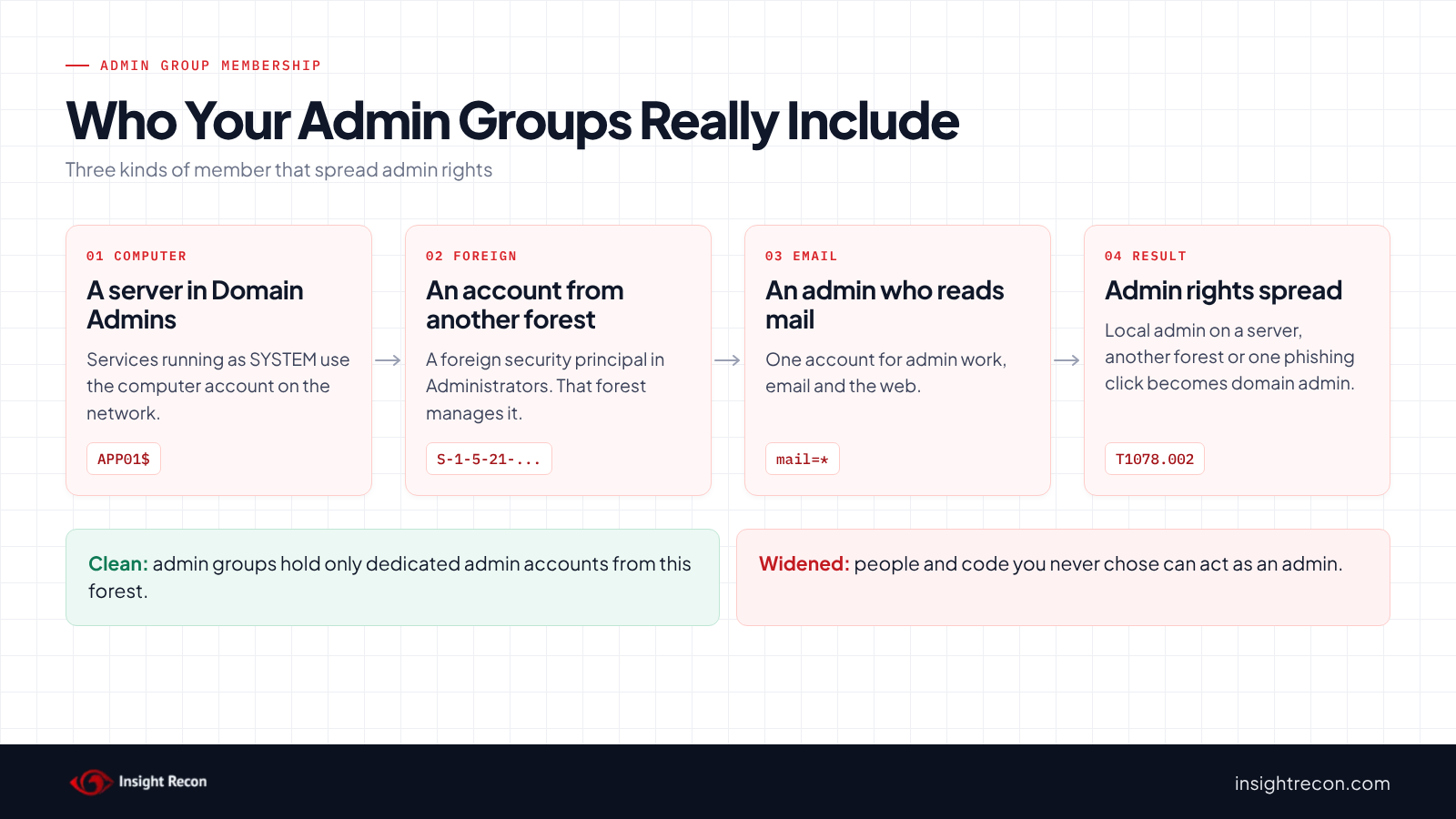
Admin group membership should be a short list of dedicated admin accounts. Three kinds of member break that rule. A computer account makes every local admin on that machine a domain admin. A foreign security principal hands admin rights to accounts another forest controls. An admin account with email puts admin rights one phishing click away. This post shows you how to find all three in your privileged groups and move each one out without breaking what put it there.
| Priority | Moderate. Each one widens who can act as an admin beyond the people you'd expect. Critical when Authenticated Users, Everyone or Anonymous Logon sits in Administrators |
|---|---|
| What decides it | A computer account, a foreign security principal or a mail-enabled user account in a privileged group |
| Who's affected | Domains where an app install added its server to an admin group, where a trusted forest's admins were granted rights here, or where admins use one account for everything |
| Fix | Give apps the specific rights they need, give foreign admins local accounts or none and split admin work onto separate accounts with no mailbox |
Check it now: are there computers in Domain Admins or Administrators?
Import-Module ActiveDirectory -ErrorAction Stop
$sid = (Get-ADDomain).DomainSID.Value
foreach ($g in "$sid-512", 'S-1-5-32-544') {
    $dn = (Get-ADGroup -Identity $g).DistinguishedName
    Get-ADComputer -LDAPFilter "(memberOf:1.2.840.113556.1.4.1941:=$dn)" | Select-Object Name, DistinguishedName
}
Runs as any domain user with the ActiveDirectory module. It lists computer accounts that are members of Domain Admins or the built-in Administrators group, including through nested groups, in the domain you're signed in to. It finds the groups by their well-known SIDs. That way it works in any language. No output means there are none. The scripts below cover the other groups and the other two kinds of member.
You checked one setting. The free scan checks the rest of your on-prem AD in a few minutes.
Nothing gets installed on your domain controllers. Only HTTPS leaves your network.
What these admin group members are
This post covers three kinds of member that don't belong in privileged groups such as Domain Admins, Enterprise Admins, Administrators and the operator groups.
Computer accounts
Every domain-joined computer has its own account in AD. Services running as LocalSystem use it on the network. Microsoft's LocalSystem documentation says such a service "presents the computer's credentials to remote servers." So if that computer is in Domain Admins, every one of those services is a domain admin. Usually an app install added it, or someone made a quick fix and never undid it.
Foreign security principals
When you add an account from a trusted domain outside your forest to a group, AD creates a stand-in object for it in the ForeignSecurityPrincipals container. Microsoft's [MS-ADTS] specification says these objects "represent security principals from trusted domains external to the forest." They can only join domain local groups. Among the admin groups, that means Administrators or the operator groups, plus Replicator and DnsAdmins. The other forest manages the account behind each one, under its own policies and admins.
Admin accounts with email
An admin account with an email address usually means one account is used for both admin work and daily work: reading mail, opening attachments, browsing. The mail attribute alone doesn't prove a mailbox exists. Still, it's a strong hint that the account isn't a dedicated admin account.
Why these admin group members are dangerous
A computer in an admin group spreads admin rights to everyone who runs that computer
Anyone with local admin on that machine, or any code running as SYSTEM there, can act as its computer account. In other words, local admin on one server becomes admin of the domain. That server is now as sensitive as a domain controller. However, it's rarely protected like one. MITRE ATT&CK tracks adding accounts to privileged groups as T1098.007, Additional Local or Domain Groups. It tracks use of domain accounts as T1078.002.
A foreign principal hands your domain to someone else's admins
Whoever controls the account or group in the other forest controls this domain too. Their password policy, their monitoring and their admin team decide how safe your Administrators group is. Therefore, if the other forest is compromised, yours can potentially follow. The DISA STIG for Active Directory (V-243496) says accounts from outside directories that aren't under the same organization or security policies must be removed from highly privileged groups.
An admin account with email is one phishing click from admin
Email and web browsing are the most common way attackers get code running on a machine. Microsoft's privileged access guidance blocks both on admin workstations because they are "the most common vector for phishing attacks." So if the person reading mail is signed in as a Domain Admin, whatever runs from that attachment runs as a Domain Admin. MITRE tracks the entry point as T1566, Phishing. The Windows Server 2022 STIG requires separate accounts for admin and routine work (V-254238) and says admin accounts must not be used with email or the web (V-254240).
Find these members in your admin groups
All three scripts run as any domain user with the AD module. They find groups by well-known SID and include nested membership. DnsAdmins has no well-known SID, so the foreign principals script finds it by name. However, each covers only the domain you're signed in to. Enterprise Admins and Schema Admins only exist in the forest root, so run them there too.
Computer accounts in privileged groups
Import-Module ActiveDirectory -ErrorAction Stop
$sid = (Get-ADDomain).DomainSID.Value
# Domain Admins, Enterprise Admins, Schema Admins, Administrators and the four operator groups, by well-known SID
$groups = "$sid-512", "$sid-519", "$sid-518", 'S-1-5-32-544', 'S-1-5-32-548', 'S-1-5-32-549', 'S-1-5-32-550', 'S-1-5-32-551'
foreach ($g in $groups) {
    try { $grp = Get-ADGroup -Identity $g -ErrorAction Stop } catch { continue }   # EA and SA exist only in the forest root
    Get-ADComputer -LDAPFilter "(memberOf:1.2.840.113556.1.4.1941:=$($grp.DistinguishedName))" -Properties OperatingSystem, Description |
        Select-Object @{ n = 'Group'; e = { $grp.Name } }, Name, OperatingSystem, Description
}
# memberOf doesn't show a primary group, so look for Domain Admins set as one
Get-ADComputer -LDAPFilter '(primaryGroupID=512)' -Properties OperatingSystem, Description |
    Select-Object @{ n = 'Group'; e = { 'Domain Admins (primary group)' } }, Name, OperatingSystem, Description
What to look for: any row. Description and the computer's name often point to the app that needed it, such as a backup, monitoring or management server. Note each one and its group. The last command catches a computer whose primary group was set to Domain Admins. That membership doesn't show in memberOf or in most group listings.
Foreign security principals in privileged groups
Import-Module ActiveDirectory -ErrorAction Stop
# Administrators, the four operator groups, Replicator and DnsAdmins. Foreign principals can only join domain local groups.
$groups = 'S-1-5-32-544', 'S-1-5-32-548', 'S-1-5-32-549', 'S-1-5-32-550', 'S-1-5-32-551', 'S-1-5-32-552', 'DnsAdmins'
foreach ($g in $groups) {
    try { $grp = Get-ADGroup -Identity $g -ErrorAction Stop } catch { continue }   # no DnsAdmins without AD-integrated DNS
    $filter = "(&(objectClass=foreignSecurityPrincipal)(memberOf:1.2.840.113556.1.4.1941:=$($grp.DistinguishedName)))"
    foreach ($fsp in Get-ADObject -LDAPFilter $filter) {
        $name = 'does not resolve'
        try { $name = ([System.Security.Principal.SecurityIdentifier]$fsp.Name).Translate([System.Security.Principal.NTAccount]).Value } catch { }
        [pscustomobject]@{ Group = $grp.Name; Sid = $fsp.Name; ResolvesTo = $name; Dn = $fsp.DistinguishedName }
    }
}
What to look for: ResolvesTo shows the account or group in the other forest. Also, if it's a group, every member of that group is an admin here. does not resolve usually means the trust is gone or the account was deleted. It can also mean this machine couldn't look the SID up even though the trust still works, so check the trust before you assume it grants nothing. A real leftover grants nothing today. However, if that trust ever comes back, the account behind that SID is an admin here again. Well-known identities such as NT AUTHORITY\Authenticated Users can also show up as foreign security principals. In an admin group, that's the most urgent row of all.
Admin accounts with an email address
Import-Module ActiveDirectory -ErrorAction Stop
$sid = (Get-ADDomain).DomainSID.Value
$groups = "$sid-512", "$sid-519", "$sid-518", 'S-1-5-32-544', 'S-1-5-32-548', 'S-1-5-32-549', 'S-1-5-32-550', 'S-1-5-32-551'
$found = @{}
foreach ($g in $groups) {
    try { $grp = Get-ADGroup -Identity $g -ErrorAction Stop } catch { continue }
    $filter = "(&(mail=*)(memberOf:1.2.840.113556.1.4.1941:=$($grp.DistinguishedName)))"
    foreach ($u in Get-ADUser -LDAPFilter $filter -Properties mail, LastLogonDate) {
        if (-not $found.ContainsKey($u.SamAccountName)) {
            $found[$u.SamAccountName] = [pscustomobject]@{
                Account = $u.SamAccountName; Mail = $u.mail; Enabled = $u.Enabled; LastLogonDate = $u.LastLogonDate; Groups = @()
            }
        }
        $found[$u.SamAccountName].Groups += $grp.Name
    }
}
$found.Values | Select-Object Account, Mail, Enabled, LastLogonDate, @{ n = 'Groups'; e = { $_.Groups -join ', ' } }
What to look for: enabled accounts with a LastLogonDate in the last few days. Those are admins doing daily work as admins. Groups shows every privileged group each account is in. Similarly, shared or alert mailboxes in an admin group are a variation on the same problem. The scan's privileged list is wider than these eight groups. It adds Key Admins and Enterprise Key Admins, plus Replicator, DnsAdmins and Cert Publishers.
Check admin group membership with Insight Recon
The free scan includes three checks for this:
- Computer Account Detected in Privileged Group (Moderate) lists computers in Domain Admins, Enterprise Admins, Schema Admins or Administrators. It also covers the Account, Backup, Print and Server Operators groups. It follows nested groups and also counts a computer whose primary group is one of them. It matches groups by SID, so renamed groups and non-English domains count too.
- Privileged Group Contains Foreign Security Principal (Moderate) lists foreign security principals in Administrators, the four operator groups, Replicator or DnsAdmins. It follows nested groups and shows the path to each one. Authenticated Users, Everyone and Anonymous Logon show up by name and make the finding Critical in Administrators, High in the other groups. Other foreign principals stay Moderate and show up by SID.
- Administrator Accounts With Email Addresses (Moderate) lists enabled privileged accounts with a
mailaddress. With the latest scanner, it also counts an SMTP address inproxyAddresses. Any enabled account counts, even an expired or locked one.
Each finding comes with the Hacker Insight, remediation steps and compliance mappings for the check.
Know what it doesn't decide for you. None of the checks knows which app put a computer in an admin group, what rights it actually needs or whether the foreign forest is yours. The email check reads the address fields only. It can't tell whether a mailbox exists or is used. It can't see Exchange Online mailboxes either.
These related checks cover the rest of this area:
- High Number of Privileged Users, the total these members add to.
- Disabled Privileged Accounts and Inactive Privileged Users, admin group members nobody uses. Our inactive admin accounts post covers both.
- Trust without SID Filtering, which decides how much a trusted forest can claim here. Our SID History post covers SID filtering.
You can see what the findings look like in our sample report. The full list is in our check library.
See who else your admin groups include.
The scan runs from any Windows machine that can reach your DCs, with a standard domain account. The free plan covers every on-prem AD check.
Before you change admin group membership
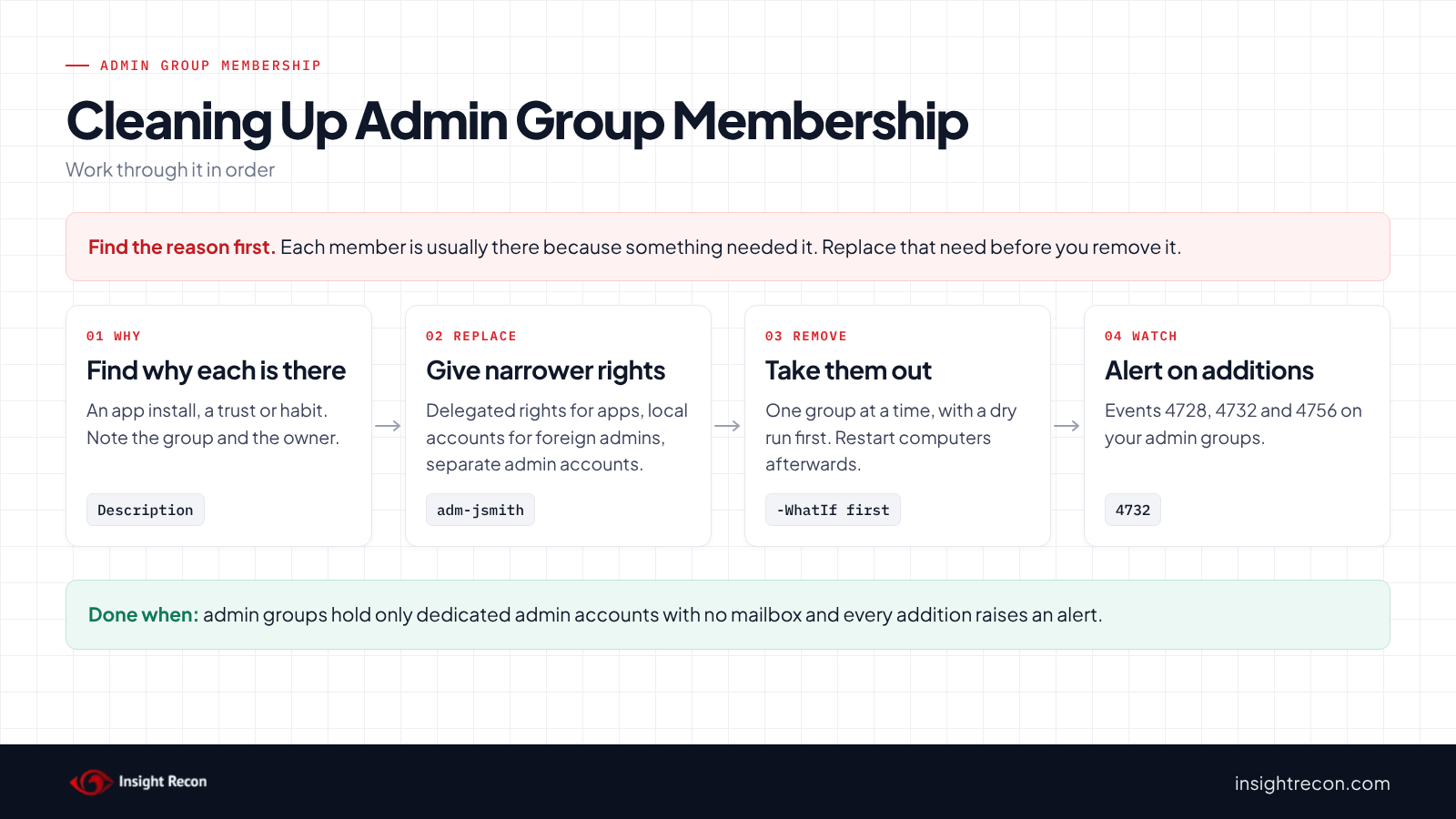
Each of these members is usually there because something needed it. Find what that was, give it the narrower rights it actually needs and note the current membership so you can put it back.
For computer accounts
Find the app that runs on the computer and check its documentation for the rights it needs. Most only need specific permissions on an OU or a few objects. Delegate those first instead. If the vendor insists on domain admin rights, treat that server as Tier 0, the same as a domain controller.
For foreign security principals
Find out who owns the other forest and why its accounts need admin rights here. For example, if they manage both, consider giving those people separate admin accounts in this domain. Then check the trust's settings. Our SID History post covers SID filtering on trusts.
For admin accounts with email
Plan a separate admin account for each person before you remove anything. That way nobody loses the ability to do their job. Clearing the mail attribute isn't the fix. It hides the finding while the same account keeps reading mail with admin rights. Directory sync may also set it again.
Know when removal takes effect
Group membership is read when an account signs in or gets a new Kerberos ticket. A user removed from an admin group can keep admin rights in sessions and tickets issued before the change until they expire. Tickets can be renewed for up to seven days by default, according to Microsoft's Kerberos policy documentation. For a computer account, restart the computer, or purge the LocalSystem ticket cache with klist purge -li 0x3e7.
Fix admin group membership safely
1. Take computer accounts out
Once the app has the rights it needs, this removes the computer from one group. It's a dry run with -WhatIf. Drop that to apply. It needs rights to change the group's membership, which for protected groups means Domain Admins. Afterwards, restart the computer and check the app still works. To undo it, use Add-ADGroupMember with the same group and computer.
# Dry run. Drop -WhatIf to apply. Needs rights to change the group's membership (Domain Admins for protected groups).
Import-Module ActiveDirectory -ErrorAction Stop
Remove-ADGroupMember -Identity 'Domain Admins' -Members 'APP01$' -Confirm:$false -WhatIf
2. Take foreign principals out
This removes one foreign security principal from Administrators. Use the Dn value from the find script. It's a dry run with -WhatIf. Drop that to apply. It needs Domain Admins. To undo it, run the same command with -Add. Start with the ones that don't resolve once you've confirmed their trust is gone, because nothing should depend on those.
# Dry run. Drop -WhatIf to apply. Needs Domain Admins. Use the Dn value from the script above.
Import-Module ActiveDirectory -ErrorAction Stop
$fsp = 'CN=S-1-5-21-1111111111-2222222222-3333333333-1105,CN=ForeignSecurityPrincipals,DC=contoso,DC=com'
Set-ADGroup -Identity 'S-1-5-32-544' -Remove @{ member = $fsp } -WhatIf
3. Split admin work onto separate accounts
This creates a separate admin account with no mail attribute, adds it to Domain Admins and removes the person's daily account from the group. It's a dry run with -WhatIf on each line. Drop that to apply. The two group lines can't find the new account until it exists, so create it first, then dry-run the rest. It needs Domain Admins. Change the OU path to wherever you keep admin accounts. Hand over the new account before you remove the old one from the group.
# Dry run. Drop -WhatIf to apply. Needs Domain Admins. No mailbox, no mail attribute on the new account.
Import-Module ActiveDirectory -ErrorAction Stop
New-ADUser -Name 'adm-jsmith' -SamAccountName 'adm-jsmith' -UserPrincipalName "adm-jsmith@$((Get-ADDomain).DNSRoot)" `
    -Path 'OU=Admins,OU=Tier0,DC=contoso,DC=com' -AccountPassword (Read-Host -AsSecureString 'Password') -Enabled $true -WhatIf
Add-ADGroupMember -Identity 'Domain Admins' -Members 'adm-jsmith' -WhatIf
Remove-ADGroupMember -Identity 'Domain Admins' -Members 'jsmith' -Confirm:$false -WhatIf
After that, keep the new account off email and the web. Ideally it signs in only from a dedicated admin workstation.
Keep admin group membership clean
- Alert on admin group changes. With Audit Security Group Management on, events 4728, 4732 and 4756 record members added to security groups. Microsoft recommends monitoring them for high-value groups such as Domain Admins, Enterprise Admins and the built-in Administrators group.
- Make admin accounts separate by default. Create admin accounts without a mailbox from the start, in their own OU.
- Ask vendors for least-privilege setups. Make "doesn't need Domain Admins" part of approving new software.
- Re-run the scan. All three checks show whether any of these members are back.
Admin group membership checklist
- Is every computer account out of every privileged group, or treated as Tier 0 if it can't be?
- Is every foreign security principal in an admin group approved, owned and covered by your security policies?
- Have unresolvable foreign security principals been removed?
- Does every admin have a separate admin account with no mailbox?
- Do admin accounts stay off email and the web?
- Are additions to admin groups alerted on?
- Did you check every domain, including the forest root?
A "no" on the first question means local admin on that computer is enough to become a domain admin.
Compliance mapping
| Framework | Reference | Why it applies |
|---|---|---|
| MITRE ATT&CK | T1078.002, T1098.007, T1566 | Domain Accounts for all three checks. Additional Local or Domain Groups for the computer and foreign principal checks. Phishing for the email check. |
| CIS Controls v8 | Control 5, Control 6 | Account management and access control. Privileged groups should hold dedicated, managed admin accounts. |
| NIST CSF 2.0 | PR.AA-05 | Access permissions follow least privilege. Each of these members grants admin rights more widely than intended. |
| ANSSI | warning_privileged_members_foreign | Privileged Group Contains Foreign Security Principal only. ANSSI's control point for privileged groups with an external object as a member. |
| DISA STIG | V-243467, V-243496, V-243466, V-254238, V-254240 | V-243467, Domain Admins restricted to accounts used only to manage the domain (computer and email checks). V-243496, outside accounts removed from privileged groups (foreign principal check). V-243466, V-254238 and V-254240, separate admin accounts kept off email and the web (email check). |
Admin group membership FAQ
Why is a computer account in Domain Admins a problem?
Services running as SYSTEM on that computer use its account on the network. Anyone with local admin there can act as a domain admin.
What is a foreign security principal?
A stand-in object for an account or group from a trusted domain outside your forest, created when you add it to a group here. It lives in the ForeignSecurityPrincipals container.
Can I just clear the email address on admin accounts?
No. That hides the finding while the same account keeps reading mail with admin rights. Give the person a separate admin account instead.
Does removing someone from an admin group take effect right away?
Not for sessions and tickets they already have. Those keep the old membership until they expire. Have them sign out, or restart the computer for a computer account.
Does Insight Recon check admin group membership?
Yes. The free scan includes Computer Account Detected in Privileged Group, Privileged Group Contains Foreign Security Principal and Administrator Accounts With Email Addresses.
Find out who your admin groups really trust.
The scan runs from any Windows machine that can reach your DCs, with a standard domain account. The free plan covers every on-prem AD check.
Not ready to scan?
AD Signal is our monthly look at what's changing in AD security and how real domains score. Read the latest report.
References
- Microsoft Learn: LocalSystem account
- Microsoft Learn: [MS-ADTS] 6.1.1.4.10 Foreign Security Principals Container
- Microsoft Learn: Accounts with non-default Primary Group ID
- Microsoft Learn: Securing devices as part of the privileged access story
- Microsoft Learn: Event 4732, a member was added to a security-enabled local group
- Microsoft Learn: klist
- Microsoft Learn: Maximum lifetime for user ticket renewal
- DISA STIG V-243496: outside accounts in highly privileged groups
- DISA STIG V-243467: Domain Admins membership restricted
- DISA STIG V-254240 (WN22-00-000030): admin accounts and internet applications
- MITRE ATT&CK: T1098.007 Additional Local or Domain Groups
- MITRE ATT&CK: T1566 Phishing