Stale Passwords in Active Directory: Find and Fix Old Admin and User Passwords
Stale passwords are passwords that haven't changed in months or years, on accounts that are still enabled. On an admin account, an old password gives anyone who learned it, cracked it or reused it from a breach a long window to sign in with full rights. On ordinary and service accounts the risk is smaller per account and much larger in total. This post shows you how to find both, sort out which ones need a new password now and avoid locking out the people and services that still use them.
| Priority | Moderate, High once an admin password is more than a year old. An old password has had longer to leak and keeps working until it's changed |
|---|---|
| What decides it | The pwdLastSet date on enabled user accounts, older than 180 days for admins and everyone else |
| Who's affected | Admin accounts nobody rotates, service accounts set up years ago, accounts with non-expiring passwords and accounts nobody uses anymore |
| Fix | Sort each account by whether it's used and what it is, disable the unused ones, reset privileged and service passwords and replace service accounts with gMSAs where you can |
Check it now: which enabled accounts have passwords older than 180 days?
Import-Module ActiveDirectory -ErrorAction Stop
$cutoff = (Get-Date).AddDays(-180)
Get-ADUser -Filter 'Enabled -eq $true' -Properties PasswordLastSet |
    Where-Object { $_.SamAccountName -notin 'krbtgt', 'Guest' -and
                   ($null -eq $_.PasswordLastSet -or $_.PasswordLastSet -lt $cutoff) } |
    Sort-Object PasswordLastSet |
    Select-Object SamAccountName, PasswordLastSet
Runs as any domain user with the ActiveDirectory module. It lists enabled user accounts in the domain you're signed in to whose password is more than 180 days old, oldest first. A blank PasswordLastSet means the password was never set or the account is set to change it at next sign-in. Add -Server child.contoso.com to Get-ADUser to check another domain.
You checked one setting. The free scan checks the rest of your on-prem AD in a few minutes.
Nothing gets installed on your domain controllers. Only HTTPS leaves your network.
What stale passwords are
Every user account in AD records when its password last changed in the pwdLastSet attribute. Microsoft's schema documentation describes it as the date and time the password was last changed. A value of 0 means the user must set a new password at next sign-in. A stale password is one whose pwdLastSet date is old while the account is still enabled.
How old counts as stale depends on whose guidance you follow. The major sources disagree:
- NIST SP 800-63B says verifiers "SHALL NOT require subscribers to change passwords periodically." It also says they must force a change when there's evidence of compromise.
- Microsoft dropped password expiration from its Windows security baselines in 2019. It called periodic expiration "an ancient and obsolete mitigation of very low value" and pointed to banned-password lists and MFA instead.
- The DISA STIG for Windows Server 2022 still requires a maximum password age of 60 days or less.
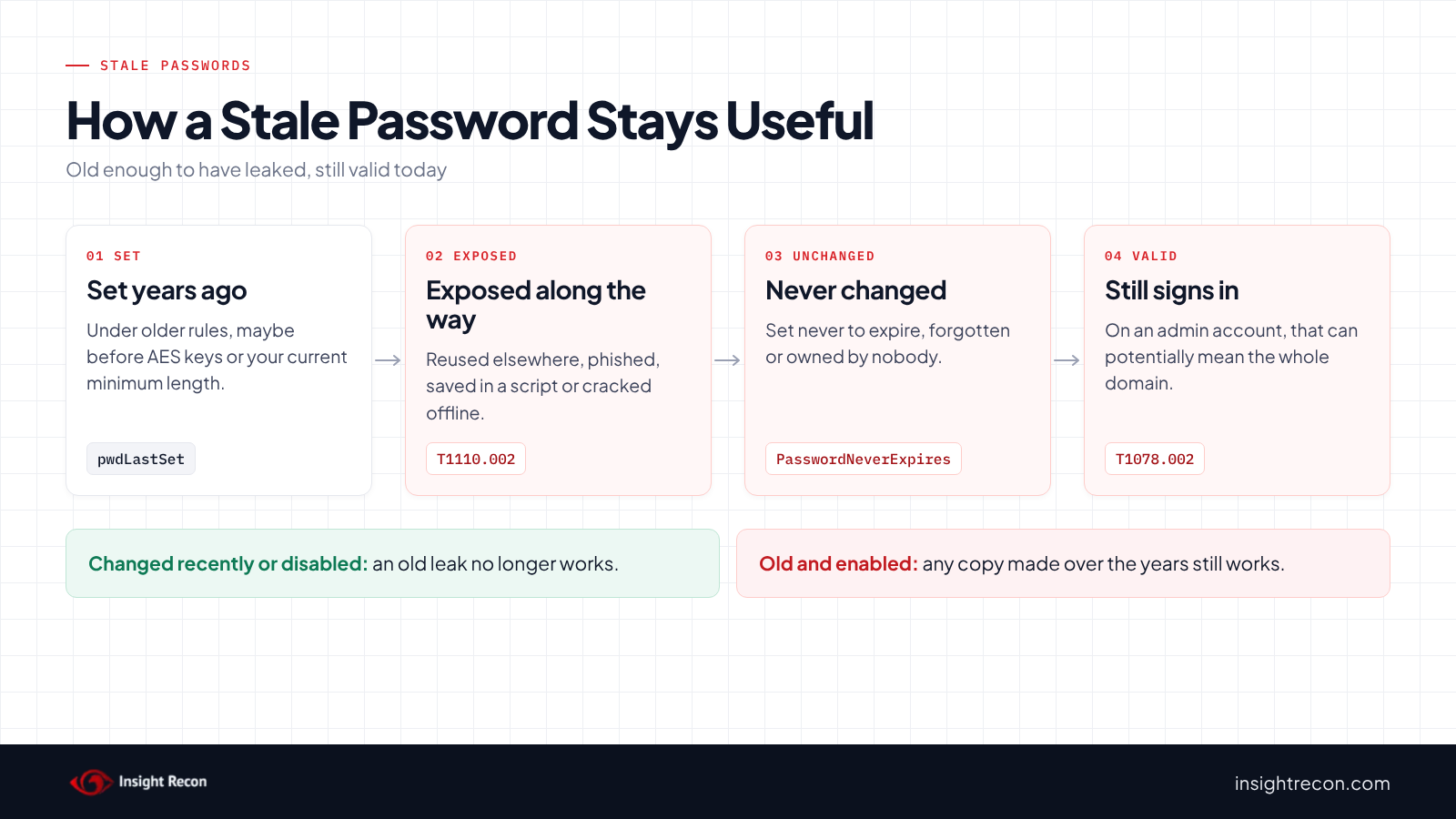
None of that changes what an old password is: one that has had years to be reused, phished, cracked or copied while it still works. The no-rotation guidance assumes you'd notice a compromise and force a change. Old admin and service account passwords are where that assumption tends to fail.
The 180-day and 365-day lines in this post are where Insight Recon flags an account for review. They aren't a schedule for rotating every password.
Why stale passwords are dangerous
A longer window for a leaked password
Microsoft's baseline post puts it plainly: expiration only protects against a password being stolen during its lifetime. The longer a password lives, the more chances it has had to be reused on another site, typed into a phishing page, saved in a script or caught in an old backup. If it was ever exposed and nobody noticed, it still works. MITRE ATT&CK tracks the use of stolen domain credentials as T1078.002, Valid Accounts: Domain Accounts.
More time to crack it offline
Some attacks don't need the password itself. A service ticket for an account with an SPN, or a password hash pulled from a backup or a domain controller, lets an attacker crack it offline at their own pace. MITRE tracks that as T1110.002, Password Cracking. A password that never changes gives that work unlimited time to finish. Service accounts are the usual case, as our Kerberoasting post explains.
Weaker settings from when it was set
A password may also predate your current password requirements or the Kerberos keys your environment expects today. Kerberos encryption keys are derived when the password is set, so accounts whose passwords have not changed since AES-capable domain controllers were introduced may lack AES keys. Microsoft phased in AES-first KDC behavior during 2026, with final enforcement changes arriving in July 2026, making these old accounts increasingly likely to cause authentication problems. Our RC4 post covers that change.
Admin accounts multiply all of it
The same old password on a Domain Admin account potentially hands over the whole domain. So the privileged check rates High once an admin password passes 365 days. Both checks start at 180.
Find stale passwords in your domain
Start with privileged accounts
This lists enabled user accounts in the main privileged groups, including nested members, whose password is older than 180 days. An admin account that never set a password counts from when it was created, the same as in the scan. It shows which groups grant the access, the password age, the last sign-in and whether the account has an SPN. It runs as any domain user with the AD module and covers the domain you're signed in to. Enterprise Admins and Schema Admins only exist in the forest root, so the script warns and skips them elsewhere. Run it in each domain.
Import-Module ActiveDirectory -ErrorAction Stop
$cutoff = (Get-Date).AddDays(-180)
$groups = 'Domain Admins', 'Enterprise Admins', 'Schema Admins', 'Administrators', 'Account Operators',
          'Backup Operators', 'Server Operators', 'Print Operators', 'DnsAdmins', 'Cert Publishers',
          'Key Admins', 'Enterprise Key Admins', 'Replicator'
$members = @{}
foreach ($g in $groups) {
    try { $found = Get-ADGroupMember -Identity $g -Recursive -ErrorAction Stop }
    catch { Write-Warning "Skipped ${g}: $($_.Exception.Message)"; continue }
    foreach ($m in $found | Where-Object objectClass -eq 'user') {
        if (-not $members.ContainsKey($m.SamAccountName)) { $members[$m.SamAccountName] = @() }
        $members[$m.SamAccountName] += $g
    }
}
foreach ($sam in $members.Keys) {
    try { $u = Get-ADUser -Identity $sam -Properties PasswordLastSet, LastLogonDate, PasswordNeverExpires, ServicePrincipalName, SmartcardLogonRequired, whenCreated -ErrorAction Stop }
    catch { Write-Warning "Couldn't read $sam (another domain?)"; continue }
    $set = if ($u.PasswordLastSet) { $u.PasswordLastSet } else { $u.whenCreated }
    if (-not $u.Enabled -or $set -ge $cutoff) { continue }
    [pscustomobject]@{
        Account              = $sam
        Groups               = ($members[$sam] | Sort-Object -Unique) -join ', '
        PasswordAgeDays      = [int]((Get-Date) - $set).TotalDays
        NeverSetOrMustChange = -not $u.PasswordLastSet
        LastLogonDate        = $u.LastLogonDate
        NeverExpires         = $u.PasswordNeverExpires
        SmartCard            = $u.SmartcardLogonRequired
        HasSPN               = $u.ServicePrincipalName.Count -gt 0
    }
}
What to look for: every row is an admin password that's older than the check allows. Past 365 days, the scan rates it High. HasSPN set to True is higher priority as any domain user can potentially request a ticket for an admin account that also runs a service and try to crack it offline. NeverExpires explains why the password never changed. NeverSetOrMustChange means the password was never set or must change at next sign-in, so its age counts from when the account was created. SmartCard set to True means the scan covers that account in its own smart card check. Accounts from another domain show up as a warning. Check those in their own domain.
Export everything else for triage
This writes every enabled account with a password older than 180 days to a CSV, with the details you need to sort them. It runs as any domain user with the AD module and covers one domain at a time.
Import-Module ActiveDirectory -ErrorAction Stop
$cutoff = (Get-Date).AddDays(-180)
Get-ADUser -Filter 'Enabled -eq $true' -Properties PasswordLastSet, LastLogonDate, PasswordNeverExpires,
        ServicePrincipalName, Description, whenCreated |
    Where-Object { $_.SamAccountName -notin 'krbtgt', 'Guest' -and
                   ($null -eq $_.PasswordLastSet -or $_.PasswordLastSet -lt $cutoff) } |
    Select-Object SamAccountName, Name,
        @{ n = 'PasswordAgeDays'; e = { if ($_.PasswordLastSet) { [int]((Get-Date) - $_.PasswordLastSet).TotalDays } } },
        @{ n = 'NeverSetOrMustChange'; e = { $null -eq $_.PasswordLastSet } },
        LastLogonDate, PasswordNeverExpires,
        @{ n = 'HasSPN'; e = { $_.ServicePrincipalName.Count -gt 0 } },
        Description, whenCreated |
    Sort-Object PasswordAgeDays -Descending |
    Export-Csv .\stale-passwords.csv -NoTypeInformation
What to look for: sort by LastLogonDate first. Microsoft's schema documentation says the timestamp behind it only updates when the stored value is older than the sync interval, so it can lag by up to about two weeks. Disable an account nobody has signed in with for months. Resetting it helps nobody. HasSPN marks likely service accounts. NeverSetOrMustChange marks accounts nobody has used since creation, or that are already waiting for a new password. Description and whenCreated often tell you who asked for the account.
Check stale passwords with Insight Recon
The free scan includes two checks that use the same pwdLastSet date:
- Privileged Users with Stale Passwords (Moderate) lists enabled members of privileged groups, including nested members, whose password is more than 180 days old. It rates High once any is more than 365 days old. An admin account that never set a password counts from when it was created. Accounts that require a smart card go to their own check.
- Accounts With Stale Passwords (Moderate) lists enabled user accounts, other than krbtgt and Guest, whose password is more than 180 days old. Accounts still waiting for their first password don't count. It leaves out computer, trust and managed service accounts.
Each finding comes with the Hacker Insight, remediation steps and compliance mappings for the check.
Know what it doesn't decide for you. Neither check knows whether an account is still used, what runs under it or whether the password was ever exposed. Both trust pwdLastSet. Ticking "User must change password at next logon" and then clearing it writes the current time to that attribute without changing the password, so an account can look fixed when it isn't.
These related checks cover the rest of this area:
- Accounts with Non-Expiring Passwords and Non-Expiring Passwords in Domain Admins Group, the most common reason a password gets old. Our non-expiring passwords post covers both.
- Inactive Privileged Users, admin accounts nobody has signed in with lately. Our inactive admin accounts post covers cleaning them out.
- Accounts Vulnerable to Kerberoasting, service accounts whose old passwords an attacker can try to crack offline.
- Smart Card Required Accounts with Stale Passwords, gMSA with Stale Password and Stale krbtgt Account Password, the same problem on other kinds of account.
You can see what the findings look like in our sample report. The full list is in our check library.
See which of your admin passwords are past due.
It runs from any Windows machine that can reach your DCs, with a standard domain account. Every core AD check is free for one domain.
Before you change stale passwords
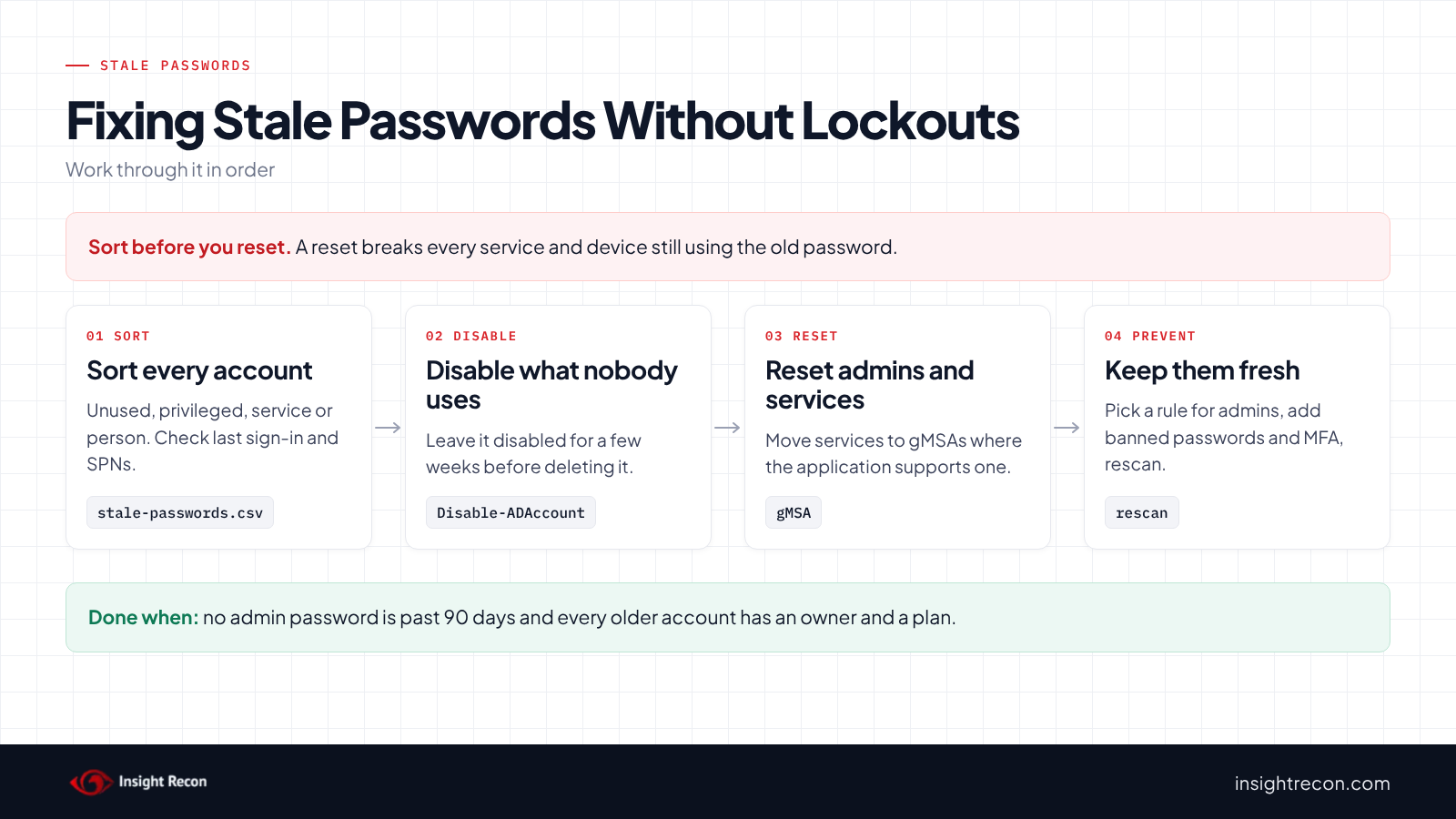
Resetting a password breaks every service, scheduled task, script and device still using the old one. Forcing a change at next sign-in can strand users who can't complete it. Sort each account first.
Sort each account
- Not used: no recent sign-in, no owner, nothing running under it. Disable it rather than resetting it.
- Privileged: reset the password now. If you think someone else used it, disable it first and review its sign-ins.
- Service account: find every server and task that uses it before you reset. Move it to a gMSA where the application supports one.
- Person: have them choose a new password, after checking how they sign in.
Find what a service account runs
Check the description, the SPNs and the account's recent sign-ins on your DCs. Ask the application owners. A reset without that list usually turns into an outage the next time a service restarts.
Check how people sign in
Some remote sign-in paths can't prompt for a password change. Before you force a change at next sign-in, confirm the user can actually reach a prompt, such as signing in at a domain-joined machine or a portal that handles it.
Plan for existing sign-ins
A password reset does not immediately invalidate Kerberos tickets that were already issued. TGTs can normally be renewed for up to seven days, while existing service tickets may remain usable until they expire. Disabling a suspected account blocks new sign-ins and ticket renewals. Don't assume it instantly ends every ticket already in use.
Don't reset the clock instead of the password
Ticking "User must change password at next logon" and clearing it again updates pwdLastSet without changing the password. Specops documents this as a way to extend expiring passwords. It makes the account disappear from both checks while the old password keeps working.
Fix stale passwords safely
1. Disable the accounts nobody uses
This disables one account and records why in its description. It's a dry run with -WhatIf. Drop that to apply. It needs rights to disable the account: Account Operators or delegated rights for ordinary accounts, Domain Admins for members of protected admin groups. If something breaks, Enable-ADAccount puts it back with the same password.
# Dry run. Drop -WhatIf to apply. Needs rights to disable the account
# (Account Operators or delegated rights; Domain Admins for protected admin accounts).
Import-Module ActiveDirectory -ErrorAction Stop
Disable-ADAccount -Identity 'svc-oldapp' -WhatIf
Set-ADUser -Identity 'svc-oldapp' -Description "Disabled $(Get-Date -Format yyyy-MM-dd): stale password, no recent sign-in" -WhatIf
Leave it disabled for a few weeks before deleting it, so anything that still needed it shows up first.
2. Reset privileged passwords
This resets one admin account's password. It's a dry run with -WhatIf. Drop that to apply. It needs the Reset Password right on the account, which for members of protected admin groups usually means Domain Admins. Run it in the domain where the account lives.
# Dry run. Drop -WhatIf to apply. Needs the Reset Password right on the account.
# For members of protected admin groups, that usually means Domain Admins.
Import-Module ActiveDirectory -ErrorAction Stop
Set-ADAccountPassword -Identity 'adm-jsmith' -Reset -NewPassword (Read-Host -AsSecureString 'New password') -WhatIf
While you're there, split admin work from day-to-day work. An admin account that also reads email or runs a service is the one most likely to leak.
3. Fix service accounts
Where the application supports it, move the service to a group managed service account (gMSA). Microsoft lists services and scheduled tasks among the things that can use one. Windows changes its password automatically. Our gMSA post covers who should be able to read it. Where a gMSA isn't an option, reset the password with the script in step 2 and update every place it's used right after. That reset also gives the account AES keys if it didn't have them.
4. Have people choose new passwords
This makes one user choose a new password at their next sign-in. It's a dry run with -WhatIf. Drop that to apply. It needs the rights your helpdesk uses to force a password change. To undo it before they sign in, set -ChangePasswordAtLogon $false. That also stamps a new pwdLastSet, so the account drops off the checks without a new password. Only undo it when you mean to.
# Dry run. Drop -WhatIf to apply. Needs the rights your helpdesk uses to force a password change.
Import-Module ActiveDirectory -ErrorAction Stop
Set-ADUser -Identity 'jsmith' -ChangePasswordAtLogon $true -WhatIf
Keep stale passwords from coming back
- Decide your rule for admins. If you follow the STIG, a fine-grained password policy can give privileged groups a shorter maximum age than everyone else. Microsoft's documentation says fine-grained password policies need a domain functional level of Windows Server 2012 or higher.
- Back the no-rotation approach with what it assumes. Microsoft's baseline post recommends banned-password lists and MFA in place of expiration. Without those, old passwords carry more risk.
- Watch for the clock trick. With Audit User Account Management on, event 4738 records changes to an account's Password Last Set value. One with no matching password change or reset is worth a look.
- Review the CSV quarterly. Run the triage script and compare it with last quarter's list.
- Re-run the scan. Both checks show whether old passwords are piling up again.
Stale passwords checklist
- Is every privileged account's password less than 180 days old, or does it have a documented exception?
- Did you disable the accounts nobody uses?
- Does every remaining service account with an old password have an owner and a plan, ideally a gMSA?
- Did each password actually change, beyond the
pwdLastSetdate? - Do admin accounts stay separate from email and services?
- Are banned passwords and MFA in place if you don't rotate on a schedule?
- Did you check every domain in the forest?
A "no" on the first question means an admin password may have been usable by someone else for longer than anyone intended.
Compliance mapping
| Framework | Reference | Why it applies |
|---|---|---|
| MITRE ATT&CK | T1078.002, T1110.002 | Valid Accounts: Domain Accounts and Password Cracking. An old password has had more time to be stolen or cracked and still signs in. |
| CIS Controls v8 | Control 5, Control 6 | Account management and access control. Review accounts and their credentials and keep them current. |
| NIST CSF 2.0 | PR.AA-01, PR.AA-03 | You manage identities and credentials and authenticate users. A credential nobody has reviewed in years weakens both. |
| ANSSI | vuln_password_change_priv | Privileged Users with Stale Passwords only. ANSSI's control point for privileged account passwords that are too old. |
| DISA STIG | V-254289 | Windows Server 2022 maximum password age must be configured to 60 days or less. |
Stale passwords FAQ
What is a stale password in Active Directory?
A password on an enabled account that hasn't changed in a long time, measured by the pwdLastSet attribute. Insight Recon flags passwords more than 180 days old. On an admin account, more than 365 days rates High.
Doesn't NIST say not to rotate passwords?
For user passwords, yes, as long as you force a change when there's evidence of compromise. Microsoft says the same and pairs it with banned-password lists and MFA. The DISA STIG still requires 60 days. Old admin and service passwords deserve attention under any of these.
Should I just force everyone to change their password?
No. Disable accounts nobody uses and reset privileged and service passwords deliberately. Check how people sign in before forcing a change at next sign-in.
Can I clear the finding without changing the password?
Toggling "User must change password at next logon" updates pwdLastSet without a new password. The finding goes away while the old password still works. Don't do it.
Does Insight Recon check for stale passwords?
Yes. The free scan includes Privileged Users with Stale Passwords and Accounts With Stale Passwords.
Find the old passwords that still open your domain.
It runs from any Windows machine that can reach your DCs, with a standard domain account. Every core AD check is free for one domain.
Not ready to scan?
AD Signal is our monthly look at what's changing in AD security and how real domains score. Read the latest report.
References
- Microsoft Learn: Pwd-Last-Set attribute
- Microsoft Learn: Last-Logon-Timestamp attribute
- NIST SP 800-63B: Authentication and Authenticator Management
- Microsoft: Security baseline (FINAL) for Windows 10 v1903 and Windows Server v1903
- DISA STIG V-254289: Windows Server 2022 maximum password age
- Microsoft Learn: Detect and remediate RC4 usage in Kerberos
- MITRE ATT&CK: T1078.002 Valid Accounts: Domain Accounts
- MITRE ATT&CK: T1110.002 Brute Force: Password Cracking
- Microsoft Learn: Maximum lifetime for user ticket renewal
- Microsoft Learn: Fine-grained password policies
- Microsoft Learn: Event 4738, a user account was changed
- Microsoft Learn: Group Managed Service Accounts overview
- Specops: Resetting the clock on Active Directory password expiration