GPP Passwords: Find Them in SYSVOL and Clean Them Up Safely
GPP passwords are account passwords that Group Policy Preferences stored in SYSVOL, where any domain user can read them and Microsoft has published the key that decrypts them. Microsoft stopped new ones from being created in 2014. The update left existing ones in place, so older domains often still have them. This post shows you how to find every stored password, work out which accounts are exposed and remove them without breaking the services, tasks and drive mappings that depend on them.
| Priority | Critical. Any domain user can read the file and recover the password. A finding based only on a script pattern rates High until someone confirms it |
|---|---|
| What decides it | A non-empty cpassword in a Group Policy Preferences XML file, a plain-text DefaultPassword value in a Registry preference, either of those in an orphaned GPO folder or backup in SYSVOL, or a SYSVOL script that matches a plain-text password pattern |
| Who's affected | Domains that used Group Policy Preferences to set passwords for local users, services, scheduled tasks, mapped drives or data sources, usually before 2014 |
| Fix | Stop the preference items first, replace what each password was for, change every exposed password and remove any copies |
Check it now: does SYSVOL hold any GPP passwords?
$domain = $env:USERDNSDOMAIN   # or another domain's DNS name, like 'child.contoso.com'
$root = "\\$domain\SYSVOL\$domain\Policies"
if (-not (Test-Path $root)) { throw "Can't reach $root" }
Get-ChildItem $root -Recurse -Filter *.xml |
    Select-String -Pattern 'cpassword="[^"]+"|name="DefaultPassword"' -List |
    Select-Object Path
Runs as any domain user on a domain-joined machine, with no extra modules. It searches the GPO folders of the domain you're signed in to and lists each XML file with a cpassword value or a DefaultPassword Registry item. A DefaultPassword match can be a false alarm, because an empty value or a Delete action stores no password. The script below sorts those out. If it can't reach SYSVOL it stops with an error. No output means it found none there. Every domain has its own SYSVOL, so set $domain to each domain's DNS name (for example child.contoso.com) and run it again.
You checked one setting. The free scan checks the rest of your on-prem AD in a few minutes.
Nothing gets installed on your domain controllers. Only HTTPS leaves your network.
What GPP passwords are
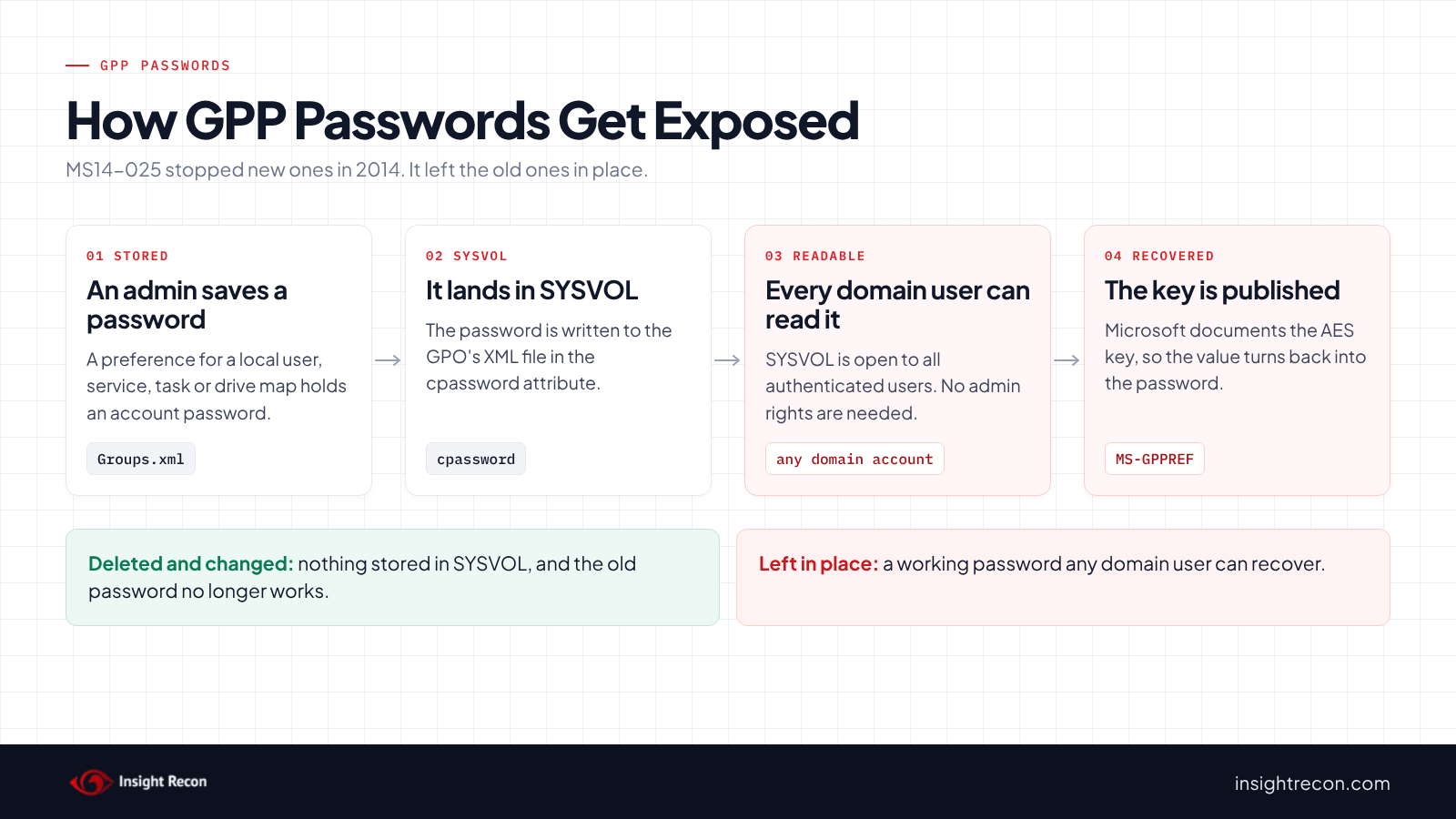
Group Policy Preferences (GPP) let admins push settings that plain Group Policy couldn't, such as drive mappings and local accounts. Several of those preferences could carry an account password. Microsoft's MS14-025 article lists them: local users and groups, mapped drives, services, scheduled tasks, immediate tasks and data sources.
The console saves each preference as an XML file in the GPO's folder in SYSVOL, such as Groups.xml, Services.xml, ScheduledTasks.xml, Drives.xml or DataSources.xml. When a preference has a password, it goes in the cpassword attribute. Microsoft's protocol documentation for Group Policy Preferences says AES encrypts the password. The same section publishes the 32-byte key.
A common use was the local Administrator account. A single preference set its password on every computer in the GPO's scope. Each of those computers got the same password.
A related case has no encryption at all. A Registry preference that sets automatic sign-in writes the DefaultPassword value into Registry.xml in plain text.
Why GPP passwords are dangerous
Microsoft's own security team explained the problem when it shipped the fix. SYSVOL is open to all authenticated users and the key is documented. Anyone with a domain account can read a cpassword value and turn it back into the password. You don't need admin rights. MITRE ATT&CK tracks this as T1552.006, Unsecured Credentials: Group Policy Preferences.
The same MSRC post says Microsoft had seen GPP abuse as one of the most common tactics attackers used. It names Metasploit and PowerSploit as toolkits that retrieve and decrypt these passwords. Today the same search is a single module in NetExec (gpp_password, with gpp_autologin for the plain-text autologon case) or Impacket's Get-GPPPassword.py. Assume anyone who has had a domain account in your network could have run one of them.
What that gets someone depends on the account. A shared local Administrator password could potentially work on every computer the GPO reached. A service or task account may have rights on servers. Microsoft's MSRC post calls out the worst case: a GPP that stored Domain Admin credentials could lead to a full domain compromise.
The fix didn't clean anything up. MS14-025 (May 13, 2014) changed the Group Policy Management Console so it can no longer create or edit preferences with a password. Microsoft chose not to remove existing ones, to avoid breaking environments that relied on them. A GPP password set in 2012 can still be sitting in SYSVOL today, readable the whole time.
Deleting the file doesn't end the exposure either. The password stays valid until someone changes it. Copies can also survive in GPO backups and file shares.
Find GPP passwords in SYSVOL
List each stored password by GPO and account
The quick check finds the files. This script reads each one and tells you which GPO it belongs to, which account the password is for and how the item will behave when you stop it. The script never decrypts or prints a password. It runs as any domain user and needs the GroupPolicy module, which comes with RSAT. It stops with an error if the module or SYSVOL isn't available. Like the quick check, it covers one domain at a time.
# Reads SYSVOL and GPO names only. It never decrypts or prints a password.
Import-Module GroupPolicy -ErrorAction Stop
$domain = $env:USERDNSDOMAIN   # or another domain's DNS name
$root = "\\$domain\SYSVOL\$domain\Policies"
if (-not (Test-Path $root)) { throw "Can't reach $root" }
Get-ChildItem $root -Recurse -Filter *.xml | ForEach-Object {
    $file = $_
    try { [xml]$xml = Get-Content -LiteralPath $file.FullName -Raw }
    catch { Write-Warning "Can't parse $($file.FullName)"; return }
    foreach ($p in $xml.SelectNodes('//Properties')) {
        $a = @{}   # hashtable keys ignore case: userName/username, cpassword/cPassword
        foreach ($x in $p.Attributes) { $a[$x.Name] = $x.Value }
        $type = $null
        if ($a['cpassword']) { $type = 'cpassword' }
        elseif ($a['name'] -eq 'DefaultPassword' -and $a['value'] -and $a['action'] -ne 'D') { $type = 'autologon, plain text' }
        if (-not $type) { continue }
        $i = @{}
        foreach ($x in $p.ParentNode.Attributes) { $i[$x.Name] = $x.Value }
        $guid = ''
        if ($file.FullName -match '\{([0-9A-Fa-f-]{36})\}') { $guid = $Matches[1] }
        $gpo = 'no GPO with this GUID'
        if ($guid) { try { $gpo = (Get-GPO -Guid $guid -Domain $domain -ErrorAction Stop).DisplayName } catch { } }
        [pscustomobject]@{
            Gpo          = $gpo
            Side         = if ($file.FullName -match '\\User\\') { 'User' } else { 'Computer' }
            File         = $file.Name
            Item         = $i['name']
            Type         = $type
            Account      = @($a['userName'], $a['runAs'], $a['accountName']) | Where-Object { $_ } | Select-Object -First 1
            Disabled     = $i['disabled'] -eq '1'
            RemovePolicy = $i['removePolicy'] -eq '1'
            Changed      = $i['changed']
            Path         = $file.FullName
        }
    }
} | Sort-Object Gpo, Account
What to look for: the Account column is your list of exposed credentials. Every name in it needs a new password, whatever else you decide. For an autologon row, the account name is usually in a DefaultUserName item in the same file. Disabled set to True still counts. A disabled item stops applying to computers. It still stays in the file with its cpassword. RemovePolicy set to True means the item has "Remove this item when it is no longer applied" ticked, which changes what happens when you stop it (see below). Changed shows when the item was last saved, which tells you roughly how long it's been readable. A Gpo value of no GPO with this GUID means the folder's GUID doesn't match a GPO in AD, usually a folder left behind by a deleted GPO. Nothing applies it anymore. Anyone can still read it.
Check backups and copies
GPO backups keep the same XML files, so a backup folder on a file server can hold the same passwords. Set $root to the backup path and run the script again. In a backup, the Gpo column shows no GPO with this GUID because each backup sits under its own backup ID. Go by the Path column instead. Microsoft's MS14-025 article also includes a script, Get-SettingsWithCPassword.ps1, that reports on five of the preference files. The script above searches every XML file, which also picks up printers and autologon values.
Check GPP passwords with Insight Recon
The free scan includes Password in GPO. It reads the preference files on both the Computer and User sides of each GPO, including plain-text autologon values in Registry items. It lists each GPO that stores a password with the file it found it in. It also checks orphaned GPO folders and backups left in SYSVOL, plus SYSVOL scripts that match a plain-text password pattern. A script match is only a pattern until someone confirms it, so a finding based only on scripts rates High with a note to open each one and check. The finding doesn't include the password. It comes with the Hacker Insight, remediation steps and compliance mappings for the check.
Know what it doesn't decide for you. The check can't tell you whether the password still works, where else that account is used or whether anyone has already read it. Treat every account it points to as exposed. It reads SYSVOL on the domain it scans, so GPO backups on file servers and other copies are yours to search with the script above. The scripts in this post search XML under Policies only, so they won't show script matches. If a preference file or folder can't be read, the result says so and the report lists it. If most linked GPOs can't be read, the check reports "not assessed".
These related checks cover the rest of this area:
- GPO Enables reversible password use and Accounts with reversible passwords, passwords stored in a form that can be turned back into plain text. Our reversible encryption post covers both.
- Possible Password in AD Attributes and Possible Passwords in Account Descriptions, passwords typed into AD fields that every domain user can read. Our passwords in AD descriptions post covers both.
- LAPS Not In Use, which matters here because Windows LAPS is how you replace a shared local Administrator password.
- Risky GPO Control Permissions, accounts outside your admin tiers that can edit GPOs.
You can see what the findings look like in our sample report. The full list is in our check library.
See what other credentials your AD is exposing.
It runs from any Windows machine that can reach your DCs, with a standard domain account. Every core AD check is free for one domain.
Before you remove GPP passwords
A preference item keeps pushing its password at every Group Policy refresh. Stopping it can also change settings on every computer in the GPO's scope. Check how each item will behave, find what each account does and back up the GPOs before you touch anything.
Know why the items go first
Microsoft's documentation for preference items says that by default they're rewritten each time Group Policy refreshes. While an item is still in the GPO, it keeps writing the old password back:
- The local Administrator item writes the shared password over whatever Windows LAPS set.
- A service or task item puts the old password back on the service after you reset the account, so the service fails the next time it starts.
- Drive maps keep trying the old password, which can lock the account out.
So the fix below stops the items before it changes any password.
Know what stopping an item does
By default, Microsoft says a preference item's settings stay on the computer when the item stops applying. "Remove this item when it is no longer applied," on the item's Common tab, changes that. With it ticked, Windows removes the item's results once the item is out of scope. For a local user item, disabling or deleting it can remove that account from every computer it reached. The RemovePolicy column shows which items have it.
The Delete action is a separate thing. It's an action the item runs on clients, so a local user item set to Delete removes that account and a drive map set to Delete removes the drive. Pick Delete only when that's the result you want. Otherwise, disable the item.
Find everything that uses each account
For each name in the Account column, find the services, scheduled tasks, mapped drives and applications that sign in with it. Check the GPO preferences themselves and the servers they apply to. If the account is privileged, such as a member of Domain Admins, treat it as a possible compromise. If you'd like help with that, our remediation team does this work.
Plan for existing sign-ins
A password reset doesn't end sessions that are already signed in. Tickets issued before the reset can be renewed for up to seven days by default, according to Microsoft's Kerberos policy documentation. If you think a privileged account was used, disable it first, then review its sign-ins.
Back up the GPOs
A backup gives you a way back if a GPO change goes wrong. It needs read access to the GPOs. The backup holds the same cpassword values, so store it where only admins can read it and delete it once the cleanup is done.
# Needs read access to the GPOs. The backup holds the same cpassword values,
# so write it to a folder only admins can read and delete it once you're done.
Import-Module GroupPolicy
Backup-GPO -Name 'Legacy Local Admin' -Path 'D:\GpoBackup\gpp-cleanup' -Comment 'Before GPP password removal'
Remove GPP passwords safely
1. Stop the preference items
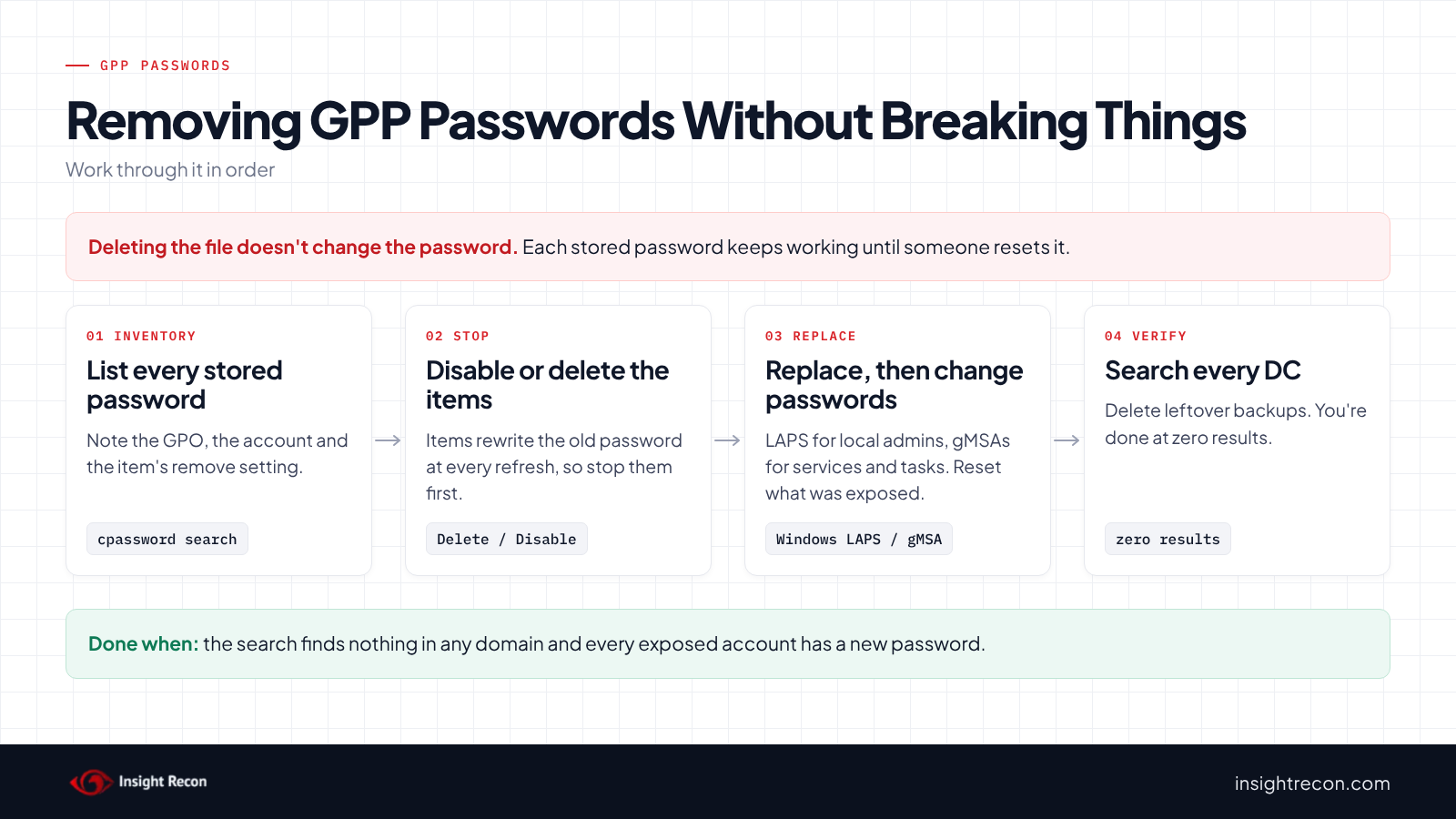
Microsoft's steps in the MS14-025 article: open the item in the Group Policy Management Console, change it to Delete or Disable as appropriate, wait one or two Group Policy refresh cycles, then delete the item. After the update, the console only lets you delete or disable an item that has a password. You need edit rights on the GPO. Check the RemovePolicy column before you disable anything. For a folder left behind by a deleted GPO, remove the folder from SYSVOL on a domain controller, which needs Domain Admin. It then replicates to the other DCs.
2. Replace what each password was for
Microsoft's MS14-025 article has workarounds for some types. Its local admin script came before LAPS, so use Windows LAPS today.
- Local Administrator passwords: use Windows LAPS, which Microsoft describes as managing and backing up the password of a local administrator account on each device. Our Windows LAPS rollout post walks through it.
- Services and scheduled tasks: run them as a built-in account where that works. Microsoft's article says a scheduled task can't keep stored credentials the same way. Where a domain identity is needed, Microsoft lists Windows services and scheduled tasks among the things that can use a group managed service account (gMSA). Lock down who can read its password, as our gMSA password post explains.
- Mapped drives: Microsoft points to share permissions instead. Grant the users access to the share itself, so the drive map doesn't need stored credentials.
- Data sources: Microsoft lists no workaround. Where the database supports it, switch the DSN to Windows authentication so no password is stored. If it doesn't, keep the credential in the application's own configuration.
- Autologon: remove the Registry item. If a kiosk or lab machine still needs to sign in on its own, set that up on the machine itself with an account that has no other rights.
3. Change every exposed password
Do this even for items that were disabled, because the old password may already be known. For domain accounts, reset the password and update everything that uses the account right after. This is a dry run with -WhatIf. Drop that to apply. It needs the Reset Password right on the account. Run it in the domain where the account lives.
# Dry run. Drop -WhatIf to apply. Needs the Reset Password right on the account.
# Update every service and task that uses the account right after, or they stop working.
Import-Module ActiveDirectory
Set-ADAccountPassword -Identity 'svc-backup' -Reset -NewPassword (Read-Host -AsSecureString 'New password') -WhatIf
For a local account the preference managed, each computer keeps the shared password until something changes it. If Windows LAPS was already on those machines, the password LAPS stored in AD won't match until it rotates. Once the item is gone, force a rotation. Set-LapsADPasswordExpirationTime -Identity <computer> expires the password in AD. The device then changes it at its next LAPS processing cycle. Reset-LapsPassword, run on the device, rotates it right away.
4. Search every DC and clean up copies
The domain path \\contoso.com\SYSVOL reaches whichever DC answers. A DC with broken SYSVOL replication can still hold the old files. This runs the same search against each DC directly. It runs as any domain user with the AD module and covers one domain at a time.
Import-Module ActiveDirectory -ErrorAction Stop
$domain = $env:USERDNSDOMAIN   # or another domain's DNS name
foreach ($dc in (Get-ADDomainController -Filter * -Server $domain).HostName) {
    $root = "\\$dc\SYSVOL\$domain\Policies"
    if (-not (Test-Path $root)) { Write-Warning "Can't reach $root"; continue }
    Get-ChildItem $root -Recurse -Filter *.xml |
        Select-String -Pattern 'cpassword="[^"]+"|name="DefaultPassword"' -List |
        Select-Object @{ n = 'DC'; e = { $dc } }, Path
}
What to look for: no rows, apart from files you've already checked that only hold an empty or Delete DefaultPassword item. A file that shows up on one DC but not the others points to a SYSVOL replication problem, which needs fixing on its own. Microsoft's article says the cleanup is complete when its own script finds nothing. Then delete the GPO backups that still hold the old values, including the one you took before starting.
Keep GPP passwords from coming back
- Search on a schedule. The patched console won't create new ones. Someone can still copy an old GPO, restore a backup or edit the XML by hand. Every computer reads SYSVOL all day, so reads aren't something you can usefully alert on. A scheduled search is the practical alert.
- Check restores and imports. Run the quick check after restoring or importing any GPO, especially one from an older domain.
- Keep local admin passwords unique. Windows LAPS on every machine removes the main reason GPP passwords existed.
- Re-run the scan. Password in GPO shows whether any have come back.
GPP passwords checklist
- Does the search return nothing that stores a password, on every DC, in every domain in the forest?
- Has every account that had a stored password been given a new one?
- Were exposed privileged accounts disabled and their sign-ins reviewed?
- Do services, tasks and drive maps that used GPP passwords now work without them?
- Did LAPS rotate the local Administrator password on every machine the old item reached?
- Are GPO backups that held the old values deleted?
- Is the SYSVOL search on a schedule?
A "no" on the first two questions means a password any domain user can recover may still work.
Compliance mapping
| Framework | Reference | Why it applies |
|---|---|---|
| MITRE ATT&CK | T1552.006 | Unsecured Credentials: Group Policy Preferences. Passwords stored in GPP files in SYSVOL can be read and decrypted. |
| CIS Controls v8 | Control 3, Control 4 | Data protection and secure configuration. Credentials shouldn't sit in a share every user can read. |
| NIST CSF 2.0 | PR.AA-05, PR.DS-01 | Access permissions follow least privilege. Data at rest is protected. A stored password readable by every domain user fails both. |
GPP passwords FAQ
What is cpassword in SYSVOL?
The attribute where Group Policy Preferences stored an account password. It's encrypted with an AES key that Microsoft publishes, so anyone who can read the file can recover the password.
Didn't MS14-025 fix GPP passwords?
It stopped the management console from creating or editing them. It didn't remove existing ones. Microsoft said so at the time. Old passwords stay in SYSVOL until someone deletes them.
Is deleting the preference enough?
No. The password keeps working until you change it. Someone may already have read it. Stop the items first so they don't push the old password back. Then change every exposed password and delete any backups that hold it.
Who can read GPP passwords?
Any authenticated domain user, because all of them can read SYSVOL. They don't need admin rights.
Does Insight Recon check for GPP passwords?
Yes. The free scan includes Password in GPO. It lists each GPO that stores a password on its Computer or User side, with the file it's in. That covers plain-text autologon values too. It also checks orphaned GPO folders and backups in SYSVOL and flags SYSVOL scripts that match a plain-text password pattern.
Find the passwords your domain is still handing out.
It runs from any Windows machine that can reach your DCs, with a standard domain account. Every core AD check is free for one domain.
Not ready to scan?
AD Signal is our monthly look at what's changing in AD security and how real domains score. Read the latest report.
References
- Microsoft Support: MS14-025, Vulnerability in Group Policy Preferences could allow elevation of privilege (KB2962486)
- Microsoft Security Response Center: MS14-025, An update for Group Policy Preferences
- Microsoft Learn: [MS-GPPREF] 2.2.1.1.4 Password Encryption
- MITRE ATT&CK: T1552.006 Unsecured Credentials: Group Policy Preferences
- Microsoft Learn: What is Windows LAPS?
- Microsoft Learn: Group Managed Service Accounts overview
- Microsoft Learn: Maximum lifetime for user ticket renewal
- Microsoft Learn: Configure common options for preference items
- Microsoft Learn: Set-LapsADPasswordExpirationTime
- Microsoft Learn: Reset-LapsPassword