
LAPS Not in Use: How to Roll Out Windows LAPS and Retire Legacy LAPS
If every machine in your domain shares the same local admin password, one compromised laptop hands an attacker admin on all of them. Windows LAPS fixes that. It's been built into Windows since April 2023. Here's how to roll it out without locking out your helpdesk and get legacy LAPS off your machines.
| Priority | High. A local admin password shared across machines turns one compromised machine into many |
|---|---|
| What it means | Local administrator passwords on your domain-joined machines aren't being managed by LAPS |
| Who's affected | Workstations and member servers whose local admin password came from an image, a script or someone typing it in |
| Fix | Extend the schema and push a Windows LAPS policy. If you're still on legacy LAPS, move to Windows LAPS |
Check it now: is LAPS set up in your forest?
Import-Module ActiveDirectory
$schema = (Get-ADRootDSE).schemaNamingContext
foreach ($attr in 'msLAPS-PasswordExpirationTime', 'ms-Mcs-AdmPwdExpirationTime') {
    $found = Get-ADObject -SearchBase $schema -LDAPFilter "(lDAPDisplayName=$attr)"
    [pscustomobject]@{ Attribute = $attr; InSchema = [bool]$found }
}
Runs as any domain user with the AD module. True next to msLAPS-PasswordExpirationTime means Windows LAPS is set up in the schema. The coverage script further down shows which computers it actually manages.
Scan your domain now, or send the link to your work inbox.
The scan runs from a domain-joined Windows machine with a standard domain account. The free plan covers every on-prem AD check.
What the finding means
Every Windows machine has a built-in local Administrator account. Most organizations keep some local admin account enabled for when the domain isn't reachable. Its password usually gets set once, in the image or a deployment script, and never touched again. That gives you the same password on hundreds or thousands of machines, sometimes for years.
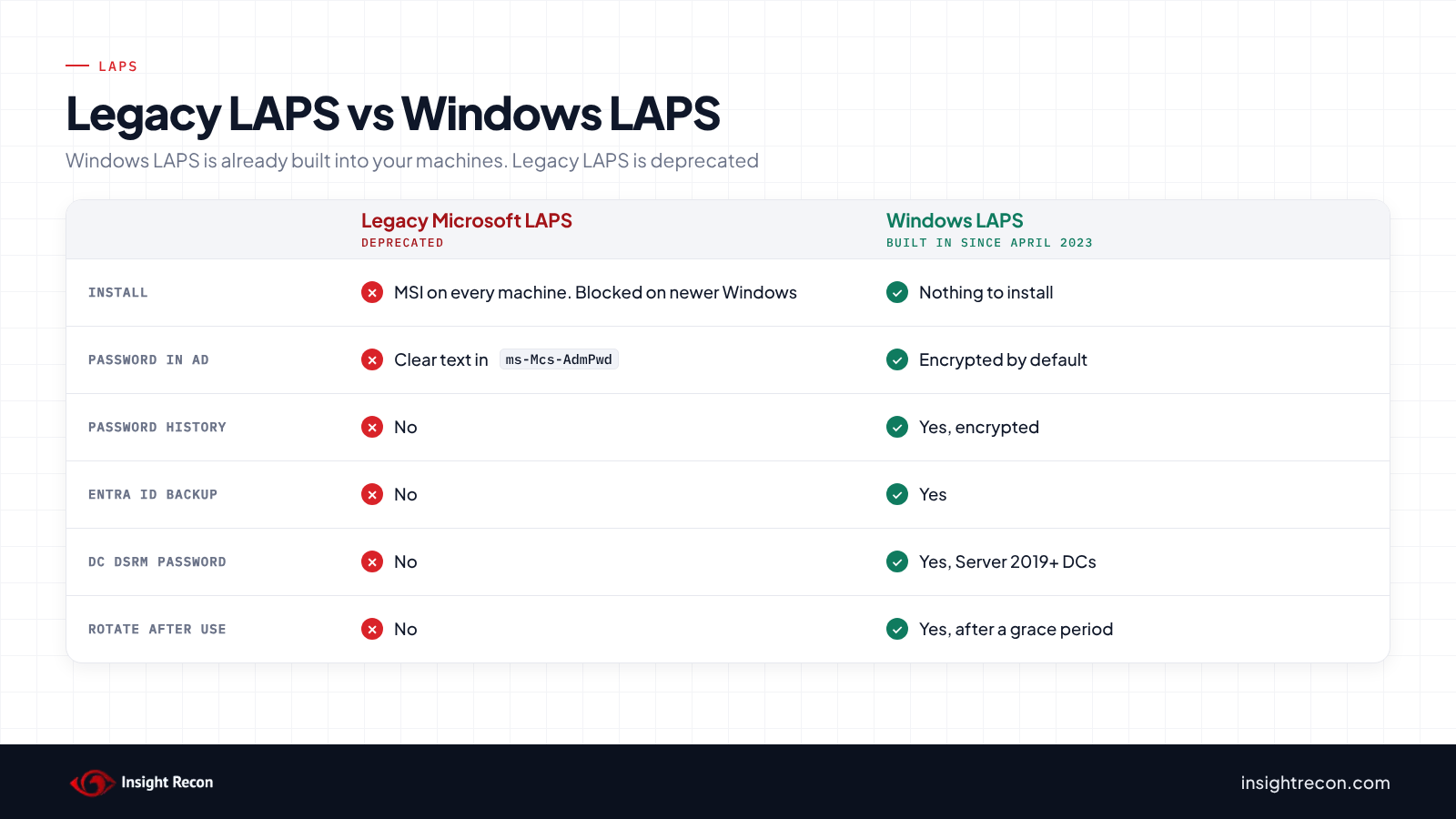
LAPS, the Local Administrator Password Solution, fixes that. Each machine generates its own random password for the local admin account and stores it on its own computer object in Active Directory. Then it rotates the password on a schedule. Only the people you allow can read it back. There are two versions. The difference matters now:
| Feature | Legacy Microsoft LAPS | Windows LAPS |
|---|---|---|
| How you get it | MSI and a Group Policy extension on every machine | Built into Windows since the April 11, 2023 updates |
| Status | Deprecated since Windows 11 23H2. Newer Windows blocks its installer | Current |
| Password in AD | Clear text in ms-Mcs-AdmPwd, protected only by permissions | Encrypted in msLAPS-EncryptedPassword by default |
| Password history | No | Yes, encrypted |
| Back up to Entra ID | No | Yes |
| Domain controllers | Not covered | Can manage the DSRM password |
| Rotate after the password is used | No | Yes, after a grace period |
How we got here
Admins have been trying to solve this for a long time. The first popular answer made things worse. Group Policy Preferences let you set the local admin password on every machine from one GPO. The password was stored in SYSVOL with encryption anyone in the domain could undo. Microsoft shut that down with MS14-025 in May 2014. The update stopped new ones from being created but left existing ones in place for admins to clean up.
Here's how it went from there:
- May 2015: Microsoft released LAPS as a free download, the version now called legacy Microsoft LAPS.
- April 11, 2023: Windows LAPS shipped built into Windows 10, Windows 11, Server 2019 and Server 2022 through that month's updates.
- Windows 11 23H2: legacy LAPS was deprecated. Newer versions of Windows block its installer.
- October 14, 2025: Windows 10 reached end of support. Windows LAPS is only available on Windows 10 machines still getting updates, such as through ESU.
The DISA STIG for Windows Server 2022 now says it outright. For domain-joined systems, "Windows LAPS must be used to change the built-in Administrator account password."
Why it's risky
A shared local admin password breaks the idea that compromising one machine only gets you one machine. Windows will accept the same local username and password on another machine as a valid logon. So the attacker doesn't need to crack anything. The password, or just its hash, from one machine works on the next one. That's fully true for the built-in Administrator, the account LAPS manages by default. Other local admin accounts get a stripped-down token over the network unless someone has turned that protection off.
It's also hard to get rid of a shared password once it's out. It sits in old deployment scripts, in the heads of former employees, in vendor support notes and on the disk of every machine that has it. Changing it by hand across a fleet is a project nobody finishes. LAPS makes it a policy.
How attackers use it
This is MITRE ATT&CK T1078.003 (valid local accounts) and T1550.002 (pass the hash). An attacker who gets admin on one machine pulls the local account hashes from it. If the local Administrator password is shared, that hash is the key to every other machine with the same password. No exploit and no domain credentials needed. It's one of the fastest ways from a single foothold to the whole fleet. That's why it's one of the first things pentesters try.
Servers make it worse. If the same local password is on your file servers, SQL boxes or the server where a domain admin is logged in, the attacker can reach the credentials that matter.
What changes when you turn on Windows LAPS
Windows LAPS is easy to deploy. Most of the trouble comes from things that depended on the old shared password:
- The password changes right away. Microsoft is clear: "When a Windows LAPS policy is first applied, the managed device performs an immediate rotation of the local account password." Scripts, scheduled tasks, imaging tools and vendor runbooks that used the old password stop working on that machine.
- Your helpdesk needs a new way to read passwords. Tools built for legacy LAPS read
ms-Mcs-AdmPwd. Windows LAPS writes to new attributes, encrypted by default. UseGet-LapsADPasswordor the LAPS tab in Active Directory Users and Computers on an updated machine. Entra-backed devices show theirs in the Intune portal. - Using the password resets it. By default, 24 hours after someone signs in with the managed account, Windows LAPS rotates the password and signs that session out. That's on purpose, but warn your techs before they lose a session mid-fix.
- The settings don't show up in Group Policy. Windows Update doesn't copy the Windows LAPS template to your central store. Copy
LAPS.admxand its language file over by hand. - Encryption needs a 2016 domain functional level. Below that, set Enable password encryption to Disabled on purpose, since it's on by default.
Check your LAPS coverage
Check whether the LAPS schema exists
Neither version of LAPS can store anything in AD until the schema has been extended. This looks for the Windows LAPS and legacy LAPS expiration attributes in the schema.
Import-Module ActiveDirectory
$schema = (Get-ADRootDSE).schemaNamingContext
foreach ($attr in 'msLAPS-PasswordExpirationTime', 'ms-Mcs-AdmPwdExpirationTime') {
    $found = Get-ADObject -SearchBase $schema -LDAPFilter "(lDAPDisplayName=$attr)"
    [pscustomobject]@{ Attribute = $attr; InSchema = [bool]$found }
}
What to look for: msLAPS-PasswordExpirationTime means Windows LAPS is set up at the schema level. ms-Mcs-AdmPwdExpirationTime means legacy LAPS was set up at some point. Neither one means LAPS has never been deployed in this forest. The schema being there doesn't prove anything is using it, which is what the next command checks.
See which computers are covered
Every machine that LAPS manages has an expiration time on its computer object. This lists every enabled computer except domain controllers and shows which version of LAPS manages it, if any. It counts them by LAPS status, then lists the ones with no LAPS password at all.
Import-Module ActiveDirectory
# Only ask for the LAPS attributes that exist in the schema, or Get-ADComputer errors
$schema = (Get-ADRootDSE).schemaNamingContext
$props  = @('operatingSystem')
foreach ($attr in 'msLAPS-PasswordExpirationTime', 'ms-Mcs-AdmPwdExpirationTime') {
    if (Get-ADObject -SearchBase $schema -LDAPFilter "(lDAPDisplayName=$attr)") { $props += $attr }
}

# Enabled computers, skipping domain controllers (516) and read-only DCs (521)
$filter = '(&(!(userAccountControl:1.2.840.113556.1.4.803:=2))(!(primaryGroupID=516))(!(primaryGroupID=521)))'

$report = Get-ADComputer -LDAPFilter $filter -Properties $props | ForEach-Object {
    $win = $_.'msLAPS-PasswordExpirationTime'
    $old = $_.'ms-Mcs-AdmPwdExpirationTime'
    if ($win)     { $status = 'Windows LAPS'; $exp = $win }
    elseif ($old) { $status = 'Legacy LAPS';  $exp = $old }
    else          { $status = 'None';         $exp = $null }
    [pscustomobject]@{
        Computer = $_.Name
        OS       = $_.operatingSystem
        LAPS     = $status
        Expires  = if ($exp) { [datetime]::FromFileTimeUtc([int64]$exp) }
    }
}
$report | Group-Object LAPS | Select-Object Count, Name
$report | Where-Object LAPS -eq 'None' | Sort-Object Computer
Insight Recon's report counts every computer object, including domain controllers, disabled machines and stale ones. Expect its totals to run higher than this script's.
What to look for:
- None: no LAPS policy applies, the policy is failing, or the machine backs up to Entra ID instead of AD. Stale computer accounts show up here too. Check the last logon before you chase them.
- Legacy LAPS: covered, but with a clear-text password in AD and a client Microsoft has stopped developing. Put these on the migration list.
- Windows LAPS: covered. An
Expiresdate well in the past means the machine has stopped rotating, usually because it's offline or the policy is failing.
Check a machine's LAPS log
Windows LAPS logs every processing cycle. Run this on a machine to see what it's doing:
Get-WinEvent -LogName 'Microsoft-Windows-LAPS/Operational' -MaxEvents 200 |
    Where-Object Id -in 10004, 10005, 10018, 10021, 10023, 10024 |
    Select-Object -First 10 TimeCreated, Id, Message
What to look for:
- 10004: a processing cycle succeeded.
- 10005: a cycle failed. The error code in the message is where to start.
- 10018: the new password was written to Active Directory.
- 10021: the policy the machine is running, including backup directory, password age and encryption.
- 10023: the machine is running a legacy LAPS policy in emulation mode.
- 10024: the LAPS policy is configured as disabled. No Windows LAPS policy applies to that machine.
A 10004 on its own doesn't prove anything is managed, since a machine with no policy still logs successful cycles. Look for 10018. If the log doesn't exist at all, the machine doesn't have Windows LAPS, which usually means it's missing the April 2023 updates.
Check it with Insight Recon
The commands above are the manual way. Insight Recon's read-only Active Directory security assessment checks LAPS along with 150+ other checks:
- LAPS Not In Use (High): flags your domain when no computer object has a Windows LAPS or legacy LAPS expiration time. The report also shows how many computers are covered and when each LAPS schema was installed.
- Risky LAPS Read Permissions (Moderate): flags broad groups like Domain Users, Authenticated Users or Everyone that hold full control, All Extended Rights, or the right to change permissions or ownership on LAPS-managed computers. On legacy LAPS, and on Windows LAPS without encryption, any of those is enough to read the passwords. LAPS only helps if the wrong people can't read them back.
- Password in GPO (Critical): finds old Group Policy Preferences passwords still sitting in SYSVOL, the thing LAPS replaced.
- Legacy Domain Functional Level Detected (Moderate): a domain functional level below 2016 blocks Windows LAPS password encryption.
The LAPS Not In Use check reads the LAPS expiration time on your computer objects over LDAP: msLAPS-PasswordExpirationTime for Windows LAPS and ms-Mcs-AdmPwdExpirationTime for legacy LAPS. It never reads the passwords themselves. One managed computer is enough to pass. So a pass tells you LAPS is in use somewhere. The coverage numbers in the report, and the coverage script above, show how far it actually reaches.
Every finding comes with the attacker context and the remediation steps. Want to see what one looks like first? Here's a sample report.
See whether LAPS is covering your domain.
The scan runs from a domain-joined Windows machine with a standard domain account. The free plan covers every on-prem AD check.
How to roll out Windows LAPS
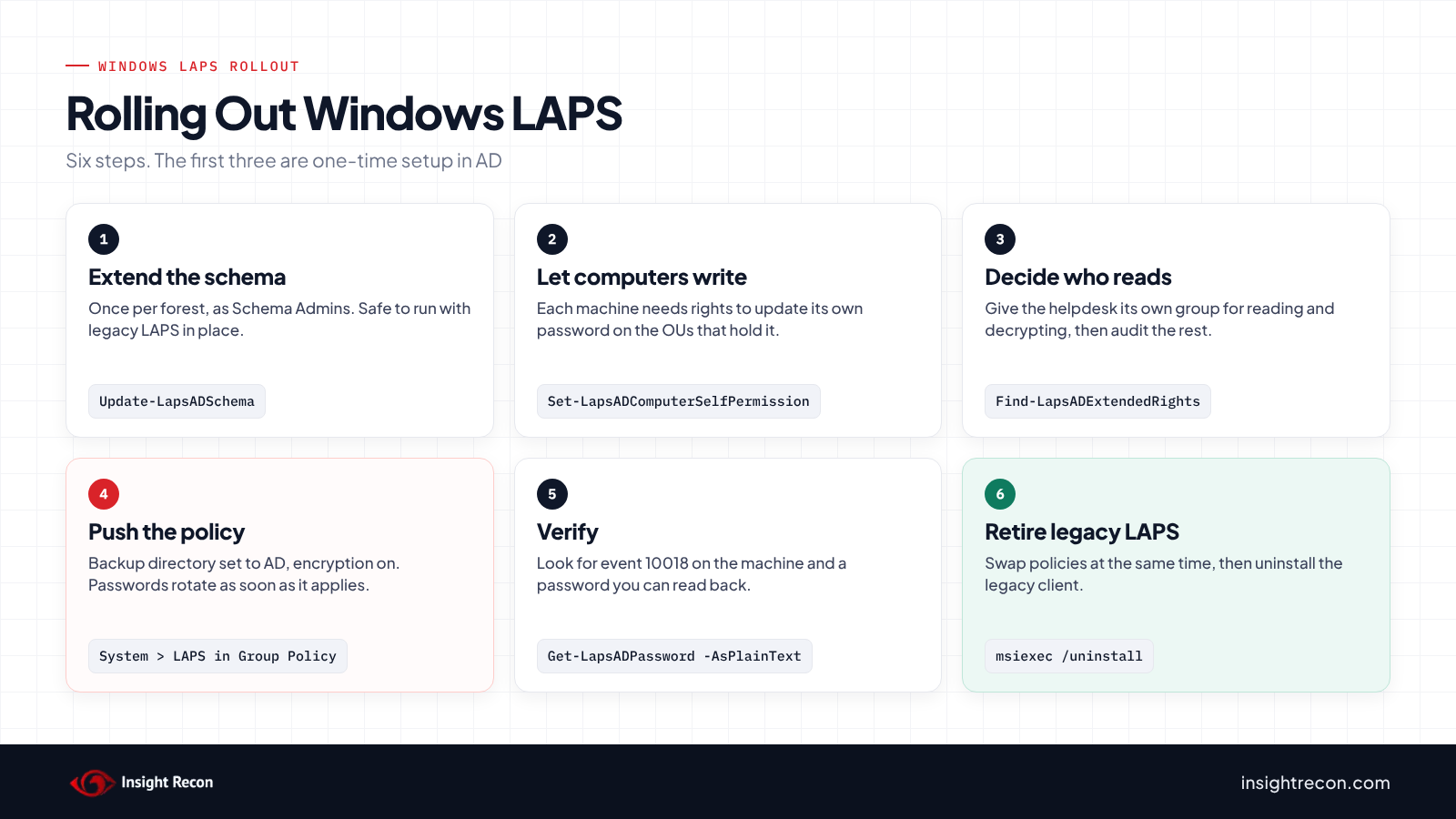
These steps are for Windows LAPS backing up to Active Directory. Run the PowerShell from a machine with the Windows LAPS module, which ships with Windows on any supported version that has the April 2023 updates or later.
Extend the schema
This is a one-time step per forest and needs Schema Admins rights:
Update-LapsADSchemaIt adds the Windows LAPS attributes to computer objects. It doesn't touch the legacy attributes. You can run it with legacy LAPS still in place.
Let computers write their own passwords
Each machine needs permission to update its own password attributes. Grant it on the OUs that hold your computers:
Set-LapsADComputerSelfPermission -Identity 'OU=Workstations,DC=contoso,DC=com'
Set-LapsADComputerSelfPermission -Identity 'OU=Servers,DC=contoso,DC=com'
Decide who can read them
Domain Admins can read and reset LAPS passwords by default. Give your helpdesk its own group rather than adding them to Domain Admins:
Set-LapsADReadPasswordPermission -Identity 'OU=Workstations,DC=contoso,DC=com' -AllowedPrincipals 'CONTOSO\LAPS-Workstation-Readers'Reading isn't the same as decrypting. With encryption on, only the user or group named in the Configure authorized password decryptors policy can decrypt the password. That's Domain Admins unless you change it. It takes a single group. If you point it at your readers group, nest Domain Admins in that group or they lose the ability to decrypt. Then check nobody else already has access:
Find-LapsADExtendedRights -Identity 'OU=Workstations,DC=contoso,DC=com' -IncludeComputersIn Microsoft's example the only entries are SYSTEM and Domain Admins. Expect those plus the groups you just added. -IncludeComputers also catches permissions set directly on computer objects. Anything else can read confidential attributes on those computers. For machines still on legacy LAPS, the legacy module's Find-AdmPwdExtendedRights does the same job.
Push the policy
Copy LAPS.admx from %windir%\PolicyDefinitions and LAPS.adml from its language folder, like en-US, to the matching folders in your central store first. Then create a GPO and set these under Computer Configuration\Policies\Administrative Templates\System\LAPS:
- Configure password backup directory: Active Directory. This is the one setting Windows LAPS needs to do anything.
- Enable password encryption: Enabled. It's on by default, but set it so nobody wonders.
- Configure authorized password decryptors: your readers group.
- Password Settings: the defaults are 14 characters, full complexity and 30 days. The Server 2022 STIG wants at least 14 characters and 60 days or less.
- Name of administrator account to manage: leave it unset to manage the built-in Administrator. If you use a custom account, it has to exist first.
Link it to your workstation and server OUs. Machines pick it up on their next Group Policy refresh. To force it on one machine and confirm it worked:
gpupdate /force
Invoke-LapsPolicyProcessing
Get-LapsADPassword -Identity PC-0142 -AsPlainText
Event 10018 in the LAPS log means the password made it to AD.
Move off legacy LAPS
Microsoft's simplest path is to point Windows LAPS at the same account legacy LAPS was managing. Remove the legacy policy and apply the Windows LAPS policy at the same time, or as close as you can. Then uninstall the legacy client:
msiexec.exe /q /uninstall {97E2CA7B-B657-4FF7-A6DB-30ECC73E1E28}Don't let both manage the same account. Microsoft calls that a security risk and doesn't support it. If you need them side by side for a while, point them at different local accounts.
If you can't move yet, Windows LAPS can run in legacy emulation mode. It follows your existing legacy LAPS GPO on machines without the legacy client installed. It still stores the password in clear text. Treat it as a stopgap.
Entra-joined devices
Devices joined only to Entra ID can't back up to AD. Turn on LAPS for the tenant first, under Devices > Device settings in Entra ID. Then set up Windows LAPS through an Intune account protection policy with Entra ID as the backup directory. Read passwords with Get-LapsAADPassword or in the Intune portal. Hybrid-joined devices can use either directory, but each device backs up to only one.
Close the other doors
- Block local admins from network logon. Add "Local account and member of Administrators group" to Deny access to this computer from the network on workstations and member servers. Unique passwords stop reuse. This blocks local admin accounts from network logons like SMB and remote management altogether. RDP has its own right, Deny log on through Remote Desktop Services.
- Clean up SYSVOL. Look for old Group Policy Preferences passwords that are still there. MS14-025 never removed them.
- Back up DSRM passwords on DCs. Windows LAPS can manage the DSRM password on Server 2019 and later domain controllers when encryption is on.
One password per machine
A shared local admin password is one of the oldest shortcuts in Windows networks. Attackers still count on it. Windows LAPS is already on your machines. Extend the schema and lock down who can read the passwords. Then push the policy and get legacy LAPS off the machines still running it.
Validation checklist
- Is the Windows LAPS schema extended in your forest?
- Does every enabled workstation and member server have a LAPS expiration time on its computer object?
- Are your legacy LAPS machines on a migration plan with the legacy client coming off?
- Is password encryption on, with a specific group allowed to decrypt?
- Does
Find-LapsADExtendedRightsshow only the groups you expect? - Has anything that used the old shared password been moved to something else?
A no on any of these leaves a local admin password that's either shared or readable by the wrong people.
Compliance mapping
Unique local admin passwords are basic credential hygiene. They line up with the frameworks like this:
| Framework | Reference | Why it applies |
|---|---|---|
| NIST CSF 2.0 | PR.AA-01, PR.AA-05 | Credentials are managed and access follows least privilege. A shared local admin password does neither. |
| CIS Controls v8 | 5.2 (Use Unique Passwords), 4.7 (Manage Default Accounts) | Every account on every asset gets its own password. |
| MITRE ATT&CK | T1078.003, T1550.002 | Using valid local accounts and passing the hash between machines that share a password. |
| DISA STIG (Windows Server 2022) | V-254239 (WN22-00-000020) | The built-in Administrator password must change at least every 60 days, using Windows LAPS on domain-joined systems. |
| Microsoft guidance | Windows LAPS | Legacy LAPS is deprecated. Windows LAPS is the supported replacement. |
FAQ
Do I need to install anything for Windows LAPS?
No. It's built into Windows 11, Windows 10, Server 2019 and Server 2022 with the April 2023 updates or later, and into Server 2025 from the start. You extend the schema once and configure it with Group Policy or Intune. Backing up to Entra ID needs at least an Entra ID Free license.
Can legacy LAPS and Windows LAPS run side by side?
Only if they manage different local accounts. Both managing the same account isn't supported. Plan for a short overlap and then remove the legacy client.
Does LAPS cover domain controllers?
Not the way it covers member computers. The only local account on a domain controller is the DSRM account. Windows LAPS can manage that password instead. That needs Server 2019 or later and password encryption turned on.
Who can read LAPS passwords?
Domain Admins by default, plus anyone you grant it to. Watch out for accounts with broad rights on computer objects, like All Extended Rights. On legacy LAPS, or Windows LAPS without encryption, they can read the passwords in clear text. With encryption on, they only get the encrypted blob unless they're the authorized decryptor. Find-LapsADExtendedRights shows who has that access.
Should LAPS manage the built-in Administrator or a custom account?
Either works. The built-in account is the default and needs no setup. A custom account has to exist before the policy applies. On Windows 11 24H2 and Server 2025, automatic account management can create the account and randomize its name for you.
Our devices back up LAPS to Entra ID. Will Insight Recon still flag this?
Yes, if every device backs up to Entra ID. The check reads Active Directory. An Entra-backed device has no LAPS expiration time there. To the check it looks unmanaged. Confirm your coverage in the Intune portal or with Get-LapsAADPassword. Then treat the finding as a known exception. Hybrid domains that back up some machines to AD will pass.
Find out whether LAPS is really covering your domain.
Insight Recon checks LAPS coverage and who can read the passwords, along with the rest of your AD. It runs from a domain-joined Windows machine with a standard account. Free and read-only.
Not ready to scan?
AD Signal is our monthly look at what's changing in AD security and how real domains score. Read the latest report.
References
- Microsoft Learn: Windows LAPS overview
- Microsoft Learn: Get started with Windows LAPS and Active Directory
- Microsoft Learn: Windows LAPS policy settings
- Microsoft Learn: Migrate to Windows LAPS from legacy LAPS
- Microsoft Learn: Windows LAPS in legacy Microsoft LAPS emulation mode
- Microsoft Learn: Windows LAPS event log
- Microsoft Security Bulletin MS14-025
- MITRE ATT&CK: T1550.002, Pass the Hash