gMSA Password Rotation: Find gMSAs That Stopped Rotating
gMSA password rotation is the whole point of a group managed service account. Yet a gMSA only gets a new password when an allowed host asks for it, so one whose hosts are gone may keep the same password for years. This post shows you how to find gMSAs that stopped rotating, work out why and either get rotation back or retire the account.
| Priority | Moderate, since a stale gMSA is usually unused or has lost its hosts, or High when it's in Domain Admins, Enterprise Admins, Schema Admins or Administrators |
|---|---|
| What decides it | How long ago each gMSA's password was last set, compared with its rotation interval |
| Who's affected | Domains where servers were rebuilt, renamed or retired without updating the gMSAs they used |
| Fix | Point the gMSA at the hosts that run the service so rotation resumes, or disable and remove it |
Check it now: which gMSAs have stopped rotating?
# Runs as any domain user with the ActiveDirectory module.
# Stale means the password is older than twice the gMSA's own rotation interval.
Import-Module ActiveDirectory -ErrorAction Stop
Get-ADServiceAccount -Filter * -Properties PasswordLastSet, 'msDS-ManagedPasswordInterval', PrincipalsAllowedToRetrieveManagedPassword, objectClass |
    Where-Object { $_.objectClass -eq 'msDS-GroupManagedServiceAccount' } |
    ForEach-Object {
        $interval = if ($_.'msDS-ManagedPasswordInterval') { [int]$_.'msDS-ManagedPasswordInterval' } else { 30 }
        $age = if ($_.PasswordLastSet) { [int]((Get-Date) - $_.PasswordLastSet).TotalDays } else { $null }
        [pscustomobject]@{
            gMSA         = $_.SamAccountName
            Enabled      = $_.Enabled
            PasswordAge  = $age
            IntervalDays = $interval
            Stale        = $_.Enabled -and (($null -eq $age) -or ($age -gt 2 * [Math]::Max($interval, 30)))
            AllowedTo    = ($_.PrincipalsAllowedToRetrieveManagedPassword | ForEach-Object { ($_ -split ',')[0] -replace '^CN=' }) -join ', '
        }
    } |
    Sort-Object Stale, PasswordAge -Descending
Runs as any domain user with the ActiveDirectory module. It lists every gMSA with its password age and rotation interval, stale ones first. A gMSA is stale when it's enabled and its password is older than twice its own interval, with a 60-day minimum.
You checked your gMSAs. The free scan checks the rest of your on-prem AD in a few minutes.
Nothing gets installed on your domain controllers. Only HTTPS leaves your network.
How gMSA password rotation works
A group managed service account (gMSA) is a service account whose password Windows manages. Microsoft's gMSA overview explains that "the domain controller computes the password on the key that the Key Distribution Services provides, along with other attributes of the gMSA." It adds that "member hosts can obtain the current and preceding password values by contacting a domain controller."
The rotation interval
Each gMSA has a rotation interval in msDS-ManagedPasswordInterval. Microsoft's management guide says it defaults to 30 days and warns: "The password change interval can only be set during creation."
Rotation happens when a host asks
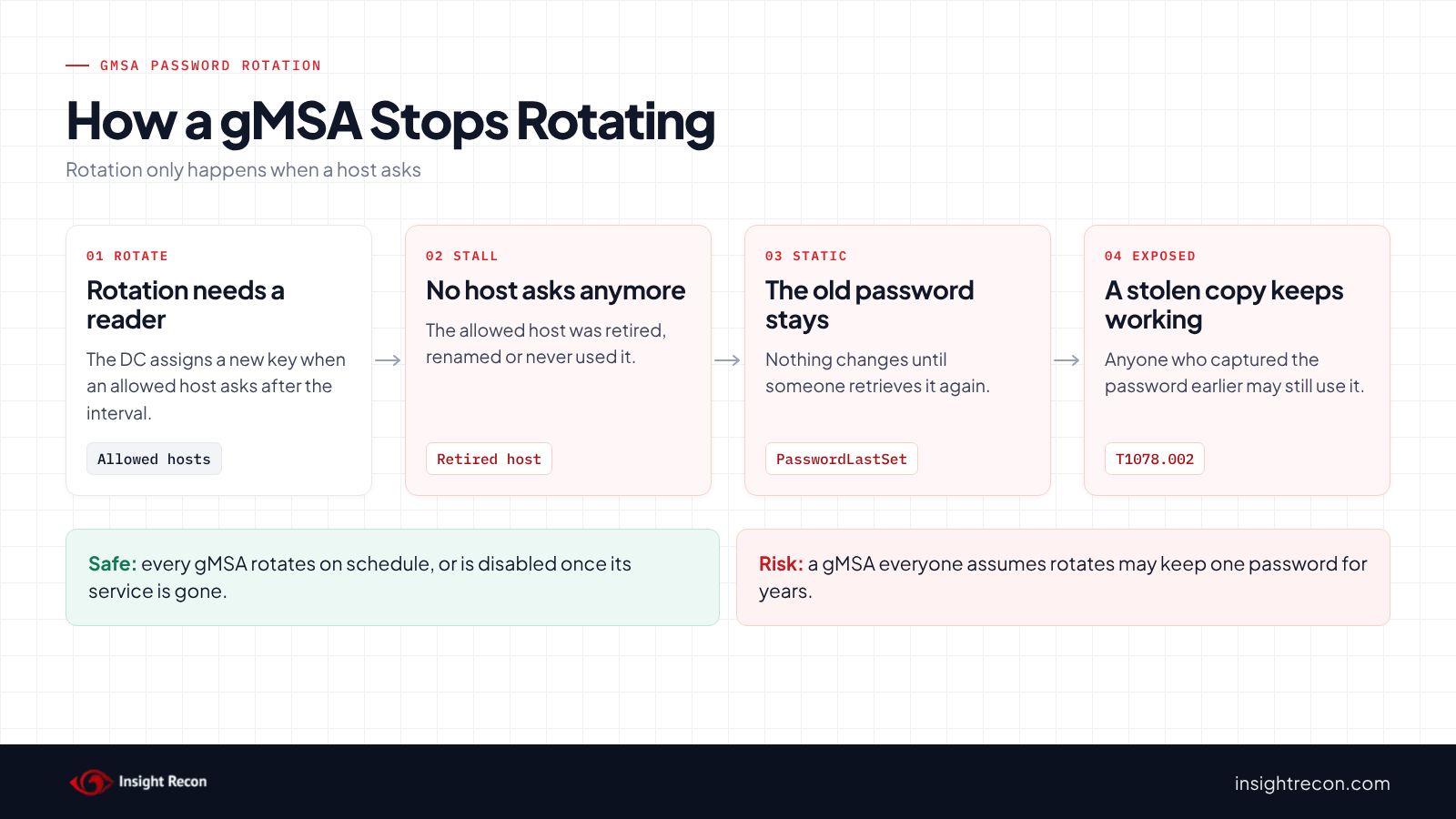
Microsoft's protocol specification for msDS-ManagedPassword describes what happens when an allowed caller reads the password. If the current key has expired, the DC moves the gMSA to a new key at that point. In other words, rotation is triggered by a read. If no allowed host asks for the password, the key may not roll over at all. Microsoft's Golden gMSA recovery guide says it more plainly: "The gMSA without the PrincipalsAllowedToRetrieveManagedPassword parameter will never roll."
Why a stalled gMSA password rotation is dangerous
A static password nobody watches
Teams pick gMSAs so they never have to think about rotation. As a result, a gMSA that stopped rotating rarely gets noticed. It turns into an ordinary service account with a fixed password, while everyone assumes it's still protected.
A stolen copy keeps working
Anyone who captured the password earlier, for example from a host that once ran the service, may still be able to use it. MITRE ATT&CK tracks the use of stolen domain credentials as T1078.002, Valid Accounts: Domain Accounts.
Often a sign of a forgotten account
Usually, rotation stalls because someone retired or renamed the only allowed host. That points to a service account nobody owns, which may still hold group memberships and rights on other systems.
Find gMSAs where password rotation stopped
Read the quick check results
The quick check above compares each gMSA's PasswordLastSet with its own interval. It also lists the principals allowed to retrieve the password.
What to look for: rows with Stale set to True. A blank AllowedTo means no host can retrieve the password at all. In that case, it can't rotate.
Find the allowed hosts
For each stale gMSA, this expands the allowed list down to individual computers and shows whether each one is still enabled and active.
# Runs as any domain user with the ActiveDirectory module. Expands groups to the computers inside them.
Import-Module ActiveDirectory -ErrorAction Stop
$gmsa = 'gmsa-sql01'
$account = Get-ADServiceAccount -Identity $gmsa -Properties PrincipalsAllowedToRetrieveManagedPassword -ErrorAction Stop
$since = (Get-Date).AddDays(-30)
foreach ($dn in $account.PrincipalsAllowedToRetrieveManagedPassword) {
    $principal = Get-ADObject -Identity $dn -Properties objectClass
    $computers = if ($principal.ObjectClass -eq 'group') {
        Get-ADGroupMember -Identity $dn -Recursive | Where-Object objectClass -eq 'computer'
    } else { $principal }
    foreach ($c in $computers) {
        $pc = Get-ADComputer -Identity $c.DistinguishedName -Properties Enabled, LastLogonDate
        [pscustomobject]@{
            gMSA       = $gmsa
            AllowedVia = ($dn -split ',')[0] -replace '^CN='
            Computer   = $pc.Name
            Enabled    = $pc.Enabled
            LastLogon  = $pc.LastLogonDate
            Active     = $pc.Enabled -and $pc.LastLogonDate -gt $since
        }
    }
}
What to look for: no active computer at all, which usually means the gMSA is unused. Otherwise, note the active computers for the next step.
Check where it's used
This runs on the active hosts and lists services and scheduled tasks that run as the gMSA. It also runs Test-ADServiceAccount, which Microsoft's management guide uses to check whether a host "has access to retrieve the gMSA password." The hosts need the ActiveDirectory module. That request for the password also moves a stale gMSA to a new one, so note the password age first.
# Run as an admin on the hosts. Needs PowerShell remoting. Use the computer names from the hosts script.
$gmsa = 'gmsa-sql01'
$computers = 'SQL01', 'SQL02'
Invoke-Command -ComputerName $computers -ErrorAction Continue -ArgumentList $gmsa -ScriptBlock {
    param($name)
    $match = "*\$name`$"
    $services = Get-CimInstance Win32_Service | Where-Object StartName -like $match | Select-Object -ExpandProperty Name
    $tasks = Get-ScheduledTask | Where-Object { $_.Principal.UserId -like $match } | Select-Object -ExpandProperty TaskName
    [pscustomobject]@{
        CanRetrieve = Test-ADServiceAccount -Identity $name
        Services    = $services -join ', '
        Tasks       = $tasks -join ', '
    }
} | Select-Object PSComputerName, CanRetrieve, Services, Tasks
What to look for: a host that runs the service but returns False for CanRetrieve. That host needs to be on the allowed list. On the other hand, no services or tasks anywhere means nothing uses the account.
If CanRetrieve comes back as an error rather than True or False, the remote session may not be able to reach a domain controller. In that case, run that line in a local window on the host.
Check gMSA password rotation with Insight Recon
The free scan includes gMSA with Stale Password, a Moderate-severity quick win that rates High when the gMSA is in Domain Admins, Enterprise Admins, Schema Admins or Administrators, directly or through another group. It flags every enabled gMSA whose password is older than twice its own rotation interval. That mark is never less than 60 days, which is twice the default 30-day interval. If the scan can't read your gMSAs, the result is Not assessed instead of a pass. Each finding lists the gMSAs and comes with the Hacker Insight, remediation steps and compliance mappings.
Know what this check doesn't decide
Some things are still yours to check. It doesn't tell an unused gMSA apart from one whose hosts lost access. The hosts and usage scripts do that.
Related checks beyond gMSA password rotation
- gMSA Password Readable by Unprivileged Principals, which covers who can read the password in the first place. Our gMSA password exposure post covers it.
- Accounts With Stale Passwords, the same problem for ordinary accounts. Our stale passwords post covers it.
You can see what the findings look like in our sample report. The full list is in our check library.
See which gMSAs stopped rotating, plus the rest of your service account risks.
It runs from any Windows machine that can reach your DCs, with a standard domain account. Every core AD check is free for one domain.
Before you fix gMSA password rotation
Decide for each stale gMSA whether it's still needed. Then either get rotation going again or retire it.
Find the owner
Ask the app or server team that requested the gMSA. Check its description, the groups it's in and any rights it holds on file shares or databases. Those tell you what breaks if you disable it.
Decide whether to replace it
You can't reset a gMSA password by hand. Microsoft's reset cmdlet reference says: "Reset is not supported for group managed service accounts." So if you think the password was captured while it sat unchanged, create a new gMSA, move the service to it and retire the old one.
Plan for the interval
Since you can only set the interval at creation, a gMSA with a long interval keeps it. If that interval is too long for your policy, replacing the gMSA is the only way to shorten it.
Fix gMSA password rotation safely
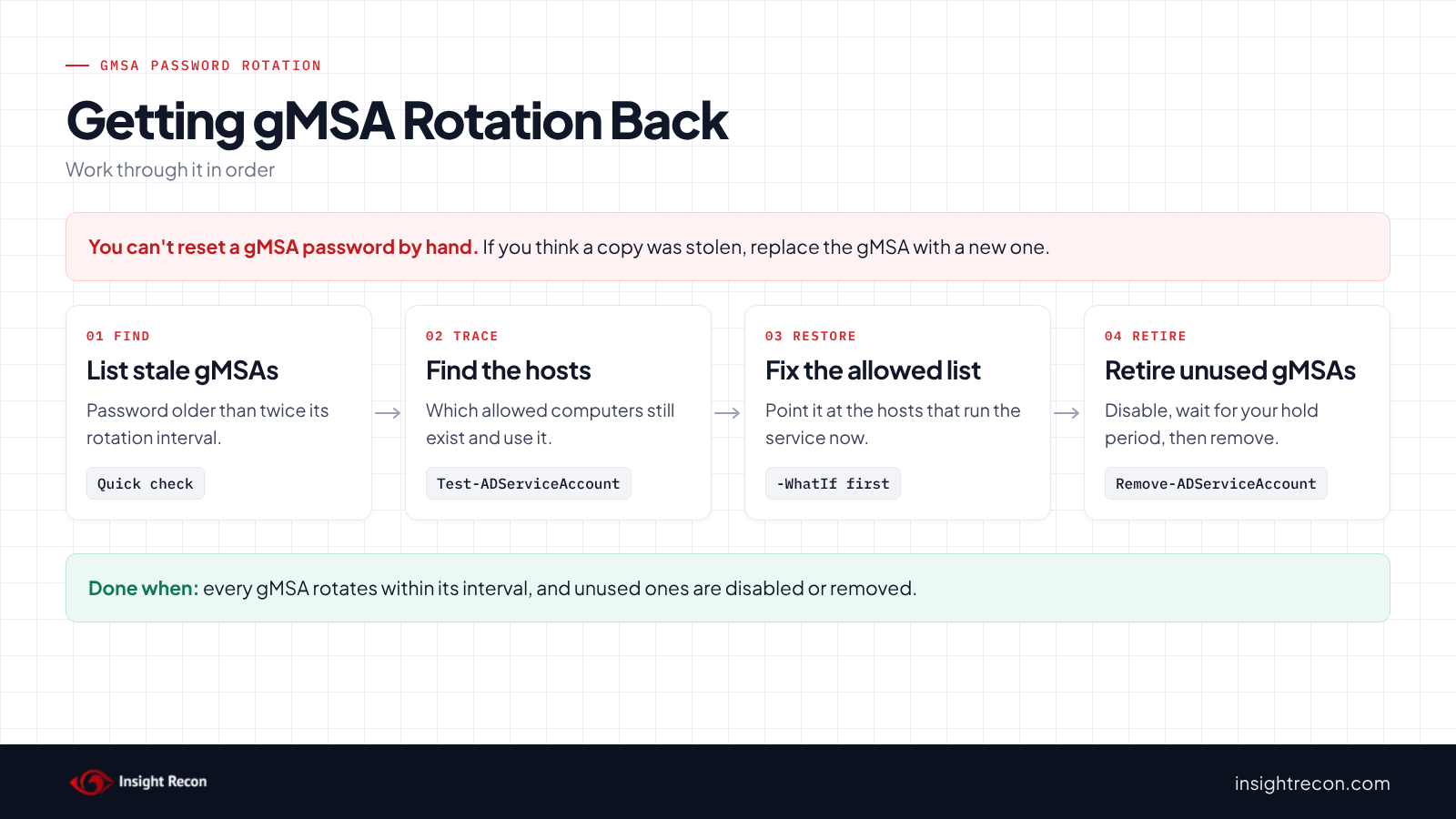
Each change script below is a dry run with -WhatIf. Drop that to apply. Change the gMSA and host names to your own.
1. Point the gMSA at the hosts that run the service
This replaces the allowed list with the hosts you name, after printing the current list. Microsoft's Set-ADServiceAccount reference covers the parameter. A group of computers is easier to maintain than a list of hosts.
# Dry run. Remove -WhatIf to apply.
# Needs rights to change the gMSA, such as Domain Admins. This replaces the whole list, so include every host that needs it.
Import-Module ActiveDirectory -ErrorAction Stop
$gmsa = 'gmsa-sql01'
$allowed = 'SQL03$', 'SQL04$'    # or one group that holds those computers
$account = Get-ADServiceAccount -Identity $gmsa -Properties PrincipalsAllowedToRetrieveManagedPassword -ErrorAction Stop
# Note the current list so you can put it back
$account.PrincipalsAllowedToRetrieveManagedPassword
Set-ADServiceAccount -Identity $gmsa -PrincipalsAllowedToRetrieveManagedPassword $allowed -ErrorAction Stop -WhatIf
What to look for: the dry run names the gMSA and the new hosts. After you apply it, restart the service on one host, or run Test-ADServiceAccount there, so it retrieves the password. If you named a group, restart the host first, or run klist -li 0x3e7 purge, so its ticket picks up the group. Then re-run the quick check and confirm the password age drops.
2. Retire gMSAs nobody uses
This disables one gMSA and prints its current state first. Leave it disabled for your hold period, such as 30 days. The scan stops flagging a gMSA once it's disabled. If nothing breaks, delete it with Remove-ADServiceAccount. On any host where someone installed it, Microsoft's guide also covers Uninstall-ADServiceAccount.
# Dry run. Remove -WhatIf to apply.
# Needs rights to change the gMSA. Disable first, wait for your hold period, then delete with Remove-ADServiceAccount.
Import-Module ActiveDirectory -ErrorAction Stop
$gmsa = 'gmsa-oldapp'
$account = Get-ADServiceAccount -Identity $gmsa -Properties PasswordLastSet, PrincipalsAllowedToRetrieveManagedPassword -ErrorAction Stop
# Note the current state so you can put it back
$account | Select-Object SamAccountName, Enabled, PasswordLastSet, PrincipalsAllowedToRetrieveManagedPassword
Disable-ADAccount -Identity $account -ErrorAction Stop -WhatIf
What to look for: the dry run names one gMSA. During the hold period, watch for services that fail to start.
3. Replace any gMSA you can't trust
For a gMSA whose password may have been exposed, create a new one with New-ADServiceAccount, move the service to it, then retire the old one with step 2.
Keep watching gMSA password rotation
- Run the quick check monthly. Any new
Stalerow means a host left the allowed list or went away. - Update gMSAs when servers change. Make gMSA cleanup part of every server rebuild and retirement.
- Use groups for allowed hosts. Adding and removing computers from a group is easier to keep current.
- Re-run the scan. The check flags any enabled gMSA whose password ages past twice its interval, 60 days by default.
gMSA password rotation checklist
- Does every gMSA's password age stay within twice its interval?
- Does every gMSA have at least one active allowed host?
- Did you disable or remove gMSAs nothing uses?
- Did you replace any gMSA whose password may have been exposed?
- Is gMSA cleanup part of server retirement?
- Do you review gMSA password age on a schedule?
A "no" on the first question means at least one gMSA may be using the same password indefinitely.
Compliance mapping
| Framework | Reference | Why it applies |
|---|---|---|
| MITRE ATT&CK | T1078.002 | Valid Accounts: Domain Accounts. A password that never changes may stay usable after it's stolen. |
| CIS Controls v8 | Control 5, Control 6 | Account management and access control management. |
| NIST CSF 2.0 | PR.AA-01, PR.AA-03 | Identities and credentials are managed. Users, services and hardware are authenticated. |
| ANSSI | vuln_password_change_msa_no_change_90 | ANSSI's control point for managed service accounts with passwords unchanged for more than 90 days. |
gMSA password rotation FAQ
How often does a gMSA password change?
It's due every 30 days by default, or at the interval set when the gMSA was created. It only changes once an allowed host asks for the password after that.
Why did my gMSA password stop changing?
Usually because no allowed host asks for it any more, often after someone retired or renamed a server.
Can I force a gMSA password change?
You can't reset one with a cmdlet. Once the interval has passed, getting an allowed host to retrieve it moves it on. Before that, replacing the gMSA is the only option.
Can I change the rotation interval later?
No. Microsoft says you can only set it when you create the gMSA.
Does Insight Recon check gMSA password rotation?
Yes. The free scan includes gMSA with Stale Password, which flags enabled gMSAs whose password is older than twice their rotation interval, 60 days by default.
See whether any gMSA is still holding an old password.
It runs from any Windows machine that can reach your DCs, with a standard domain account. Every core AD check is free for one domain.
Not ready to scan?
AD Signal is our monthly look at what's changing in AD security and how real domains score. Read the latest report.
References
- Microsoft Learn: Group managed service accounts overview
- Microsoft Learn: Manage group managed service accounts
- Microsoft MS-ADTS: msDS-ManagedPassword
- Microsoft Learn: ms-DS-ManagedPasswordInterval attribute
- Microsoft Learn: Reset-ADServiceAccountPassword
- Microsoft Learn: Set-ADServiceAccount
- Microsoft Learn: Test-ADServiceAccount
- Microsoft Learn: How to recover from a Golden gMSA attack
- MITRE ATT&CK T1078.002, Valid Accounts: Domain Accounts