gMSA Password Exposure: Find Who Can Read It and Lock It Down
A gMSA password is only as private as the list of principals allowed to retrieve it. Windows generates and rotates the password, but an authorized principal can retrieve it from a domain controller and potentially authenticate as the service account. When the list includes Domain Computers, Domain Users or Authenticated Users, that's most of the domain. Here's how to check every gMSA in your domain and narrow each list to the servers that run the service.
| Priority | High. Anyone on a broad retrieval list can sign in as the service account |
|---|---|
| What decides it | The msDS-GroupMSAMembership attribute on each gMSA, set with PrincipalsAllowedToRetrieveManagedPassword |
| Who's affected | Any domain where a gMSA's retrieval list includes a broad group such as Domain Computers, Domain Users, Authenticated Users or Everyone |
| Fix | Put the servers that run each service in a dedicated group and set the retrieval list to that group only |
Check it now: who can read each gMSA password?
Import-Module ActiveDirectory
Get-ADServiceAccount -LDAPFilter '(objectClass=msDS-GroupManagedServiceAccount)' -Properties 'msDS-GroupMSAMembership' |
    ForEach-Object {
        $n = $_.Name
        $_.'msDS-GroupMSAMembership'.Access | Select-Object @{n='gMSA'; e={ $n }}, IdentityReference, AccessControlType
    }
Runs as any domain user with the ActiveDirectory module. Each row is a principal on a gMSA's retrieval list. You want to see specific servers or a small group of them. Domain Computers, Domain Users, Authenticated Users or Everyone in the IdentityReference column is the finding. No output means the domain has no gMSAs yet.
You checked one setting. The free scan checks the rest of your on-prem AD in a few minutes.
Nothing gets installed on your domain controllers. Only HTTPS leaves your network.
How gMSA password retrieval works
A group managed service account (gMSA) is a service account whose password Windows manages. Domain controllers compute the password from a Key Distribution Services root key and change it on a schedule, every 30 days unless a different interval was set when the account was created. Nobody types it and nobody has to remember to rotate it. Our posts on Kerberoasting and non-expiring passwords recommend moving services to gMSAs for exactly that reason.
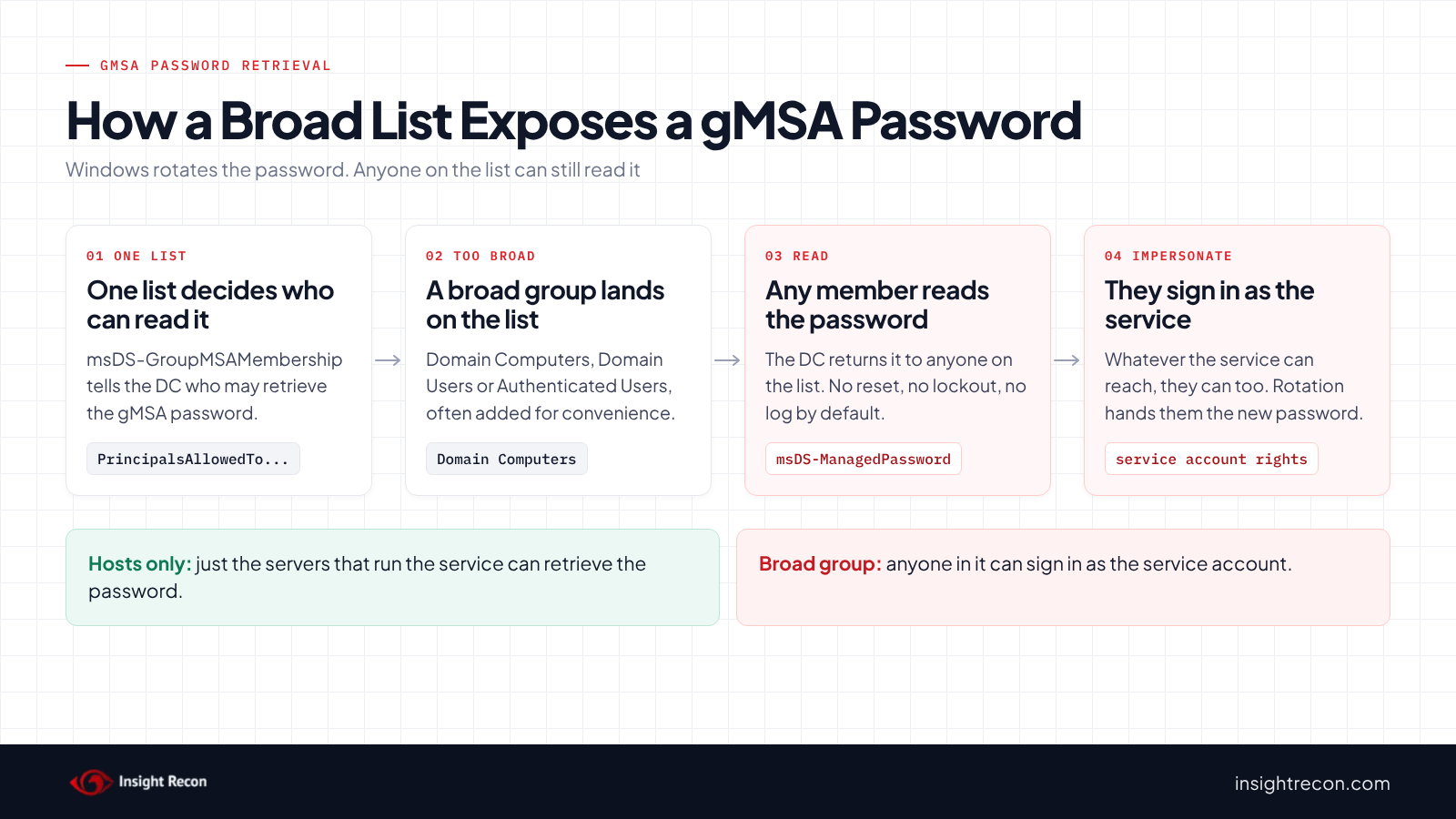
The servers that run the service still need the password. They get it by asking a domain controller, which returns the msDS-ManagedPassword attribute. Before it answers, the domain controller checks msDS-GroupMSAMembership, a security descriptor on the gMSA that lists who is allowed to retrieve the password. You set it with the PrincipalsAllowedToRetrieveManagedPassword parameter when you create or change the account.
Microsoft's own wording is that use of the gMSA is scoped to any machine that can retrieve its credentials over LDAP. So the list is the boundary. Microsoft's guidance is to add the computer accounts of the hosts that run the service to a designated security group and allow that group.
Why a readable gMSA password is risky
When the retrieval list holds a broad group, every member of that group can read the gMSA password and authenticate as the service account. They get whatever the service has. Service accounts often hold local admin on a set of servers or rights on a database or file share. Some sit in privileged groups. A gMSA that runs a backup job or a management tool can be worth more than most user accounts.
Broad groups end up on the list for ordinary reasons. Domain Computers gets added so any server can use the account without a group change. Someone copies an example from a forum. A troubleshooting change never gets rolled back. Each of those turns a well-managed password into one most of the domain can read.
Domain Computers is the one to watch. It sounds narrower than Domain Users, but any computer account qualifies. If your domain still lets standard users create computer accounts, any user can create one and use it. Our MachineAccountQuota post covers that setting.
Rotation doesn't fix it either. Whoever is on the list can read the new password after every change. A read doesn't reset or lock anything. It doesn't show up in the logs unless you've set up auditing for it. In MITRE ATT&CK terms this maps to T1552 Unsecured Credentials and T1078.002 Valid Accounts: Domain Accounts.
One more path to check. Anyone with write access to the gMSA object, like GenericAll, GenericWrite or a write on the attribute itself, can add another principal to the list. Who can read the gMSA password and who can change that list are both part of the exposure.
Find who can read each gMSA password
Flag broad groups on every retrieval list
The quick check up top shows the names. This reads the same security descriptor and marks the broad built-in groups for you: Everyone, Anonymous, Authenticated Users, Users, Domain Users, Domain Guests and Domain Computers. It runs as any domain user with the AD module.
Import-Module ActiveDirectory
$broad    = 'S-1-1-0', 'S-1-5-7', 'S-1-5-11', 'S-1-5-32-545'   # Everyone, Anonymous, Authenticated Users, Users
$broadRid = '-(513|514|515)$'                                  # Domain Users, Domain Guests, Domain Computers
Get-ADServiceAccount -LDAPFilter '(objectClass=msDS-GroupManagedServiceAccount)' -Properties 'msDS-GroupMSAMembership' |
    ForEach-Object {
        $gmsa = $_.Name
        $raw  = $_.'msDS-GroupMSAMembership'
        if (-not $raw) { return }
        if ($raw -is [byte[]]) {
            $sd = New-Object System.DirectoryServices.ActiveDirectorySecurity
            $sd.SetSecurityDescriptorBinaryForm($raw)
        } else { $sd = $raw }
        foreach ($ace in $sd.GetAccessRules($true, $true, [System.Security.Principal.SecurityIdentifier])) {
            $sid = $ace.IdentityReference.Value
            try { $name = $ace.IdentityReference.Translate([System.Security.Principal.NTAccount]).Value } catch { $name = $sid }
            [pscustomobject]@{
                gMSA      = $gmsa
                Principal = $name
                Access    = $ace.AccessControlType
                Broad     = ($broad -contains $sid) -or ($sid -match $broadRid)
            }
        }
    } | Sort-Object Broad, gMSA -Descending
What to look for: any row where Broad is True. Those sort to the top. Each one is a gMSA that most of the domain can read. Rows with Deny in the Access column are rare and worth a second look.
Look inside the groups on each list
A custom group can be just as broad as a built-in one. A group named for SQL servers that has Domain Computers nested inside it, or a few hundred users, is the same problem with a better name. This expands every group on each retrieval list and counts the computers and users inside. It runs as any domain user with the AD module.
Import-Module ActiveDirectory
Get-ADServiceAccount -LDAPFilter '(objectClass=msDS-GroupManagedServiceAccount)' -Properties PrincipalsAllowedToRetrieveManagedPassword |
    ForEach-Object {
        $gmsa = $_.Name
        foreach ($dn in $_.PrincipalsAllowedToRetrieveManagedPassword) {
            try {
                $obj = Get-ADObject -Identity $dn
                if ($obj.ObjectClass -eq 'group') {
                    $members = @(Get-ADGroupMember -Identity $dn -Recursive)
                    $computers = @($members | Where-Object objectClass -eq 'computer').Count
                    $users = @($members | Where-Object objectClass -eq 'user').Count
                } else {
                    $computers = [int]($obj.ObjectClass -eq 'computer')
                    $users = [int]($obj.ObjectClass -eq 'user')
                }
                [pscustomobject]@{ gMSA = $gmsa; Principal = $obj.Name; Class = $obj.ObjectClass; Computers = $computers; Users = $users }
            } catch {
                [pscustomobject]@{ gMSA = $gmsa; Principal = $dn; Class = 'could not expand'; Computers = $null; Users = $null }
            }
        }
    }
What to look for: any user count above zero, since services run on computers. Then computer counts far larger than the number of servers that run the service. Get-ADGroupMember can time out on very large groups. A group that big on a retrieval list is a finding by itself.
Find who can change the retrieval list
This lists write permissions on each gMSA object for anyone outside the built-in admin groups. Anyone here can edit the retrieval list. It runs as any domain user with the AD module.
Import-Module ActiveDirectory
$expected = 'Domain Admins|Enterprise Admins|BUILTIN\\Administrators|NT AUTHORITY\\SYSTEM|NT AUTHORITY\\SELF|Key Admins'
Get-ADServiceAccount -LDAPFilter '(objectClass=msDS-GroupManagedServiceAccount)' |
    ForEach-Object {
        $n = $_.Name
        (Get-Acl "AD:$($_.DistinguishedName)").Access | Where-Object {
            $_.AccessControlType -eq 'Allow' -and
            $_.ActiveDirectoryRights -match 'GenericAll|GenericWrite|WriteProperty|WriteDacl|WriteOwner' -and
            $_.IdentityReference -notmatch $expected
        } | Select-Object @{n='gMSA'; e={ $n }}, IdentityReference, ActiveDirectoryRights, ObjectType, IsInherited
    }
What to look for: users and broad groups with GenericAll, GenericWrite, WriteDacl or WriteOwner. WriteProperty with an empty ObjectType covers every attribute, including the retrieval list. Delegated admin groups may show up legitimately. Treat this as a starting list and review it by hand.
Check gMSA password access with Insight Recon
The free scan includes gMSA Password Readable by Unprivileged Principals. It lists every gMSA whose retrieval list allows a broad principal such as Authenticated Users, Domain Users, Domain Computers or Everyone. The finding carries the Hacker Insight, remediation steps and compliance mappings for the check.
Know what it doesn't cover. The check looks for those broad built-in groups on the list. A custom group that has grown too large, and accounts that can edit the list, take judgment. Use the group and permission scripts above for those.
These related checks cover the rest of this area:
- gMSA with Stale Password, a gMSA whose password hasn't rotated on schedule.
- gMSA Not In Use, domains that haven't moved services to gMSAs at all.
- Non-administrative users can add computer accounts, the setting that lets any user create a computer account. See our MachineAccountQuota post.
- Accounts Vulnerable to Kerberoasting, the service accounts gMSAs are meant to replace.
Want to see what a finding looks like first? Here's a sample report. The full list is in our check library.
See what else is open in your AD.
The scan runs from a domain-joined Windows machine with a standard domain account. The free plan covers every on-prem AD check.
Before you restrict the gMSA password
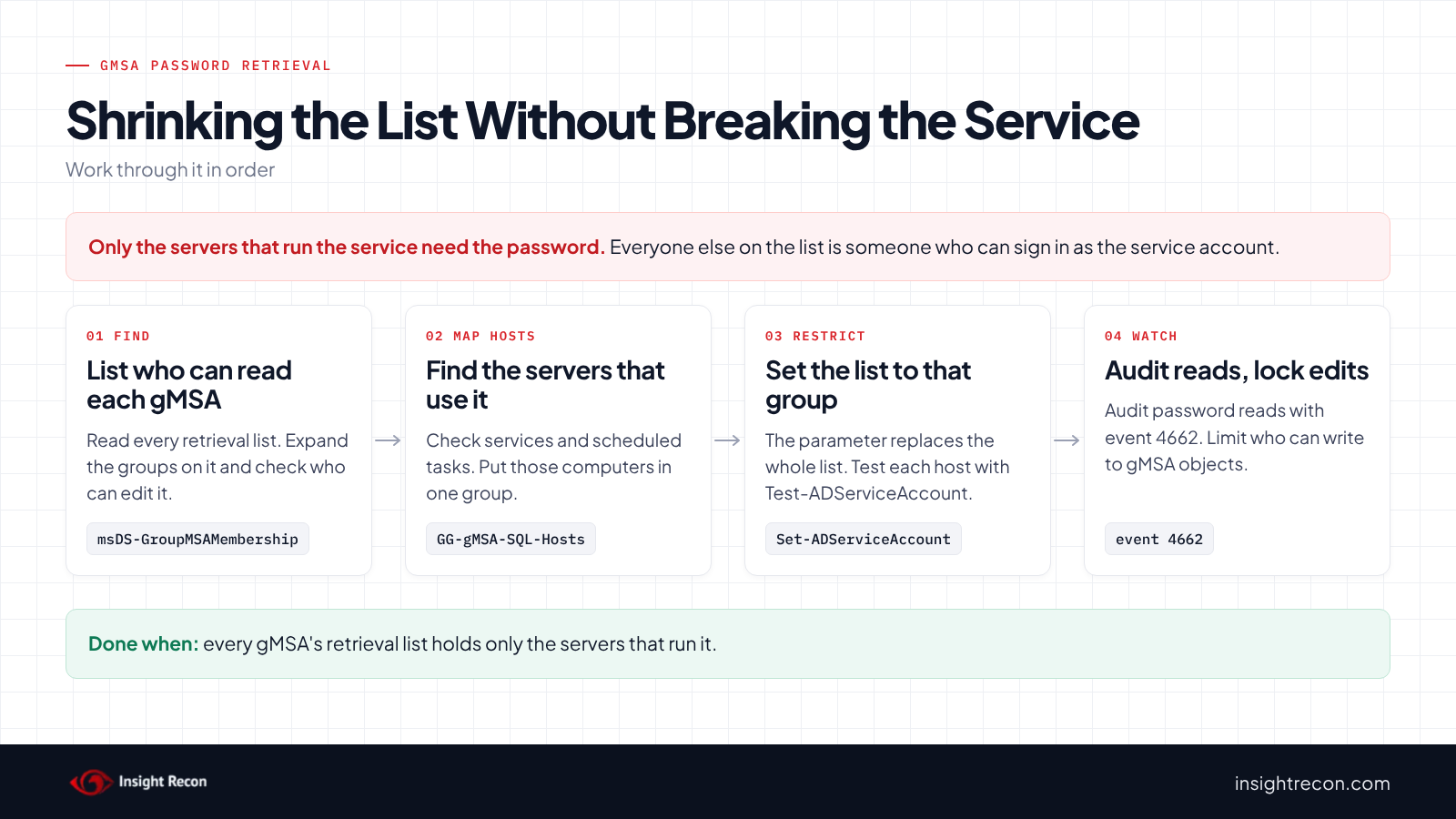
The fix is one attribute per gMSA. The work is knowing which servers actually use each account, because a server that's left off the new list can't get the password the next time it needs it.
Narrowing the retrieval list can stop a service. If a server that runs it is missing from the new list, the service fails to start or stops authenticating once its copy of the password is out of date. Map every host first, test on one gMSA, and keep the export so you can put the old list back.
Find the servers that run each gMSA
Ask the service owner first. Then confirm on the servers. This checks services and scheduled tasks on a list of candidate servers for anything running as the gMSA. It needs admin rights on those servers. IIS app pools and some applications store the identity in their own configuration, so check those by hand.
# Run as an account with admin rights on the candidate servers.
$gmsa    = 'svc-sqlgmsa'
$servers = 'SQL01', 'SQL02', 'APP01'
Invoke-Command -ComputerName $servers -ArgumentList $gmsa -ScriptBlock {
    param($name)
    Get-CimInstance Win32_Service | Where-Object StartName -like "*$name`$" |
        Select-Object @{n='Kind'; e={ 'Service' }}, Name, StartName
    Get-ScheduledTask | Where-Object { $_.Principal.UserId -like "*$name`$" } |
        Select-Object @{n='Kind'; e={ 'Task' }}, @{n='Name'; e={ $_.TaskName }}, @{n='StartName'; e={ $_.Principal.UserId }}
} | Select-Object PSComputerName, Kind, Name, StartName
Record the current retrieval lists
Save every gMSA's list, including the raw descriptor, so you can roll back one account without guessing. It runs as any domain user with the AD module.
Import-Module ActiveDirectory
Get-ADServiceAccount -LDAPFilter '(objectClass=msDS-GroupManagedServiceAccount)' -Properties 'msDS-GroupMSAMembership', PrincipalsAllowedToRetrieveManagedPassword |
    Select-Object Name, DistinguishedName,
        @{n='Readers'; e={ $_.PrincipalsAllowedToRetrieveManagedPassword -join '; ' }},
        @{n='Sddl'; e={ $_.'msDS-GroupMSAMembership'.GetSecurityDescriptorSddlForm('All') }} |
    Export-Csv .\gmsa-readers-before.csv -NoTypeInformation
Restrict who can read the gMSA password
1. Put the hosts in a dedicated group
One group per gMSA, or per service, holding only the computer accounts that run it. Computer account names end in $. Creating the group doesn't change anything for the gMSA yet.
# Needs rights to create groups in the target OU. This doesn't touch the gMSA yet.
Import-Module ActiveDirectory
New-ADGroup -Name 'GG-gMSA-SQL-Hosts' -GroupScope Global -GroupCategory Security -Path 'OU=Groups,DC=contoso,DC=com'
Add-ADGroupMember -Identity 'GG-gMSA-SQL-Hosts' -Members 'SQL01$', 'SQL02$'
2. Set the retrieval list to that group
It's a dry run with -WhatIf. Drop that to apply. It needs Domain Admin rights or delegated write access to the gMSA. The parameter sets the whole list. Anything you don't name is removed.
# Dry run. Drop -WhatIf to apply. This REPLACES the whole list. It doesn't add to it.
Import-Module ActiveDirectory
Set-ADServiceAccount -Identity 'svc-sqlgmsa' -PrincipalsAllowedToRetrieveManagedPassword 'GG-gMSA-SQL-Hosts' -WhatIf
3. Confirm each host still gets the password
A server that was just added to a group keeps its old Kerberos tickets, which don't include the new membership. Microsoft notes it can't retrieve the gMSA password until it gets a new ticket. A restart does that. So does purging the computer's tickets:
# Run on SQL01 from an elevated prompt. The purge refreshes the computer's Kerberos tickets
# so it picks up its new group membership without a restart.
klist purge -li 0x3e7
Test-ADServiceAccount -Identity 'svc-sqlgmsa'
True means the host can retrieve the password. Restart the service, or wait for its next scheduled run, and check it works. If something breaks, this puts the saved list back for that one gMSA:
# Restores the saved list for one gMSA. Dry run first.
Import-Module ActiveDirectory
$saved = Import-Csv .\gmsa-readers-before.csv | Where-Object Name -eq 'svc-sqlgmsa'
$sd = New-Object System.DirectoryServices.ActiveDirectorySecurity
$sd.SetSecurityDescriptorSddlForm($saved.Sddl)
Set-ADServiceAccount -Identity $saved.DistinguishedName -Replace @{ 'msDS-GroupMSAMembership' = $sd.GetSecurityDescriptorBinaryForm() } -WhatIf
4. Decide whether to replace the account
Fixing the list stops new reads. It doesn't change a password someone may already have read. The password changes on its own schedule. Microsoft's reset cmdlet doesn't support gMSAs. The interval can only be set when the account is created. If a gMSA with privileged access sat on a broad list for a long time, consider creating a new gMSA with a tight list, moving the service to it, and retiring the old one.
Keep it from coming back
- Make the host group part of every new gMSA. Create the group first and pass it in
PrincipalsAllowedToRetrieveManagedPasswordwhen you create the account. Never a built-in broad group. - Lock down who can edit the list. Re-run the permission script after delegation changes. Only the admins who manage service accounts should be able to write to a gMSA.
- Audit password reads. Event 4662 logs reads of a directory attribute when "Audit Directory Service Access" is on and the object has a matching SACL. Add an auditing entry on your gMSAs for reads of
msDS-ManagedPassword, then alert on readers that aren't in the host group. Expect regular reads from the real hosts. - Re-run the check. New gMSAs and quick fixes during outages are where broad groups come back.
gMSA password checklist
- Does every gMSA's retrieval list hold only the servers that run it, directly or through a dedicated group?
- Are Domain Computers, Domain Users, Authenticated Users and Everyone off every list?
- Do the groups on each list contain only computers, and only the expected number?
- Can only service-account admins write to gMSA objects?
- Has each host passed
Test-ADServiceAccountafter the change? - Are gMSAs that sat on a broad list and hold privileged access scheduled for replacement?
A "no" on either of the first two means someone outside the service can sign in as it.
Compliance mapping
| Framework | Reference | Why it applies |
|---|---|---|
| MITRE ATT&CK | T1552, T1078.002 | Reading a credential that's exposed to too many principals, then using it as a valid domain account. |
| CIS Controls v8 | Control 3, Control 6 | Data protection and access control. Only the hosts that run a service should be able to read its password. |
| NIST CSF 2.0 | PR.AA-05, PR.DS-01 | Access follows least privilege. Stored secrets like the managed password are protected. |
| ANSSI | vuln_permissions_gmsa_keys | ANSSI's control point for permissions that let an attacker get gMSA passwords. |
gMSA password FAQ
Who should be allowed to retrieve a gMSA password?
Only the computers that run the service, listed directly or through a dedicated security group. Microsoft's guidance is to add those hosts' computer accounts to a group and allow that group.
Is it OK to let Domain Computers retrieve a gMSA password?
No. Every computer in the domain could then read the gMSA password. Where standard users can create computer accounts, any user can too. Use a group of the specific hosts.
Does Set-ADServiceAccount add to the list or replace it?
It sets the list to what you pass in. Anything you leave out is removed. Export the current list first and include every host that needs the password.
Can I force a gMSA password change after fixing the list?
Not with the reset cmdlet, which only supports standalone managed service accounts. The password changes on its interval. For a privileged gMSA that was exposed for a long time, replacing it with a new gMSA is the clean option.
Does Insight Recon check who can read gMSA passwords?
Yes. gMSA Password Readable by Unprivileged Principals is in the free scan. It lists each gMSA whose retrieval list allows a broad principal such as Domain Computers, Domain Users, Authenticated Users or Everyone.
Find out who else can sign in as your service accounts.
The scan runs from a domain-joined Windows machine with a standard domain account. The free plan covers every on-prem AD check.
Not ready to scan?
AD Signal is our monthly look at what's changing in AD security and how real domains score. Read the latest report.
References
- Microsoft Learn: Group managed service accounts overview
- Microsoft Learn: Get started with group managed service accounts
- Microsoft Learn: Manage group managed service accounts
- Microsoft Learn: msDS-ManagedPassword attribute
- Microsoft Learn: msDS-GroupMSAMembership attribute
- Microsoft Learn: Set-ADServiceAccount
- Microsoft Learn: Reset-ADServiceAccountPassword (standalone MSAs only)
- Microsoft Learn: Configure a gMSA for Defender for Identity (group membership and Kerberos tickets)
- Microsoft Learn: Event 4662, An operation was performed on an object
- MITRE ATT&CK: T1552 Unsecured Credentials
- MITRE ATT&CK: T1078.002 Valid Accounts: Domain Accounts